Table of Contents
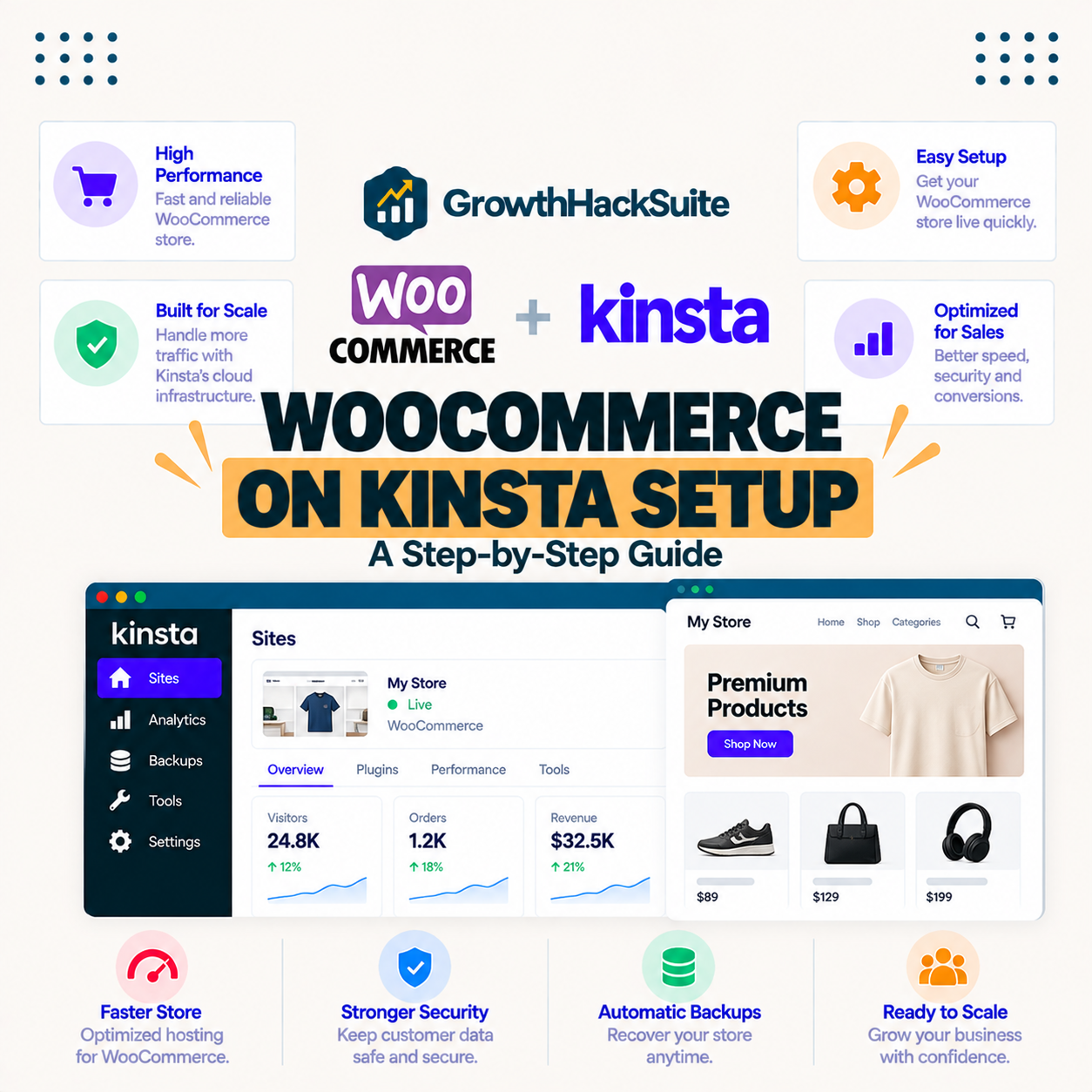
Setting up WooCommerce on Kinsta means installing WordPress and WooCommerce, optionally adding Redis object caching for dynamic pages, and configuring payments and shipping on premium servers built for stores. Kinsta bypasses the cache automatically for cart and checkout, so those pages stay live. This guide shows how to set up WooCommerce on Kinsta for a fast, stable store.
Last updated: August 2026. Setup and pricing details were read from kinsta.com. This page carries affiliate links to Kinsta, so one cost is flagged plainly: Redis object caching is an optional paid add-on, not a default feature.
Can You Run WooCommerce on Kinsta?
Yes, you can run WooCommerce on Kinsta, and it is well suited to it because isolated premium resources and a CDN keep cart and checkout fast under sales traffic. Kinsta is built for dynamic sites and bypasses caching for checkout automatically, so a properly configured store stays quick and stable.
Verdict: Kinsta runs WooCommerce well because it isolates each site on premium Google Cloud resources, bypasses caching for cart and checkout automatically, and serves product pages from a Cloudflare CDN. Plans start at 35 dollars a month. Two honest points: Redis object caching is a paid 100-dollar-a-month add-on, not a default, and Kinsta is best justified once a store earns real revenue rather than at day one.
In short, WooCommerce belongs on a host built for dynamic traffic, and the sections below cover installing the store, the caching that matters, and what it costs.
What You Need to Set Up a WooCommerce Store
To set up a WooCommerce store on Kinsta you need a Kinsta plan, a WordPress install, the WooCommerce plugin, a theme, and your product, payment and shipping details. Kinsta handles the server side, so the focus is installing WooCommerce and configuring the store itself.
“WordPress is a web content management system.”
— Wikipedia, WordPress
Because WooCommerce is a WordPress plugin, the store runs on the same platform Kinsta is optimized for, which is why the hosting layer needs no special configuration beyond enabling the right caching.
How to Set Up WooCommerce on Kinsta Step by Step
To set up WooCommerce on Kinsta, install WordPress from MyKinsta, add and activate the WooCommerce plugin, run its setup wizard to configure store details, payments and shipping, then add products. Add Redis object caching if the store grows busy, and the store is ready to sell.
- Install WordPress: Create the site in MyKinsta, which provisions a WordPress environment in minutes.
- Add WooCommerce: Install and activate the free WooCommerce plugin from the WordPress dashboard.
- Run the setup wizard: Follow the guided wizard to set store details, currency, payments and shipping.
- Add products: Create product pages with images, prices and stock for the catalog.
- Test an order: Place a sample order to confirm checkout, payment and order emails all work.
The honest point is that the store setup is standard WooCommerce; Kinsta’s role is the fast, isolated server underneath it.
How to Enable Object Caching for Your Store
Enable Redis object caching in MyKinsta as a paid add-on so WooCommerce’s dynamic cart, account and checkout pages stay fast, since page caching alone cannot cache them. Object caching stores database query results, which helps a busy store during heavy shopping and checkout, though small stores may not need it yet.
The honest caveat is that Redis costs 100 dollars a month per site on Kinsta, so it is worth adding once query load is genuinely high rather than by default on a new store.
How to Configure Payments and Shipping
Configure payments in WooCommerce by adding gateways like Stripe or PayPal and entering credentials, then set shipping zones and rates for the regions served. Kinsta’s free SSL secures the checkout over HTTPS, and a sample order confirms payment and order emails work before opening the store.
The practical takeaway is that payments and shipping live inside WooCommerce, while Kinsta simply provides the secure, fast environment they run in.
WooCommerce Setup Steps on Kinsta Compared
The WooCommerce setup on Kinsta breaks into five clear steps, from installing WordPress to testing an order. Laying them out shows where Kinsta does the work and where the store owner configures WooCommerce itself.
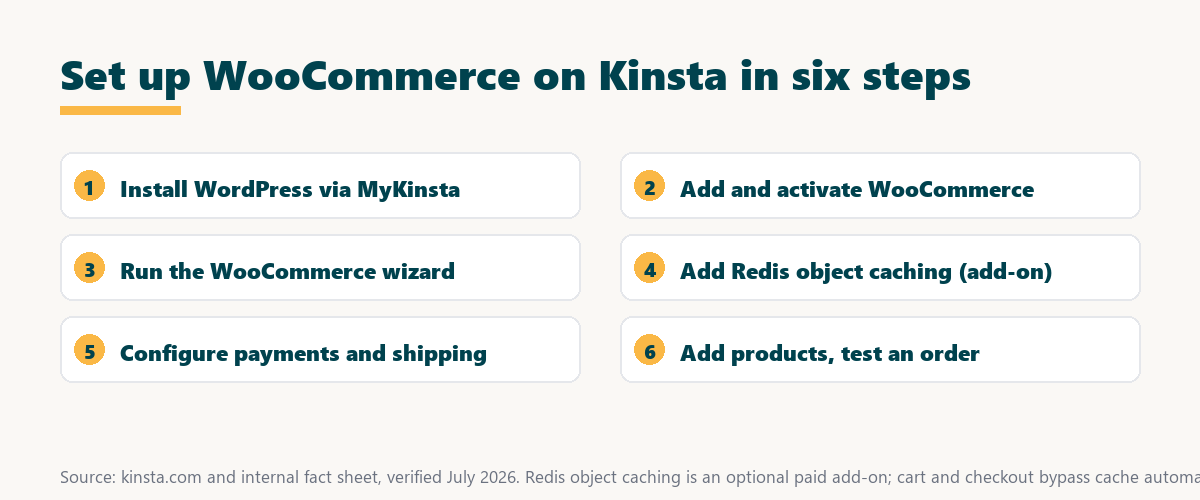
Source: kinsta.com and kinsta.com/plans, verified August 2026. WooCommerce is free; Redis object caching is a paid Kinsta add-on.
In plain terms, install WordPress and WooCommerce, run the wizard, add object caching only if traffic warrants it, add products, and test an order to confirm a fast, working store.
Run a WooCommerce store on servers built for it
See Kinsta Plans →Isolated premium resources and free migration, with a 30-day money-back guarantee.
How to Keep Checkout Fast Under Sales Traffic
Keep checkout fast under sales traffic by relying on Kinsta’s isolated premium resources, optimizing images and limiting heavy plugins, plus object caching for high query loads. Kinsta’s infrastructure absorbs spikes, so with lean configuration a store stays quick even during busy promotions and flash sales.
- Isolated resources: Each site runs in its own container, so a neighbour’s traffic never slows the store’s checkout.
- Image optimization: Compressed product images cut page weight, keeping category and product pages fast to load.
- Lean plugin set: Fewer, well-chosen plugins reduce the code that runs on every dynamic request.
- Object caching: Redis stores repeated database queries, easing load on a store with heavy checkout traffic.
- Edge caching: The Cloudflare CDN serves cacheable product pages from locations near each shopper.
The honest takeaway is that fast checkout comes from lean configuration plus Kinsta’s resources, with object caching reserved for stores whose query load justifies the add-on.
How to Verify Your Store Works Correctly
Verify the store by placing a test order to confirm cart, checkout, payment and confirmation emails all work, then check that product pages and images load fast. Running a speed test on key pages confirms performance before driving customers to the store.
“The first five seconds of page-load time have the highest impact on conversion rates.”
— HubSpot, page load time and conversion rates
Because those first seconds decide conversions, verifying speed and a working checkout before launch protects the sales the whole store depends on.
How Much Does WooCommerce Hosting on Kinsta Cost?
WooCommerce hosting on Kinsta starts at 35 dollars a month for the entry single-site plan, which suits small stores, with higher tiers for busier shops needing more visits and resources. Annual billing gives two months free, and Redis object caching is an optional 100-dollar-a-month add-on.
Source: kinsta.com pricing and kinsta.com/plans, verified August 2026. Redis object caching is a paid add-on; Enterprise pricing is custom.
Put simply, match the plan to the store’s traffic, start on the entry or mid tier for most shops, and add object caching only when checkout query load justifies the extra cost. Store owners weighing platform commitment can read our note on SaaS vendor lock-in first.
How to Get Started With WooCommerce on Kinsta
To get started, sign up for Kinsta, install WordPress and WooCommerce, run the setup wizard, add object caching if needed and add products. Free migration moves an existing store, and the 30-day money-back guarantee lets a first-time customer benchmark checkout speed before committing.
- Sign up for Kinsta: Choose a plan sized to the store’s expected traffic.
- Install the store: Add WordPress and the WooCommerce plugin from MyKinsta.
- Run the wizard: Configure store details, payments and shipping in WooCommerce.
- Migrate if needed: Use free migration to move an existing store’s products and orders.
- Benchmark and launch: Test checkout speed within 30 days, then point DNS to go live.
Benchmark your store’s checkout risk-free
Get Started With Kinsta →Free migration and a 30-day money-back guarantee.
How to Protect a WooCommerce Store on Kinsta
Protect a WooCommerce store on Kinsta with frequent backups, staging tests and the platform’s built-in security, so orders and data stay safe. Daily backups are included, more frequent backup add-ons capture recent orders, and staging lets updates be tested before they touch the live store.
- Frequent backups: A more frequent backup add-on captures recent orders often, reducing data loss risk on a busy store.
- Staging tests: A staging copy lets plugin and theme updates be verified before they reach the live checkout.
- Built-in firewall: The Cloudflare enterprise firewall and DDoS protection filter malicious traffic before it reaches the store.
- Free SSL: Managed wildcard SSL keeps the checkout encrypted, which is required for taking card payments.
- Malware removal: Free hack and malware removal restores a compromised store without an extra security bill.
The honest takeaway is that layered backups, staging and platform security together make a store recoverable and hard to break, which matters most once real orders flow.
Keep your store fast, backed up and secure
Try Kinsta Risk-Free →Daily backups, free SSL and malware removal, with a 30-day money-back guarantee.
What Plugins Help a WooCommerce Store on Kinsta?
Useful plugins for a Kinsta WooCommerce store include a payment gateway, an image optimizer and essential store extensions, kept to a minimum for speed. Kinsta handles caching and the CDN at the server level, so heavy caching plugins are unnecessary and can even conflict with the platform.
The honest qualifier is that fewer plugins mean faster, more stable checkout, so a lean set beats installing every popular WooCommerce extension.
Is Kinsta Worth It for a WooCommerce Store?
Kinsta is worth it for a WooCommerce store that earns real revenue, since fast, stable checkout protects sales and reduces cart abandonment beyond the price. For a brand-new store with little traffic, a cheaper host may suffice until sales grow enough to justify Kinsta’s premium tier.
“A tool is only worth its premium when the hours or revenue it protects exceed the invoice.”
— Growth Hack Suite, on tool ROI
Since a store’s revenue depends on checkout that never stalls, Kinsta earns its premium once sales are high enough that lost conversions would cost more than the plan.
WooCommerce on Kinsta: Frequently Asked Questions
The 12 most-asked questions about running WooCommerce on Kinsta.
How do I set up WooCommerce on Kinsta?
On Kinsta you install WordPress from MyKinsta, add the WooCommerce plugin, run its setup wizard for store details and payments, and rely on Kinsta’s resources to keep the store fast.
Does Kinsta support WooCommerce well?
Yes, Kinsta suits WooCommerce because isolated Google Cloud resources and edge caching keep product and checkout pages fast even under load, which stores need for conversions.
How does Kinsta handle WooCommerce caching?
Kinsta automatically bypasses caching for dynamic WooCommerce pages like cart and checkout while caching product and category pages, so the store stays both fast and functional.
Do I need object caching for WooCommerce on Kinsta?
Object caching helps WooCommerce by storing database query results, and Kinsta supports Redis-based object caching as a paid add-on to speed up dynamic store operations under heavy load.
Which Kinsta plan is best for WooCommerce?
For WooCommerce on Kinsta, plan on at least a mid tier once traffic grows, since dynamic checkout cannot be cached and needs the extra resources and visit allowance those plans provide.
How do I keep WooCommerce orders safe on Kinsta?
Add Kinsta’s more frequent backup add-on for a busy store so recent orders are captured often, and use staging to test plugin updates before applying them to the live store.
Can I migrate an existing WooCommerce store to Kinsta?
Existing stores move to Kinsta through its free migration, which transfers products, orders and customers, with expert handling available for large or complex catalogs.
How do I test WooCommerce changes before going live on Kinsta?
Create a Kinsta staging copy, apply theme, plugin or WooCommerce updates there, confirm checkout still works, then push the verified changes to the live store.
Does Kinsta speed up a slow WooCommerce checkout?
Kinsta improves checkout speed through premium compute machines and isolated resources, so the dynamic, uncacheable checkout process runs faster than on shared hosting.
What payment setup do I need for WooCommerce on Kinsta?
WooCommerce payment gateways are configured within the plugin itself, and Kinsta’s free SSL ensures the checkout is served securely over HTTPS as required for taking payments.
Can Kinsta handle a high-traffic WooCommerce sale?
Yes, isolated resources and edge caching help a WooCommerce store absorb sale-day spikes, and choosing a plan sized to the expected traffic keeps checkout responsive under load.
What should I do after setting up WooCommerce on Kinsta?
After setup, test checkout on staging, add object and frequent backups if needed, choose a nearby data center, and point the domain’s DNS to Kinsta to go live.
About this guide
Written by the Growth Hack Suite editorial team, drawing on hands-on experience running WooCommerce stores on managed hosting. Setup and pricing details were read from kinsta.com. This page carries affiliate links to Kinsta, so the costs are stated plainly: plans start at 35 dollars a month, WooCommerce and free SSL are included, Kinsta bypasses caching for cart and checkout automatically, and Redis object caching is an optional 100-dollar-a-month add-on rather than a default. Kinsta is best justified once a store earns real revenue and fast, stable checkout protects more sales than the plan costs.