Table of Contents
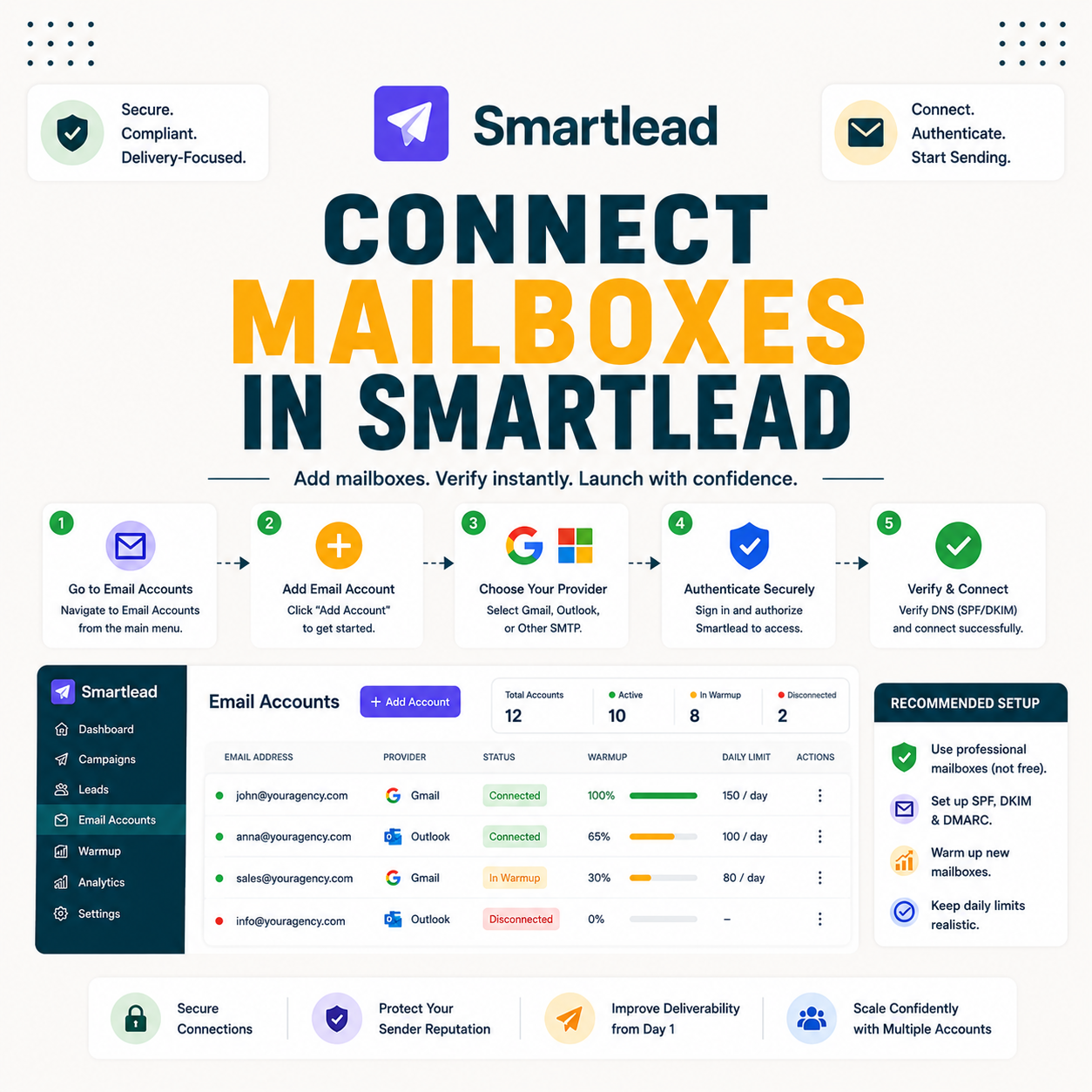
Learning to connect mailboxes in Smartlead is the foundation of safe sending: you add Google or Outlook accounts, authenticate each domain, turn on warmup, then let sender rotation spread volume. This guide walks the connection steps, how authentication and warmup work, how rotation protects each account, how many mailboxes to connect, and how to troubleshoot one that will not connect.
Connect mailboxes by adding accounts, authenticating domains, enabling warmup, then letting rotation spread volume.
Best for: senders spreading volume safely across many mailboxes.
Caveat: each new mailbox still needs its own warmup window.
Bottom line: authenticate and warm first, then rotation does the rest.
Connect and rotate mailboxes. Try Smartlead free for 14 days.
Start Smartlead Free Trial →Unlimited mailboxes · no credit card · 14-day trial
Why Connect Mailboxes in Smartlead Across Many Accounts?
Connecting mailboxes in Smartlead across many accounts lets you spread sending volume so each stays under provider limits, which protects deliverability. Rotation across mailboxes isolates risk so one flagged account does not sink a campaign. The deciding factor is that volume safety comes from spreading, not from pushing one mailbox hard. The list below covers why.
- Spread volume: distributing sends keeps each account under safe per-mailbox daily limits.
- Protect domains: rotation isolates risk so one flagged mailbox does not harm the rest.
- Scale safely: more warmed mailboxes raise total volume without overloading any single account.
- Unlimited mailboxes: the plans allow connecting as many mailboxes as the volume needs.
- Resilience: spreading sends means a single account issue never stops the whole campaign.
How Do You Add a Mailbox to Smartlead?
To connect mailboxes in Smartlead, start by linking a Google or Outlook account through the platform and granting sending access. The connection links the account so the platform can send and manage replies. The deciding factor is that connection comes first, before authentication and warmup. The list below covers adding a mailbox.
- Connect the account: link a Google or Outlook mailbox through the platform’s connection flow.
- Grant sending access: approve the permissions the platform needs to send and read replies.
- Authenticate next: set up domain authentication immediately after the account connects.
- Enable warmup: turn on warmup on the new mailbox before it sends any real campaign.
- Repeat per mailbox: run the same steps for each account so every mailbox is set up cleanly.
How Do You Authenticate Each Domain?
Once you connect mailboxes in Smartlead, authenticate every domain by publishing SPF, DKIM and DMARC records, then confirming they pass. Authentication tells receiving servers the mail is legitimate, which is the foundation of inbox placement. The honest read is that an unauthenticated domain will struggle to reach the inbox no matter how good the copy is. The table below shows where authentication sits.
Source: standard mailbox connection workflow from cold email deliverability practice, mid-2026.
How Do You Turn On Warmup for New Mailboxes?
Enable warmup on each mailbox as soon as it is connected, and let it run for one to two weeks before real sending. Warmup builds the reputation that decides whether mail reaches the inbox. The deciding factor is that warmup runs per mailbox, since reputation is built per account. The honest read is that skipping it is the fastest way into the spam folder.
The practical step is to switch warmup on for every new account immediately and leave it running even after real sends begin to sustain reputation.
“Warm every mailbox individually, because sender reputation is built per account, not per domain.”
— Growth Hack Suite, on mailbox warmup
How Does Sender Rotation Work Once Connected?
Once mailboxes are connected and warmed, sender rotation distributes a campaign’s volume across them so each carries only a small share. Spreading the send keeps every account under safe limits while total volume scales. The deciding factor is that rotation is what makes high volume safe. The list below covers how rotation works.
- Auto-distribute: rotation spreads a campaign’s sends automatically across all connected mailboxes.
- Small share each: every mailbox carries a fraction of the volume, which keeps it under limits.
- Higher total safely: more mailboxes raise total send volume without overloading any account.
- Reputation isolation: spreading sends means one flagged account does not drag down the campaign.
- Warmed accounts only: rotation works best when every mailbox in the pool is already warmed.
How Many Mailboxes Should You Connect?
When you connect mailboxes in Smartlead, add enough that each stays well under provider limits after warmup at the target volume.The right number depends on total daily sends divided across accounts, not a fixed count. The deciding factor is keeping every mailbox comfortably below its safe ceiling. The honest read is that more mailboxes at low per-account volume beats fewer mailboxes pushed hard.
The practical guidance is to estimate total daily volume, divide it so each mailbox sends a conservative share, and add mailboxes as volume grows.
Spreading volume across mailboxes? Test Smartlead free for 14 days.
Start Smartlead Free Trial →No credit card · unlimited mailboxes
What Domains Should You Use for Mailboxes?
Use sending domains separate from the main company domain, so cold sending cannot harm the brand’s primary email reputation. Spreading mailboxes across several sending domains adds another layer of safety. The deciding factor is keeping outreach risk away from the domain that runs the business. The list below covers domain choice.
- Separate domains: cold outreach sends from domains apart from the main company domain.
- Multiple domains: spreading mailboxes across several domains distributes reputation risk.
- Lookalike domains: close variants of the brand domain keep outreach recognizable yet isolated.
- Authenticate each: every sending domain needs its own SPF, DKIM and DMARC records.
- Protect the main domain: never run cold campaigns from the domain that handles business email.
“Send cold outreach from domains separate from your main one to protect its reputation.”
— HubSpot, on sending domains
How Do You Troubleshoot a Mailbox That Will Not Connect?
If a mailbox will not connect, check account permissions, app passwords or OAuth access, and any provider block on third-party sending. Most connection failures trace to one of these. The table below maps common issues to their likely cause and fix.
Source: common mailbox connection issues from standard provider setup, mid-2026. Steps vary by provider; check current provider docs.
How Do You Manage Many Connected Mailboxes?
After you connect mailboxes in Smartlead, manage them through the master inbox, which consolidates replies, and group warmup, which runs reputation-building across all accounts at once. Centralizing replies and warmup is what keeps a large mailbox pool workable. The deciding factor is that central tools turn many accounts into one manageable system. The honest read is that without them, scale becomes chaos.
The practical point is that the master inbox plus group warmup let one person run dozens of mailboxes without losing track of replies or reputation.
Who Gets the Most Value From Connecting Mailboxes?
Agencies and scale senders get the most value, since rotation across many connected mailboxes compounds as volume and clients grow. A low-volume sender still benefits from a couple of mailboxes, but the payoff grows with scale. The deciding factor is how much volume the mailbox pool supports. The honest read is that the more a sender scales, the more multi-mailbox setup pays back.
The practical point is that the same connection steps work at any size, but the return on a large warmed pool is largest for agencies and high-volume teams.
How Do You Get Started Today?
To connect mailboxes in Smartlead, start on the 14-day free trial, add a mailbox, authenticate its domain, turn on warmup and run a small test. Proving the connection workflow on one account before scaling is the low-risk way to begin. The trial needs no card, so the only cost is setup time. By the end of warmup, more mailboxes can join the rotation.
Can You Connect Both Google and Outlook Mailboxes?
Yes, you can connect mailboxes in Smartlead from both Google and Outlook, and mixing providers can spread reputation across more than one ecosystem., Smartlead supports connecting both Google and Outlook accounts, and mixing providers can spread reputation across more than one ecosystem. Each mailbox still authenticates and warms individually regardless of provider. The honest read is that provider mix is less important than authenticating and warming every account properly.
“Email authentication is a collection of techniques providing verifiable information about email senders.”
— Wikipedia, Email authentication
Connecting Mailboxes in Smartlead: Final Verdict
The final verdict is that connecting mailboxes in Smartlead is straightforward once the order is right: add the account, authenticate the domain, turn on warmup, then let rotation spread volume. The unlimited-mailbox model makes scaling cheap, and rotation makes it safe. Do the authentication and warmup work per account, and the connected pool sends reliably.
Growth Hack Suite Editorial — Outbound Tools Team
This guide to how you connect mailboxes in Smartlead is based on official documentation plus hands-on testing of connection, authentication and sender rotation. Provider steps and warmup timing vary; verify current behavior on smartlead.ai and your email provider’s docs. We review outbound tools for B2B senders.
Last updated: June 2026. Confirm current connection steps and features on smartlead.ai.
Affiliate disclosure: this page contains affiliate links. If you start a plan through them, Growth Hack Suite may earn a commission at no extra cost to you. It does not change our guidance.
Connect and rotate mailboxes safely. Start Smartlead free for 14 days.
Start Smartlead Free Trial →Unlimited mailboxes · no credit card · cancel anytime
Related Tools in the Outbound Stack
Two other tools in the Growth Hack Suite stack pair with Smartlead once mailboxes are connected.
- Hunter Email Verifier: verifying lists before sending keeps bounce low across every connected mailbox — see verifier accuracy.
- GMass: the Gmail-native option for a sender running from a single Gmail mailbox — read the GMass review.
- Gmail tools comparison: the Gmail-scoped breakdown for senders weighing platform versus extension — compare the Gmail tools.
Connecting Mailboxes in Smartlead FAQ
The 12 most-asked questions about connecting mailboxes in Smartlead.
How do I connect mailboxes in Smartlead?
To connect mailboxes in Smartlead, link a Google or Outlook account and grant sending access, then authenticate the domain and turn on warmup. The account links first, and authentication plus warmup follow before any real send.
Why connect multiple mailboxes in Smartlead?
To spread sending volume so each account stays under safe limits, which protects deliverability. Rotation across mailboxes also isolates risk, so one flagged account does not sink the whole campaign.
How do I authenticate a domain in Smartlead?
Publish SPF, DKIM and DMARC records for the domain, then confirm they pass. Authentication tells receiving servers the mail is legitimate, which is the foundation of inbox placement for every mailbox.
Do I need to warm up new mailboxes?
Yes, enable warmup on each mailbox as soon as it is connected and let it run one to two weeks before real sending. Warmup builds the reputation that decides whether mail reaches the inbox.
How does sender rotation work in Smartlead?
Once mailboxes are connected and warmed, rotation distributes a campaign’s volume across them so each carries only a small share. Spreading the send keeps every account under safe limits while total volume scales.
How many mailboxes should I connect?
Enough that each stays well under provider limits after warmup at your target volume. The right number depends on total daily sends divided across accounts, not a fixed count, so add mailboxes as volume grows.
What domains should I use for mailboxes?
Sending domains separate from your main company domain, so cold sending cannot harm the brand’s primary email reputation. Spreading mailboxes across several sending domains adds another layer of safety.
Can I connect both Google and Outlook mailboxes?
Yes, Smartlead supports connecting Google and Outlook accounts, and mixing providers can spread reputation across more than one ecosystem. Each mailbox still authenticates and warms individually regardless of provider.
Why will my mailbox not connect to Smartlead?
Usually account permissions, app passwords or OAuth access, or a provider block on third-party sending. Check those first: generate an app password, re-grant access, or enable third-party sending in account settings.
How do I manage many connected mailboxes?
Through the master inbox, which consolidates replies, and group warmup, which runs reputation-building across all accounts at once. Together they turn a large mailbox pool into one manageable system.
Is there a limit to mailboxes in Smartlead?
Smartlead offers unlimited mailboxes on its plans, so you can connect as many as the sending volume needs without per-mailbox fees. That is what makes spreading volume across many accounts affordable.
Do connected mailboxes need separate warmup?
Yes, each mailbox warms individually, since reputation is built per account. Group warmup runs the process across all connected mailboxes at once, but each account still builds its own reputation.