Table of Contents
A child theme is a WordPress theme that inherits the design and features of a parent theme while letting you customize it separately. Because your changes live in the child, they survive updates to the parent, so this approach is the safe way to modify a theme’s code and styling without losing work. This guide explains what a child theme is and when to use one.
Last updated: August 2026. Written by the Growth Hack Suite editorial team, with details cross-checked against provider documentation. This page carries affiliate links to Kinsta.
See how Kinsta supports theme development on Google Cloud
Try Kinsta →Staging and local development with DevKinsta, and a 30-day money-back guarantee.
What Is a Child Theme?
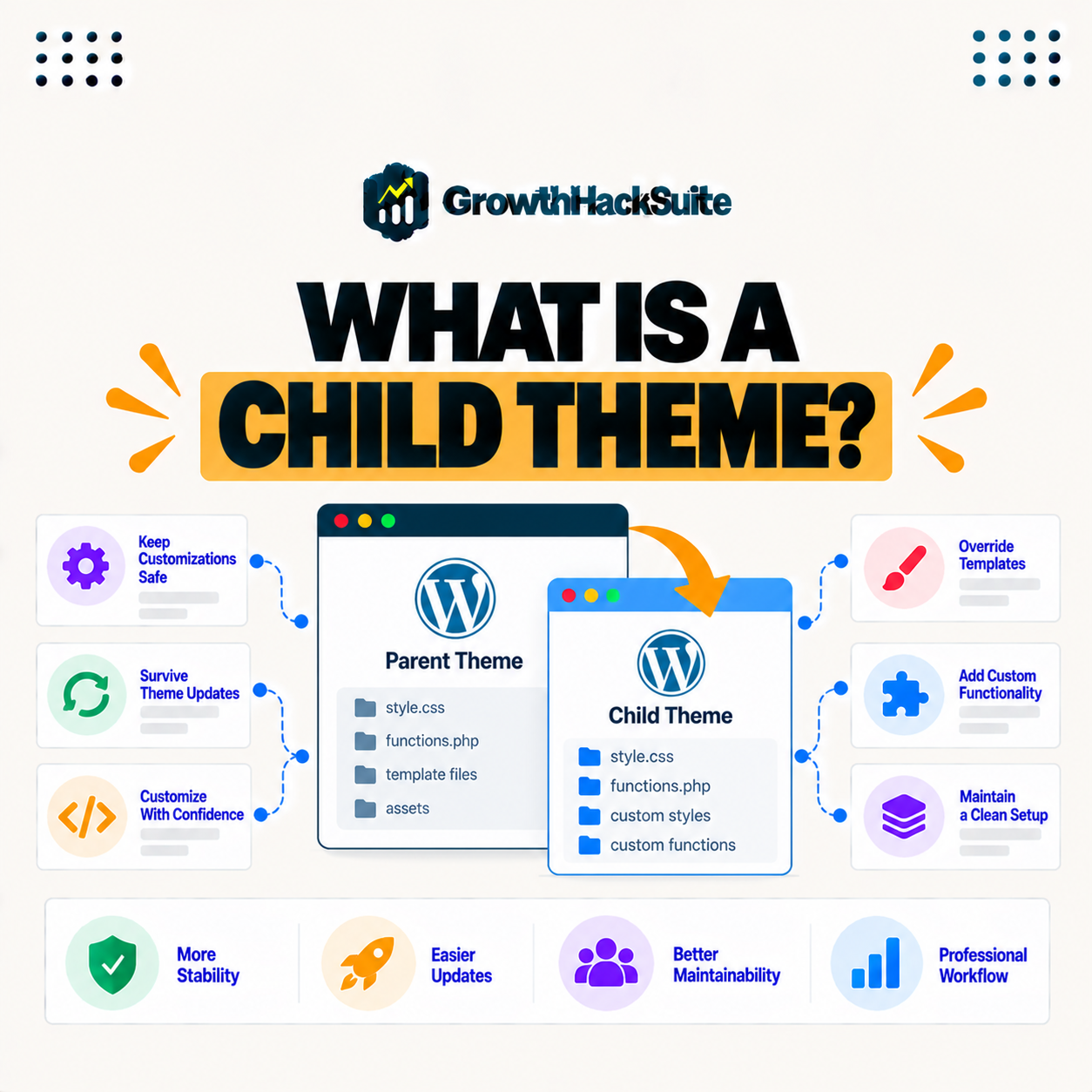
A child theme is a WordPress theme that inherits the design, features, and functionality of a parent theme while letting you make customizations separately, so you can change styling and code in the child without editing the parent directly. It builds on the parent rather than replacing it.
“In computing, a theme is a preset package of graphical appearance details.”
— Wikipedia, Theme (computing)
A child theme takes that packaged appearance from the parent and lets you adjust it safely, keeping your own version separate from the original.
How Does Theme Inheritance Work?
A child theme works by referencing its parent theme, so WordPress loads the parent’s files and then applies the child’s overrides, meaning your custom styles and functions in the child take precedence while the parent provides the rest. The two themes act as one, with the child on top.
The key mechanism is inheritance and override: the parent supplies everything, and the child quietly replaces only the parts you choose to change.
Why Keep Customizations Separate?
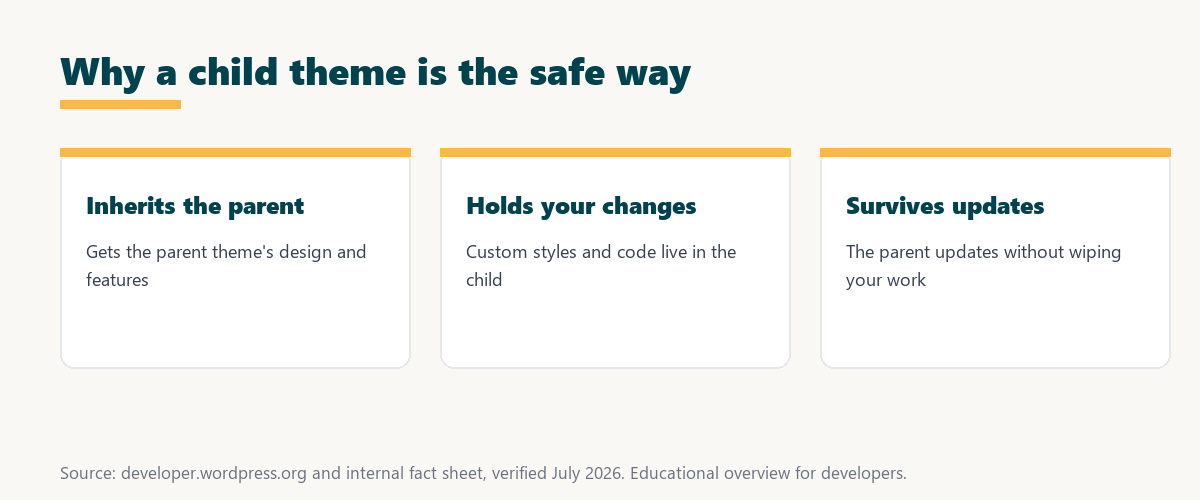
You use a child theme because it keeps your customizations separate from the parent, so when the parent theme is updated, your changes are not overwritten. This is the main reason developers never edit a parent theme directly, since an update would erase that work instantly.
The takeaway is simple: a child theme is insurance for your customizations, keeping them safe every time the parent theme updates.
Editing the Parent Theme vs Customizing Separately
Editing a parent theme directly means updates overwrite your changes, while a child theme stores changes separately so they survive updates, so it is the safe approach whenever you customize a theme you will keep updated. The difference comes down to whether your work lasts.
Source: general overview cross-checked with public WordPress theme documentation, verified August 2026.
Reading down the table, the child theme wins on every safety measure: changes survive updates, live separately, and can be undone, while editing the parent risks losing everything.
What Can You Customize Safely?
In a child theme you can override styles, templates, and functions, so you can change the design, adjust layouts, and add custom functionality, all while inheriting everything you do not override from the parent theme. The child is where all your intentional changes belong.
Five kinds of change cover almost everything it is used for:
- Styles: The child’s stylesheet overrides the parent’s CSS, so colors, fonts, spacing and other visual details change without touching the original design.
- Templates: Copying a parent template into the child and editing it changes layout and structure for specific pages while the parent handles the rest.
- Functions: The child’s functions file adds or adjusts behavior, so custom features and tweaks load alongside the parent without altering its code.
- Enqueued assets: The child can load extra stylesheets, scripts and fonts, so new assets attach to the site without changing the parent theme’s own files.
- Template parts: Individual template parts, like a header or footer section, can be overridden in the child, so specific pieces of the layout change while the rest stays inherited.
Together, styles, templates and functions give it full reach over design, layout and behavior, all inherited safely from the parent.
When Should You Use a Child Theme?
You should use a child theme whenever you plan to customize a theme you will keep updated, so for anything beyond minor tweaks through the customizer, a child theme protects your work from being lost on the next parent update. It is the default choice for lasting changes.
“The first five seconds of page-load time have the highest impact on conversion rates.”
— HubSpot, page load time and conversion rates
Maintaining a professional site means keeping it both current and customized, and this setup makes that possible: updates keep it fast and secure while your design changes stay intact.
Does It Affect Site Performance?
Child themes have negligible performance impact, since they load alongside the parent with only your overrides added, so the small extra step of loading the child does not meaningfully slow a well-built site. Good hosting and clean code matter far more to speed.
The honest point is that they are not a performance concern: any effect is tiny, and the safety they add is well worth it.
How Do You Create a Child Theme?
You create a child theme by making a new theme folder with a stylesheet that references the parent and a functions file, or by using a child-theme generator, so it is a small setup that then lets you customize safely. Once created, it activates like any other theme.
Source: general overview cross-checked with public WordPress theme documentation, verified August 2026.
Reading the table together, it lets you change style, layout and behavior while inheriting everything else, which is exactly why it is the safe way to customize.
How Local Development Helps With Theme Work
Local development helps with this work by letting you build and test customizations on your machine before going live, so a tool like DevKinsta lets you develop the child locally, then push tested changes to staging and live. Mistakes stay off the public site.
Build and test child themes on Kinsta’s Google Cloud platform
Start Free Migration →Staging and DevKinsta local development, with free migration.
Customizing WordPress Safely
You customize WordPress safely by using a child theme for code and style changes and testing on staging, so with local development and a managed host, your customizations survive updates and never break the live site. Safe customization is a workflow, not a single step.
The takeaway is that this approach plus a staging environment is the standard safe workflow: change in the child, test on staging, then ship. For anyone weighing a long hosting commitment, our note on SaaS vendor lock-in is worth a read.
Theme Updates and Your Customizations
Theme updates and customizations work together, because keeping customizations in the child lets you update the parent theme for security and features without losing your changes, so you stay current and customized at the same time. Updates stop being a threat to your work.
“A tool is only worth its premium when the hours or revenue it protects exceed the invoice.”
— Growth Hack Suite, on tool ROI
Applied here, the value is obvious: the small effort of setting one up saves the hours you would lose rebuilding customizations after every parent update.
Are They Still Relevant in Modern WordPress?
Child themes remain relevant in modern WordPress, because even as block themes and the site editor grow, developers still use them to hold custom code, templates, and styles that should survive parent updates. The principle of separating your changes has not changed.
The honest summary is that they still earn their place: whatever the theme style, keeping customizations separate from the parent remains the safe, sensible default.
Try Kinsta risk-free with staging and local development
Try Kinsta Risk-Free →Staging, DevKinsta and free migration, with a 30-day money-back guarantee.
Child Themes: Frequently Asked Questions
The 12 most-asked questions about WordPress child themes.
What is a child theme in simple terms?
A child theme is a WordPress theme that inherits a parent theme’s design while letting you customize separately, so your changes survive updates to the parent theme.
How does a child theme work?
A child theme references its parent, so WordPress loads the parent’s files and applies the child’s overrides, meaning your custom styles and functions take precedence over the parent.
Why should I use a child theme?
You use a child theme so your customizations stay separate from the parent, and when the parent updates, your changes are not overwritten, which protects your work.
What is the difference between a child and parent theme?
The parent theme provides the base design and features, while the child theme inherits them and holds your customizations, so changes live safely in the child.
What can I customize in a child theme?
In a child theme you can override styles, templates, and functions, so you change the design, adjust layouts, and add functionality while inheriting the rest from the parent.
When should I use a child theme?
You should use a child theme whenever you customize a theme you will keep updated, so anything beyond minor customizer tweaks belongs in a child theme to protect your work.
Do child themes slow down my site?
Child themes have negligible performance impact, since they load alongside the parent with only your overrides added, so they do not meaningfully slow a well-built site.
How do I create a child theme?
You create one by making a new theme folder with a stylesheet referencing the parent and a functions file, or by using a child-theme generator, then customizing safely.
What happens if I edit the parent theme instead?
If you edit the parent theme directly, updates overwrite your changes, so you lose your work, which is why a child theme is the recommended safe approach.
Do I need a child theme for small changes?
For tiny tweaks the customizer or a custom CSS option may suffice, but for code or template changes you plan to keep, a child theme protects them from updates.
Can I test a child theme before going live?
Yes, you can build and test a child theme locally with a tool like DevKinsta or on staging, then push the tested changes to live once they work correctly.
Does a child theme survive parent updates?
Yes, that is the point of a child theme, because your customizations live in the child, so updating the parent for security and features does not overwrite them.
About this guide
Written by the Growth Hack Suite editorial team, drawing on hands-on experience running WordPress sites. Details were cross-checked against public WordPress theme documentation. This page carries affiliate links to Kinsta. The position is stated plainly: a child theme inherits a parent theme’s design while holding your customizations separately, so they survive parent updates. Kinsta supports safe theme development with staging and DevKinsta for local work before pushing changes live.