Table of Contents
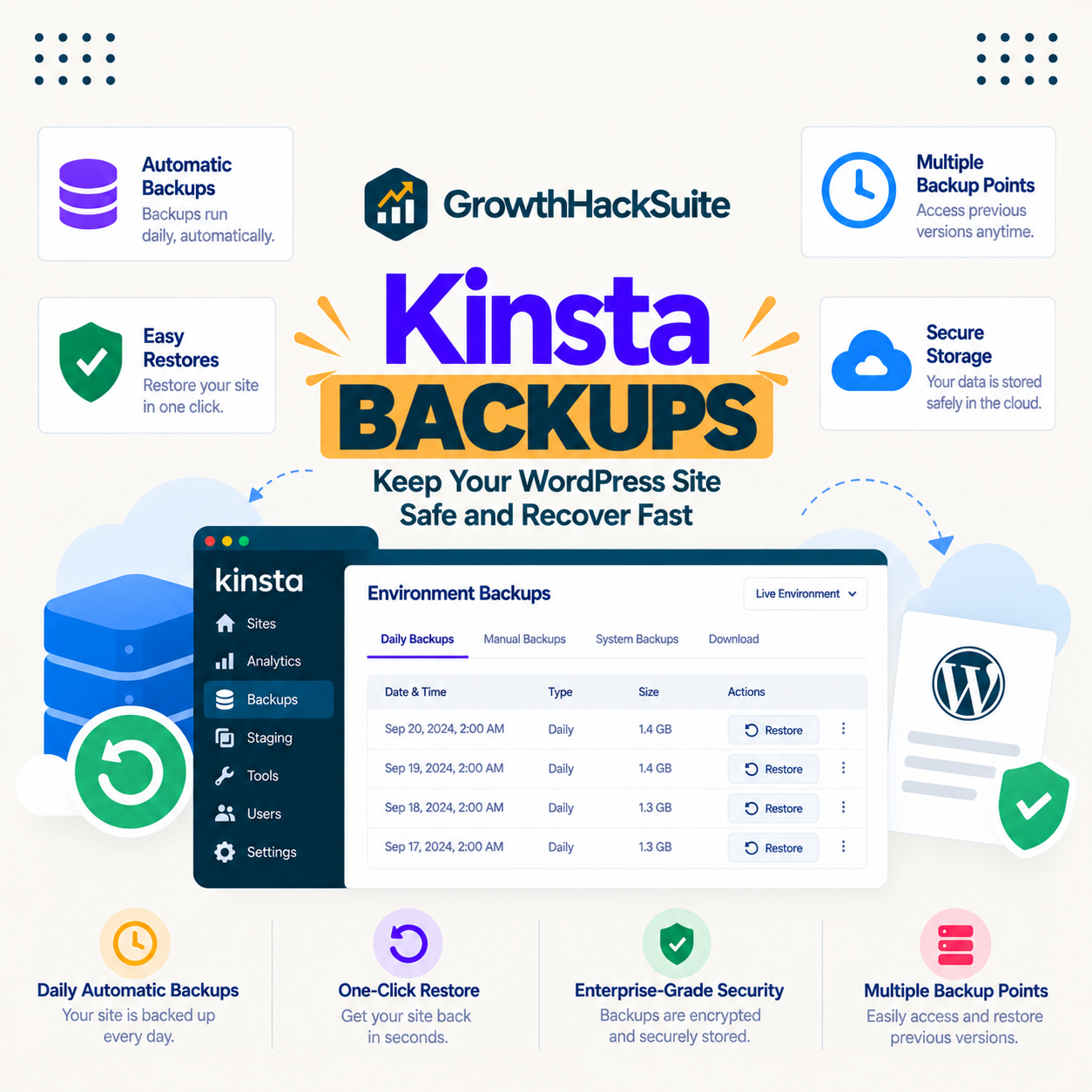
Kinsta Backups automatically save a daily copy of your site plus manual and system restore points, and a one-click restore brings the site back if something breaks. Two honest details decide how much they protect you: daily copies leave a gap of up to a day, and the standard retention is 14 days, so anything older than that is gone unless you have kept it elsewhere.
Last updated: August 2026. Feature and pricing details were read from kinsta.com. This page carries affiliate links to Kinsta, and it is clear about the backup gap and the retention window rather than leaving them out.
What Are Kinsta Backups?
They are automatic copies of a site’s files and database, taken daily, alongside manual backups you trigger, system backups Kinsta makes before major actions, and downloadable copies. A one-click restore returns the site to any available restore point.
Verdict: Daily automatic backups, manual and system restore points, and one-click restore are included on every plan, with 14 days of retention on standard tiers. The honest limits: a daily backup can miss up to a day of data, denser six-hourly or hourly backups are paid add-ons, and anything older than the retention window is gone unless downloaded. For a store, keeping an off-site copy is worth the extra.
Backups are the recovery layer, separate from staging, which is the testing layer, and understanding the gap and retention is what turns a backup from a comfort into a real safety net.
“WordPress is a web content management system.”
: Wikipedia, WordPress
Because that system stores content in a database that changes continuously, a daily snapshot captures a moment, and the time between snapshots is the data a restore cannot bring back.
How Do Kinsta Backups Work?
By capturing a full daily snapshot of the site automatically, plus creating restore points before major actions and letting you make manual backups on demand. Each restore point can be restored with one click, returning files and database to that moment.
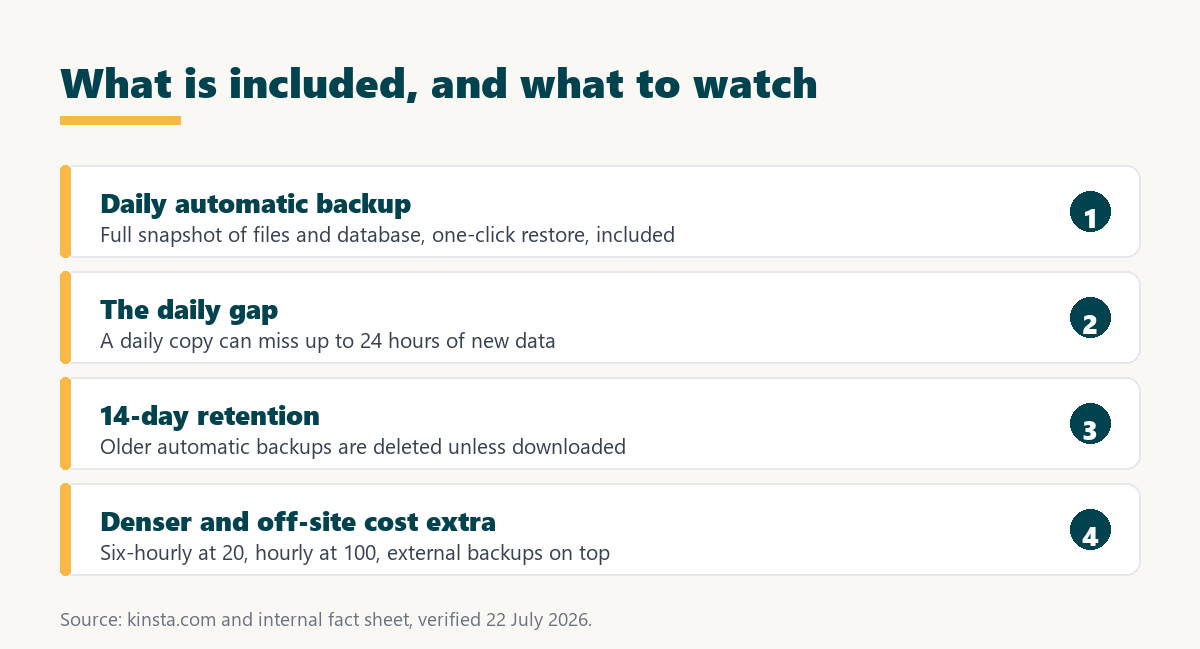
- Daily automatic backup: A full snapshot of files and database is taken once a day without any action, and kept for the retention period.
- System backups: Kinsta creates a restore point before major actions like a push to live, so a risky change has a fallback.
- Manual backups: A backup can be triggered on demand before a change that warrants a fresh restore point.
- Downloadable backups: A backup can be downloaded to keep an off-site copy, which is the way to preserve one beyond the retention window.
- One-click restore: Any available restore point can be restored with a click, returning the site to that moment.
The system is comprehensive for the retention period, and the two things to internalise are that the automatic cadence is daily and the copies live for a set number of days.
What Does a Daily Backup Miss?
Up to a day of changes, because a daily snapshot captures the site once and anything after it is not in that copy. If a problem strikes late in the day, restoring the daily backup rolls back to the morning and loses whatever happened in between.
Source: kinsta.com/plans, verified in August 2026. Denser automatic backups reduce the data gap at an added cost; a manual backup before a risky change is the free way to shrink it.
For a busy store this gap is the important number, because a day of orders is real revenue, which is why six-hourly or hourly backups exist as add-ons and a manual backup before a change is a free habit worth keeping.
How Long Are Backups Kept?
Fourteen days on standard plans, with higher and agency tiers keeping them longer. After the retention window a backup is deleted, so a problem discovered later than that has no automatic restore point to return to.
- Standard retention is 14 days: Automatic backups are kept for two weeks on standard plans, which covers most problems caught reasonably soon.
- Higher tiers keep longer: Larger and agency plans retain backups for a longer window, so the retention scales with the plan.
- Older backups are deleted: Once past the retention window, an automatic backup is gone, so a slow-to-surface problem may find no restore point.
- Download to keep longer: A downloaded backup persists beyond the window, which is the way to archive a specific point for the long term.
- External backups add-on: An external backup add-on stores copies off Kinsta, useful for compliance or disaster recovery beyond the standard window.
The practical takeaway is that automatic backups protect the recent past well, and preserving a point beyond two weeks means downloading it or using the external backup option rather than relying on retention.
What Are the Benefits of Kinsta Backups?
Fast recovery from a mistake, protection against a bad update, and the confidence to make changes knowing a rollback is one click away. For any site, a working backup is the difference between a bad hour and a lost site.
- One-click recovery: A broken update or a bad change is undone by restoring a recent backup, turning a crisis into a quick fix.
- Automatic protection: Daily backups happen without any action, so a site is protected even when nobody remembers to back it up.
- A fallback before risky actions: System backups before major changes mean a risky action always has a restore point behind it.
- Included on every plan: Daily backups and one-click restore come with the plan, so the safety net is standard rather than a paid extra.
- Peace of mind for changes: Knowing a rollback is available makes updating and experimenting less stressful, which encourages keeping a site current.
The honest qualifier is that these benefits are bounded by the daily gap and the retention window, so a backup is excellent within those limits and needs supplementing beyond them.
How Are Backups Different From Staging?
A backup is a restore point to recover from, and staging is a working copy to test on, so they solve different problems and a site needs both. Confusing the two leaves a gap in either testing or recovery.
“a B2B site that loads in 1 second has a conversion rate 3x higher than a site that loads in 5 seconds”
: HubSpot, page load time and conversion rates
The connection is that both protect a fast, working site: staging keeps a broken change off production, and backups recover the site if one slips through, so together they keep the pages that drive conversions reliable.
Daily backups and one-click restore included
See Kinsta Plans →A one-click restore on every plan, with denser and external backups available when a site needs them.
What Backup Types Does Kinsta Provide?
Four kinds, each for a different moment: automatic daily, system before major actions, manual on demand, and downloadable for off-site keeping. Knowing which is which helps a site owner reach for the right one.
Source: kinsta.com and kinsta.com/plans, verified August 2026. All four types are available without a paid add-on; only denser automatic backups and the external backups service cost extra.
The four together cover most recovery needs within the retention window, and the manual and downloadable types are the free tools for shrinking the gap and keeping a copy longer.
Four backup types, one-click restore
View Kinsta Plans →Automatic, system, manual and downloadable backups on every plan, restored with one click.
How Does It Compare to a Typical Host?
Many budget hosts offer backups only on higher tiers, less often, or through a plugin, while Kinsta includes daily automatic backups and one-click restore on every plan. The difference is included, integrated, restorable backups versus a tier-gated or manual approach.
The honest common ground is that a daily cadence and a retention window are typical of managed hosts generally, and the same advice, a manual backup before changes and an off-site copy, applies wherever a site is hosted. Kinsta’s version is well integrated, and its limits are the ordinary limits of daily backups rather than anything unusual.
How Does Restoring a Backup Work?
You select a restore point in MyKinsta and restore it with one click, and Kinsta returns the files and database to that moment. Restoring to live replaces the current site, so anything after the chosen backup is lost, the same overwrite logic as a staging push.
The safe practice is to restore to a staging environment first when unsure, check that the restore point is the right one, and only then restore to live. Because restoring replaces the current state, a restore during a busy period loses any data added since that backup, so timing matters here too.
Should You Keep an Off-Site Backup?
Yes for any site that matters, because Kinsta’s automatic backups live within its own system, and an independent off-site copy protects against the rare case where the primary is unavailable. It is the standard advice for any single backup location, not a doubt about Kinsta specifically.
- Download periodically: A downloaded backup kept elsewhere is a free off-site copy, useful beyond the retention window and independent of the platform.
- Use the external backups add-on: An external backup option stores copies off Kinsta automatically, at 2 dollars per site plus bandwidth, for hands-off off-site protection.
- Match frequency to value: A high-value store keeps more frequent and more redundant copies than a small brochure site, so the strategy scales with what is at risk.
- Test a restore occasionally: A backup is only as good as a tested restore, so confirming a restore works avoids a nasty surprise in a real emergency.
- Follow the three-copy principle: Keeping copies in more than one place is standard practice, and an off-site copy is the piece a single-host backup lacks.
The honest position is that Kinsta’s backups are solid, and an off-site copy is defence-in-depth that any serious site should add rather than a gap unique to Kinsta.
Denser and external backups when a site earns
Compare Kinsta Tiers →Six-hourly at 20 dollars, hourly at 100, and external backups when the data justifies them.
Who Needs More Than Daily Backups?
Stores and high-transaction sites, because a day of lost orders or entries is expensive, so a smaller gap is worth paying for. A content site rarely needs more than daily backups, while a busy store benefits from six-hourly or hourly.
The way to decide is to weigh the cost of the add-on against the cost of losing the data in the gap. For a store taking many orders a day, hourly backups at 100 dollars can be cheaper than losing hours of sales, while for a blog the daily backup is plenty.
How Should a Store Handle Backups?
With a smaller gap and an off-site copy, because a store’s most valuable data, orders, is created continuously and a daily backup can lose a day of it. A store is the clearest case for the denser backup add-ons and an external copy.
The sensible store setup is six-hourly or hourly automatic backups to shrink the order-loss gap, an external backup for off-site safety, and a manual backup before any change to the store. The cost of those is small against the cost of losing hours of orders, which is the calculation a store owner should run rather than defaulting to the included daily backup alone.
How Do You Use Kinsta Backups?
You do not have to set up the daily backup, since it runs automatically, so using backups well is about the habits around them. A few practices make the safety net reliable rather than assumed.
- Take a manual backup before risky changes: A fresh restore point right before an update or a push shrinks the gap to almost nothing for that change.
- Download a copy periodically: Keeping an off-site copy protects against the retention window and against a single location failing.
- Match backup frequency to the site: A busy store justifies denser backups, while a content site is well served by the included daily one.
- Test a restore before an emergency: Restoring to staging occasionally confirms the process works, so a real emergency is not the first attempt.
- Know the retention limit: Automatic backups last only the retention window, so archive anything needed beyond it.
The honest summary is that daily backups are automatic and included, and the user’s job is the small habits, a manual backup before changes and an occasional off-site copy, that close the gaps.
“Tool spend is only defensible when the outcome it protects is measured, not assumed.”
: Growth Hack Suite, ROI on sales tools
For backups the outcome is a recoverable site, and the measure is how much data a restore would lose. Where the daily gap and retention window are acceptable, the included backups are enough, and where a lost day is costly, the denser and external options earn their price.
Kinsta Backups: Frequently Asked Questions
The 12 most-asked questions about Kinsta backups.
What are Kinsta backups?
Automatic daily copies of a site’s files and database, plus manual, system and downloadable restore points, with one-click restore. Daily backups and restore are included on every plan.
How often does Kinsta back up my site?
Once a day automatically, so there is a gap of up to 24 hours between backups. Six-hourly backups at 20 dollars and hourly at 100 dollars per site monthly reduce that gap, and a manual backup before a change is a free way to shrink it.
How long does Kinsta keep backups?
Fourteen days on standard plans, with higher and agency tiers keeping them longer. After the retention window an automatic backup is deleted, so download a copy to keep a specific point beyond two weeks.
Can a daily backup lose my data?
It can lose up to a day, because a daily snapshot captures the site once and anything after it is not in that copy. For a store, that gap can mean lost orders, which is why denser backups and a manual backup before changes exist.
How do I restore a backup?
Select a restore point in MyKinsta and restore it with one click, which returns files and database to that moment. Restoring to live replaces the current site, so anything after the chosen backup is lost, the same overwrite logic as a staging push.
Are backups the same as staging?
No. A backup is a restore point to recover from, and staging is a working copy to test on. They solve different problems and a site needs both, which is why Kinsta includes them as separate features.
Should I keep an off-site backup too?
Yes for any site that matters, since Kinsta’s automatic backups live within its system and an independent copy protects against the rare case the primary is unavailable. Download periodically or use the external backups add-on.
What are external backups?
An add-on that stores backup copies off Kinsta automatically, at 2 dollars per site plus bandwidth, for compliance or disaster recovery. It is the hands-off way to keep an off-site copy beyond the standard retention.
Do all plans include backups?
Yes, daily automatic backups and one-click restore are included on every plan. The paid options are denser six-hourly or hourly backups and external backups, which a site adds only if it needs a smaller gap or off-site copies.
When are hourly backups worth it?
When a lost hour of data would cost more than the 100-dollar monthly fee, which is common for a busy store taking many orders. For a content site the daily backup is enough, so the add-on is a store-scale decision.
Can I download my backup?
Yes, a backup can be downloaded to keep an off-site copy that persists beyond the retention window. It is the free way to archive a specific point and to hold a copy independent of the platform.
Should I test my backups?
Yes, occasionally, because a backup is only as good as a tested restore. Restoring to a staging environment now and then confirms the process works, so a real emergency is not the first time it is tried.
About this guide
Written by the Growth Hack Suite editorial team. Feature and pricing details were read from kinsta.com. This page carries affiliate links to Kinsta, so the honesty owed to a reader is stated throughout: daily automatic backups, manual and system restore points and one-click restore are included on every plan, with 14 days of retention on standard tiers, but a daily backup can miss up to a day of data, denser six-hourly and hourly backups are add-ons at 20 and 100 dollars per site monthly, and anything older than the retention window is gone unless downloaded or kept via the external backups add-on.
Restoring to live replaces the current site, so it carries the same overwrite consideration as a staging push. Backups are a recovery feature and staging is a testing one, so a site needs both, and an off-site copy is standard defence-in-depth rather than a gap unique to Kinsta.