Table of Contents
Kinsta Staging creates a one-click copy of your live site where you can test plugins, themes and code before touching production, and it is included on every plan. The part most guides skip is the push back to live, because pushing the database can overwrite changes made on the live site since you cloned it, which is the one thing to understand before you use it.
Last updated: August 2026. Feature and pricing details were read from kinsta.com. This page carries affiliate links to Kinsta, and it is careful to caution about the push-to-live risk rather than gloss over it.
What Is Kinsta Staging?
It is a feature that creates an identical copy of your live WordPress site, files and database, in a separate environment, so you can test updates without risking the live site. The staging site runs on the same infrastructure, and one-click staging is included on every plan.
Verdict: One-click staging is included on every Kinsta plan and creates a full copy of your site to test on safely. The honest caveat is the push back to live: pushing the database overwrites the live database, so any orders, comments or posts added to the live site after you cloned it can be lost. Time the push carefully, and confirm the current push options on Kinsta’s documentation.
Staging itself is low-risk because it is a separate copy, and the only real risk is in how and when you push changes from staging back to the live site.
“WordPress is a web content management system.”
: Wikipedia, WordPress
Because that system stores content in a database, a staging copy is a point-in-time snapshot of both files and data, which is exactly why the timing of a push back matters so much.
How Does Kinsta Staging Work?
By cloning your live site, both files and database, into an isolated staging environment with one click from MyKinsta. You then work on the staging copy, and when the changes are ready, you push them back to live, which is the step that needs care.
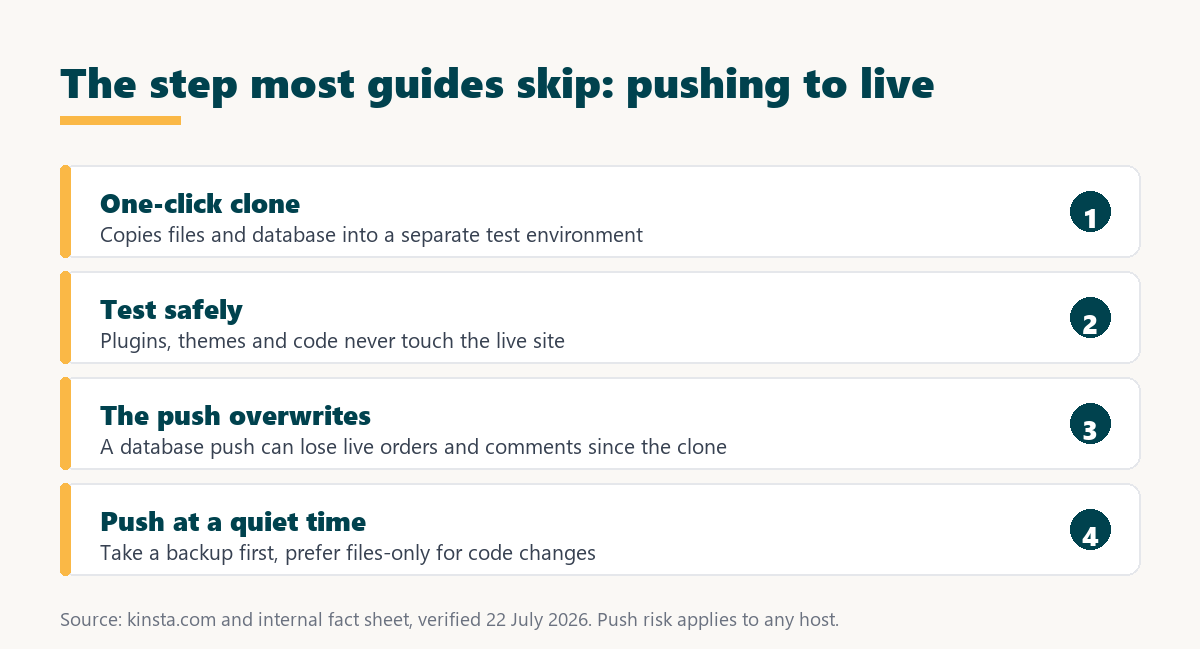
- Clone with one click: Kinsta copies the live site’s files and database into a separate staging environment, ready to work on.
- Test on staging: Plugin and theme updates, code changes and redesigns run on the copy, so a mistake never touches the live site.
- Push back to live: When the changes are ready, a push sends them to production, which replaces live files and can replace the live database.
- Mind the timing: Because the push can overwrite the live database, live changes made after the clone are at risk, so time the push for a quiet moment.
- Confirm the push options: Whether files and database can be pushed separately depends on the current setup, so check Kinsta’s documentation before a critical push.
The workflow is simple to start and safe to test on, and the entire risk lives in the final push, which is why understanding that step is the whole point of using staging well.
What Is the Risk When Pushing to Live?
That pushing the database from staging overwrites the live database, so any data added to the live site after you cloned it can be lost. On a busy site, new orders, comments, form entries or posts made during your testing window are the data at risk.
Source: general WordPress staging behaviour and kinsta.com, August 2026. Whether Kinsta can push files and database separately affects what is at risk, so confirm the current push options in Kinsta’s documentation before a critical push.
This is not a Kinsta flaw; it is how database staging works on any host. The point is to know it, so you push at a quiet time or after capturing any new live data, rather than discovering the overwrite after the fact.
What Are the Benefits of Kinsta Staging?
Safer updates, fewer live-site errors, and the confidence to make changes without gambling on production. For any site where a broken update costs money or reputation, testing first is the difference between a fixed problem and a public one.
- Safe updates: Plugin, theme and core updates run on the copy first, so a conflict is caught in staging rather than on the live site.
- Protected checkout: A store can test a change without risking the live checkout, which is the page least forgiving of a broken update.
- Confident redesigns: A new layout or feature is built and reviewed on staging, then pushed when it is ready rather than developed live.
- Faster development: Working on a full copy is faster and safer than tiptoeing around a live site, so changes ship with less anxiety.
- Included, not extra: One-click staging comes with every plan, so the safety net is standard rather than a paid feature.
The honest qualifier is that all of these depend on remembering the push-to-live timing, so the benefit is real but paired with a responsibility to push carefully.
Is Staging Free or a Paid Feature?
Standard one-click staging is included on every plan, and premium staging environments are a paid add-on at 20 dollars per environment. Most sites use the included staging, and the premium option adds more, longer-lived environments for teams that need them.
- Included staging: A standard staging environment comes with every plan at no extra cost, which covers the common test-then-push workflow.
- Premium staging add-on: Additional or premium staging environments cost 20 dollars per environment, for teams running several at once.
- Most sites need only one: A single staging environment is enough for the usual cycle of testing an update and pushing it, so the add-on is optional.
- Teams may want more: An agency or a larger team testing several changes in parallel is the case for premium environments.
- Judge by the workflow: If one environment blocks the team because several changes are in flight, the add-on pays for itself, otherwise it is unnecessary.
For most site owners the included staging is all they need, and the premium add-on is a team feature rather than a default cost.
Who Benefits Most From Staging?
Sites where a broken update has a real cost: stores, business sites and high-traffic sites. For those, catching a conflict in staging protects revenue and reputation that a live-site error would damage.
“a B2B site that loads in 1 second has a conversion rate 3x higher than a site that loads in 5 seconds”
: HubSpot, page load time and conversion rates
The link to staging is that a broken update can slow or break the very pages that drive conversions, so testing on staging first protects the speed and function that revenue depends on.
One-click staging on every plan
See Kinsta Plans →A safe copy to test on before any change reaches your live site, included at no extra cost.
Should a Store Use Staging Differently?
Yes, with extra care, because a store’s live database changes constantly as orders arrive, so a push-to-live overwrite risks losing real sales data. A store gains the most from staging and also faces the sharpest version of the push risk.
The safe approach for a store is to test on staging, then push only files where possible, keeping the live database with its recent orders intact. When a database change genuinely must go live, doing it during the quietest sales window and with a fresh backup is essential, because a lost order is a lost customer, not just lost data.
Test store changes without risking live orders
View Kinsta Plans →One-click staging and automatic backups on every plan, so a store change is testable and recoverable.
How Does Staging Fit With Local Development?
Staging sits between local development and live: a change is built locally, moved to staging to test in a production-like environment, then pushed to live. Kinsta’s DevKinsta covers the local part, and staging covers the production-like test before release.
The value of the middle step is that a local environment does not perfectly match production, so staging catches issues that only appear on the real infrastructure. Using local development, staging and a careful push together gives a full path from idea to live with a checkpoint at each stage.
How Does It Compare to a Typical Host?
Some budget hosts offer staging on higher tiers or through a plugin, while Kinsta includes one-click staging on every plan and integrates it into the dashboard. The difference is included, integrated staging versus a tier-gated or plugin-based approach.
Source: kinsta.com and kinsta.com/plans, verified August 2026. The database overwrite risk on a push to live applies to database staging on any host, not only Kinsta.
Read across, the advantage is staging included on every plan and integrated, with the push-to-live overwrite risk being a property of database staging everywhere rather than a Kinsta-specific issue.
Are There Limits to Kinsta Staging?
Yes, and they are mostly about the push and about drift. Staging is excellent for testing, and knowing its boundaries keeps a push from causing the very problem staging is meant to prevent.
- Push can overwrite live data: A database push replaces the live database, so live changes since the clone are at risk, which is the main limit.
- Staging drifts from live: As the live site gains data, the staging copy becomes more out of date, so a stale staging environment is riskier to push.
- One included environment: The standard plan includes one staging environment, and running several at once needs the premium add-on.
- Not a backup: Staging is a working copy, not a backup, so it does not replace scheduled backups for recovery.
- Push options to confirm: Whether files and database can be pushed separately affects the risk, and the current options should be checked in Kinsta’s documentation.
The pattern is that staging is a strong, included safety net for testing, with the honest caveat that the push and the drift are where care is needed.
How Do You Push to Live Safely?
By timing the push and protecting live data, so the overwrite risk never becomes a loss. A few habits turn staging from a hazard into the safety net it is meant to be.
- Push at a quiet time: Choose a low-traffic window so fewer live changes happen between the clone and the push, reducing what is at risk.
- Take a backup first: A backup immediately before the push means any overwritten live data can be recovered if needed.
- Keep the testing window short: The less time between cloning and pushing, the less live data accumulates that a push could overwrite.
- Prefer a files-only push when possible: If the change is code or theme rather than content, pushing files without the database avoids overwriting live data.
- Re-check live data after: Confirm recent orders, comments or entries are intact after the push, so any issue is caught immediately.
Followed together, these make a push routine and safe, which is the difference between staging protecting the live site and accidentally harming it.
Test safely, then push with a backup in hand
Compare Kinsta Tiers →Staging plus automatic backups on every plan, so a push always has a safety net behind it.
Is Staging the Same as a Backup?
No, and confusing the two is a common mistake. Staging is a working copy to test on, while a backup is a restore point to recover from, so they serve different purposes and a site needs both.
A backup captures the site at a moment so it can be restored after a problem, whereas staging is where you try changes before they reach live. Kinsta includes automatic backups alongside staging, so the sensible practice is to test on staging and rely on backups for recovery, using each for its own job.
How Do You Use Kinsta Staging?
Create a staging environment from MyKinsta with one click, make and test your changes on it, then push to live at a quiet time with a backup taken first. The dashboard handles the cloning and the push, so the workflow is straightforward once the timing habit is in place.
For a first push, a low-traffic window and a fresh backup remove almost all the risk, and confirming live data afterward makes it routine. A 30-day money-back guarantee lets a new user try the full staging workflow before committing.
“Tool spend is only defensible when the outcome it protects is measured, not assumed.”
: Growth Hack Suite, ROI on sales tools
For staging the outcome is a live site that survives every update, which staging protects when the push is handled carefully. Used with a backup and good timing, it is one of the most valuable safety features a managed host includes.
Kinsta Staging: Frequently Asked Questions
The 12 most-asked questions about Kinsta staging.
What is Kinsta staging?
A feature that creates a one-click copy of your live site, files and database, in a separate environment, so you can test updates safely before pushing them to production. It is included on every plan.
Is Kinsta staging free?
Standard one-click staging is included on every plan at no extra cost. Premium or additional staging environments are a paid add-on at 20 dollars per environment, which most sites do not need.
Can pushing to live lose my data?
It can, because pushing the database overwrites the live database, so orders, comments or posts added to the live site after you cloned it are at risk. Push at a quiet time with a backup taken first to avoid it.
Can I push only files, not the database?
A files-only push avoids overwriting live data and suits code or theme changes, but whether this is available depends on the current setup. Confirm the push options in Kinsta’s documentation before a critical push.
How do I push to live safely?
Push at a low-traffic time, take a backup immediately before, keep the testing window short, prefer a files-only push for code changes, and check recent live data after. Those habits remove almost all the risk.
Is staging the same as a backup?
No. Staging is a working copy to test on, and a backup is a restore point to recover from. They serve different purposes, and a site needs both. Kinsta includes automatic backups alongside staging.
What can I test on staging?
Plugin, theme and core updates, code changes, redesigns and new features, since staging is a full copy of the live site. Anything that could break the live site is safer to try on staging first.
Does staging use my visit allowance?
Staging is for testing rather than public traffic, so it is not a live audience site. If usage or resource questions matter for a specific plan, confirm how staging counts against allowances in Kinsta’s documentation.
How many staging environments do I get?
One standard staging environment is included, which covers the usual test-then-push workflow. A team running several changes in parallel can add premium staging environments at 20 dollars each.
Why does my staging site look out of date?
Because it is a snapshot from when you cloned it, and the live site has changed since. That drift is normal, and it is why an old staging environment is riskier to push, since more live data would be overwritten.
Do all Kinsta plans include staging?
Yes, one-click staging is included on every plan, unlike some hosts that reserve it for higher tiers. The premium staging add-on is the only paid part, for additional environments.
Should I always test updates on staging?
For a business or store site, yes, because a broken update on the live site can cost money. For a small personal site the risk is lower, but staging is included, so testing first is a sensible habit regardless.
About this guide
Written by the Growth Hack Suite editorial team. Feature and pricing details were read from kinsta.com. This page carries affiliate links to Kinsta, so the honesty owed to a reader is stated throughout: one-click staging is genuinely included on every plan, with premium or additional environments a 20-dollar per environment add-on, but the push back to live carries a real risk, since pushing the database overwrites the live database and can lose orders, comments or posts added since the clone. That risk is a property of database staging on any host, not a Kinsta flaw, and this page deliberately foregrounds it rather than presenting the push as effortless. Whether files and database can be pushed separately affects the risk and should be confirmed in Kinsta’s documentation. Staging is a testing copy, not a backup, so a site needs both.