Table of Contents
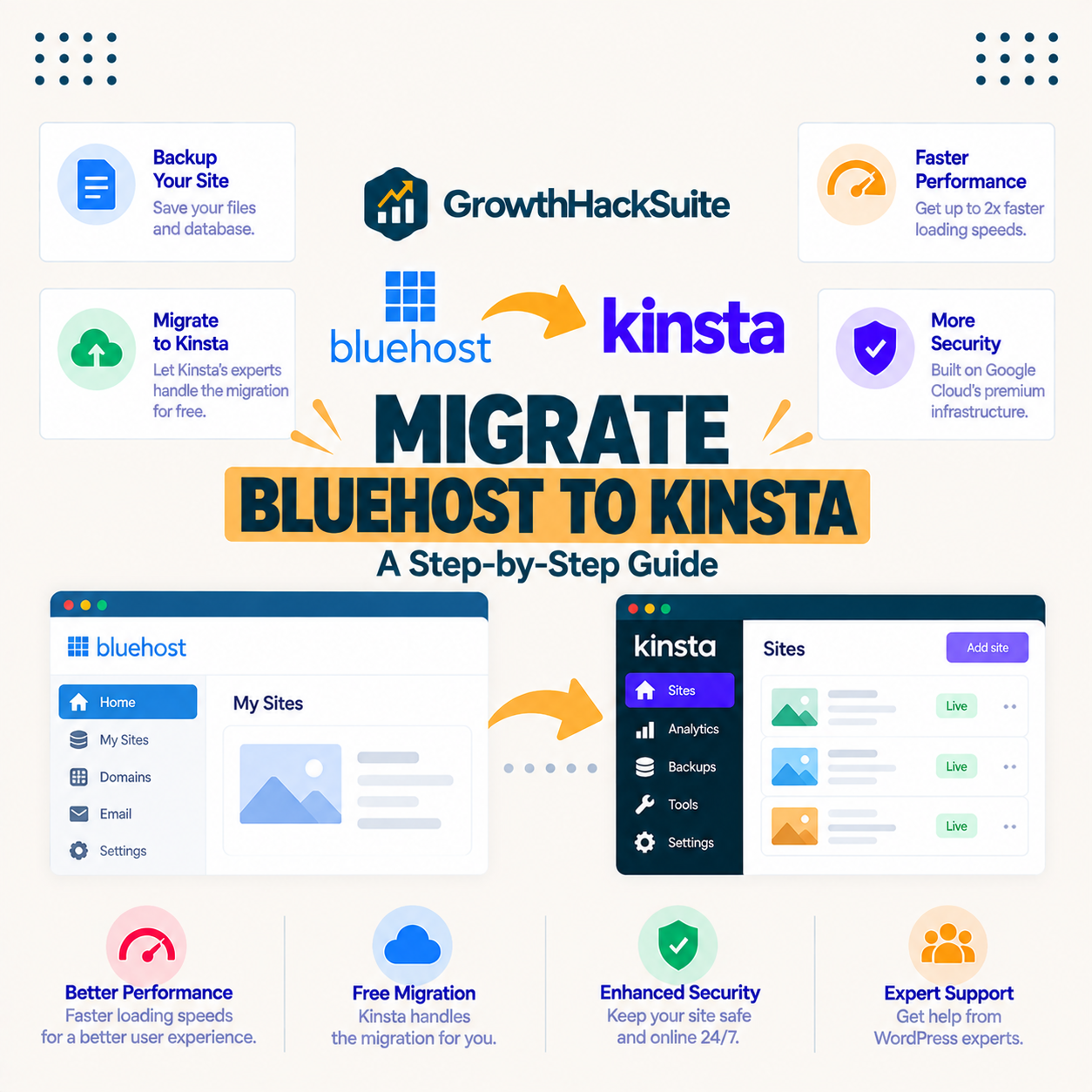
To migrate Bluehost to Kinsta, request the free engineer-handled migration inside MyKinsta, review the copied site on a temporary URL, then point DNS. Kinsta does the technical work at no charge and the old Bluehost site stays live until the switch, so visitors see no downtime. The one thing that does not move is email, because Kinsta hosts websites only.
Last updated: August 2026. Migration policy, plan prices and platform details were read from kinsta.com and bluehost.com on that date. Confirm current terms before starting a move.
Start the free migration and keep Bluehost running until the copy is verified.
See Kinsta Plans →Unlimited free migrations · 30-day money-back guarantee
Why Migrate Bluehost to Kinsta?
Sites move from Bluehost to Kinsta for resource isolation. Bluehost plans place many accounts on shared servers, while Kinsta gives every site a private container on compute-optimised Google Cloud machines. Support depth and a bundled CDN are the other two reasons owners of growing sites make the switch.
The honest counterpoint is that Bluehost is far cheaper and bundles email plus a free first-year domain, so this move only makes sense once traffic, revenue or reliability requirements have outgrown a shared plan.
What Changes After the Move?
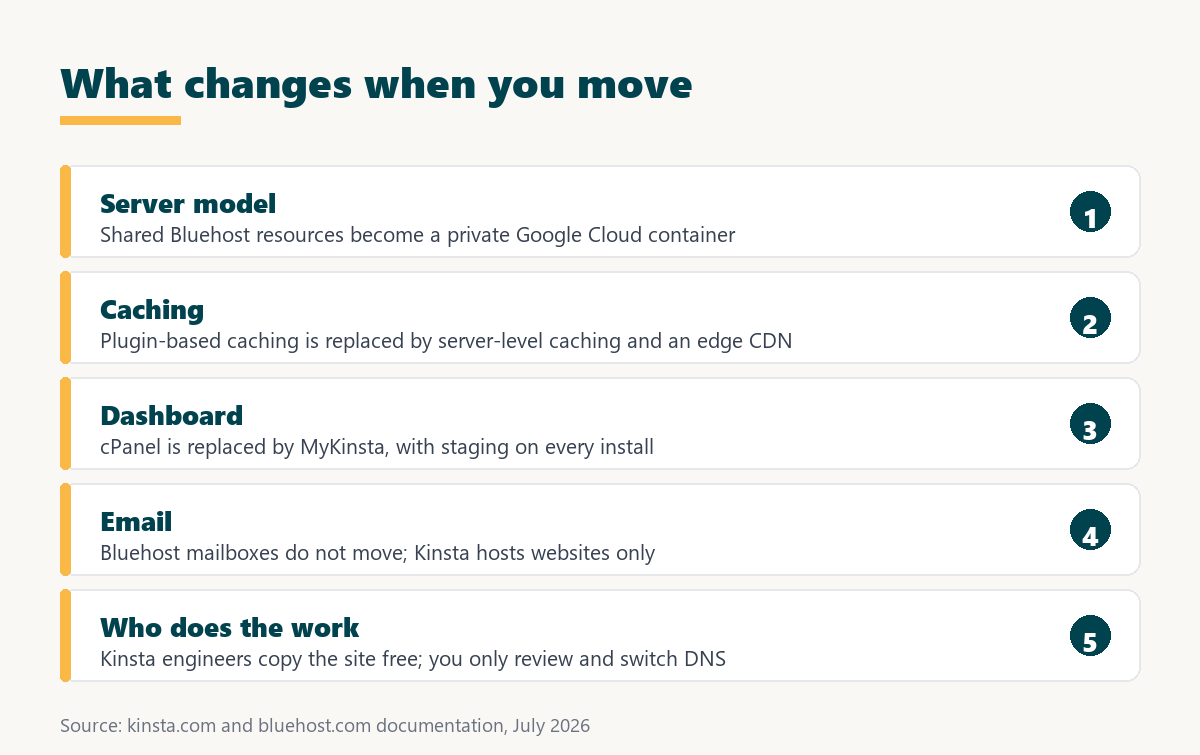
The domain, content, theme, plugins and WordPress admin all stay the same, so publishing feels identical. What changes sits underneath: the server model, the caching layer, the dashboard and where email lives. The list below covers each change.
- Server model: shared Bluehost resources are replaced by a private container with a dedicated copy of Linux, NGINX, PHP and MySQL.
- Caching layer: caching plugins become unnecessary because Kinsta runs page caching at server level, which also removes a common source of conflicts.
- Control panel: cPanel is replaced by the MyKinsta dashboard, where staging, backups, logs and analytics live in one interface.
- Email hosting: Bluehost mailboxes do not transfer, because Kinsta hosts websites only and sells no email service at any tier.
- Support model: tickets go to WordPress and Linux engineers rather than to general shared-hosting support, and malware removal is included free.
“WordPress is a web content management system.”
— Wikipedia, WordPress
A migration moves that content management system and its database to different infrastructure, which is why the site looks unchanged while behaving differently under load.
Free Expert Migration or Manual: Which Should You Choose?
Most owners should take the free expert migration, because Kinsta engineers perform the transfer and the plan includes unlimited moves. Manual migration is worth it only for highly customised setups or when a specific cut-over time must be controlled precisely. The table below compares the two routes.
Source: Kinsta migration policy, checked July 2026.
Since the expert route costs nothing and is unlimited, the manual path is a choice about control rather than about money.
What Do You Need Before You Start?
Gathering five things before opening the migration request turns a two-day back-and-forth into a single sitting. The list below covers what to have ready.
- Bluehost account access: login credentials for the hosting control panel so the source site can be copied without delay.
- Domain registrar access: the account where DNS records live, which is often a different provider from the host itself.
- A current backup: a full copy of files and database taken before anything changes, kept somewhere outside both hosts.
- An email plan: a destination for mailboxes, since Kinsta hosts no email and Bluehost accounts often include it.
- A performance baseline: recorded load times on a few pages, so the improvement after the move can be measured rather than assumed.
The email item is the one most often forgotten, and it is the only part of the move that can genuinely disrupt a business if it is handled late.
How Does the Free Kinsta Migration Work?
The free migration follows the same sequence every time: sign up, submit the request, let Kinsta build the copy, review it on a temporary URL, then change DNS. Your active involvement is limited to the first, second and fourth steps. The ordered list below runs through it.
- Create the Kinsta account: choose a plan sized to current monthly visits rather than to projected growth.
- Submit the migration request: complete the form in MyKinsta with the Bluehost credentials and any staging requirements.
- Wait for the copy: Kinsta engineers rebuild the site on a temporary URL while Bluehost continues serving live traffic.
- Review everything: test pages, forms, checkout, search and any membership area on the temporary URL before agreeing to switch.
- Point the DNS: update the A record or nameservers, then watch traffic arrive on the new platform as propagation completes.
Source: Kinsta migration documentation, checked July 2026. Turnaround time depends on site size and the migration queue, so confirm scheduling when the request is submitted.
Reading the table, only three rows belong to you, and none of them require touching a database.
How Do You Migrate Manually?
A manual migration uses a plugin to package the site on Bluehost and restore it on Kinsta, with the same principle applying: build and verify first, change DNS last. The ordered list below covers the route.
- Package the site: use a migration plugin on Bluehost to export files and database together as one archive.
- Create the destination: add a new WordPress install in MyKinsta and note its temporary URL for testing.
- Import and rewrite: restore the package, then update any hard-coded URLs so links point at the temporary address.
- Remove old caching plugins: delete plugin-based page caching, which now duplicates Kinsta’s server-level cache and can serve stale pages.
- Test then switch: verify every template and form on the temporary URL before pointing DNS at the new platform.
The caching step catches people out most often, because a leftover caching plugin can survive the move and quietly serve outdated pages afterwards.
How Do You Avoid Downtime?
Zero-downtime migration comes from sequencing, not from luck. Because visitors reach whichever server DNS points at, keeping the old site live until the new one is verified means nobody sees an error. The list below covers the safeguards.
- Keep Bluehost running: leave the old plan active and serving traffic until the DNS change has fully propagated everywhere.
- Lower the DNS TTL early: reduce the time-to-live a day before the switch so the change reaches resolvers quickly rather than over hours.
- Freeze content changes: avoid publishing during the cut-over window, since edits made on the old site will not appear on the new one.
- Switch at a quiet hour: pick the lowest-traffic period in analytics so the smallest possible audience is in flight during propagation.
- Verify the SSL certificate: confirm the certificate has issued on the live domain immediately after the switch to avoid browser warnings.
Follow that sequence and the only visible sign of a migration is that pages start arriving faster.
Open the migration request and let engineers build the copy while your site stays up.
See Kinsta Plans →Migration handled by Kinsta · DNS changes only when you approve
What Happens to Email When You Leave Bluehost?
Email does not move, because Kinsta hosts websites only and sells no mailboxes at any tier. If mail currently runs on Bluehost, it needs a new home before the domain changes hands, typically Google Workspace or Zoho Mail.
The practical sequence is to set up the new mail provider first, migrate existing mailboxes, update the MX records, confirm mail is flowing, and only then move the website. Handled in that order, nothing is lost.
Treat email as a separate project running alongside the migration rather than as a step inside it, and budget for the subscription it now requires.
Is Kinsta Faster Than Bluehost After the Move?
Structurally, yes: the move replaces shared resources with a private container on compute-optimised machines and adds server-level caching plus a bundled CDN. How much faster depends on the site, which is why the baseline recorded before the move matters. The table below compares the stacks.
Sources: kinsta.com and bluehost.com, checked July 2026. No benchmark timings are published here because results depend on the theme, plugins and test location of each individual site.
“Site speed shapes both search visibility and the share of visitors who stay to convert.”
— HubSpot, on page load time and conversion
Because the move upgrades several layers at once, the gain is usually most visible on uncached pages such as carts, search results and logged-in views.
What Migration Mistakes Should You Avoid?
Nearly every failed migration comes from the same short list of errors, and all five are avoidable with sequencing. The list below covers them in the order they usually happen.
- Switching DNS too early: pointing the domain before the copy is verified turns a rehearsal into a live incident on a real audience.
- Forgetting email: moving the domain without rehoming mailboxes first is the fastest way to lose business messages during a migration.
- Cancelling Bluehost immediately: the old plan is the rollback path, so it should stay active until propagation is finished and verified.
- Leaving caching plugins installed: plugin caches duplicate server-level caching and can serve stale pages long after the move.
- Skipping the baseline: without before-and-after numbers there is no way to judge whether the upgrade delivered anything.
Four of these five cost nothing to avoid, which makes them the cheapest insurance available on a migration.
How Much Does It Cost to Move?
The migration itself costs nothing, because Kinsta includes unlimited engineer-handled moves on every plan. The real costs are the Kinsta subscription from 35 dollars a month, a new email subscription, and any unused time remaining on the Bluehost plan.
That last item is a sunk cost rather than a reason to wait. Since the Bluehost term has already been paid, delaying the move only postpones the benefit while the same money stays spent. The 30-day money-back guarantee means the new commitment is testable, in the same way any SaaS money-back guarantee works.
Budget for the hosting plan plus mailboxes, and treat the migration line as genuinely zero.
What Should You Check After Going Live?
The half hour after DNS propagation decides whether a migration was clean. Five checks catch almost everything that can go wrong. The ordered list below covers them.
- Confirm the SSL certificate: load the site over HTTPS on the live domain and check that no browser warning appears.
- Submit a real form: send a genuine enquiry and confirm it arrives, since form mail depends on the new mail routing.
- Complete a test order: on a store, run a full checkout to prove payment gateways still work from the new server.
- Re-run the speed baseline: repeat the same tests from the same location and compare against the numbers recorded before the move.
- Watch search console: check crawl errors over the following week to confirm nothing broke in the URL structure.
Only after those five pass is it safe to cancel the old plan, which is the point where the migration is genuinely finished.
How Do You Start the Migration?
Starting takes about ten minutes of active work: create the Kinsta account on a plan sized to current visits, open the migration request form in MyKinsta and supply the Bluehost details. Engineers take it from there.
“A tool is only worth its premium when the hours or revenue it protects exceed the invoice.”
— Growth Hack Suite, on tool ROI
Because the migration is free and the plan carries a 30-day money-back guarantee, the move can be completed, measured and reversed without losing anything except the time spent reviewing the copy.
Should You Cancel Bluehost Straight Away?
No. Keep the Bluehost plan active for at least a week after the switch, because it is the rollback path if something is discovered late and it may still be handling mail while the new provider is set up.
Once the post-launch checks have passed, mail is flowing through the new provider and analytics show traffic arriving normally, the old plan can be allowed to lapse at renewal rather than cancelled mid-term. Keeping both live briefly also limits vendor lock-in risk during the handover.
A short overlap costs a few dollars and removes every irreversible step from the process.
Let Kinsta engineers move the site while Bluehost keeps serving traffic.
See Kinsta Plans →Unlimited free migrations · 30-day money-back guarantee · no contract
Growth Hack Suite Editorial — Web Infrastructure Team
How this guide was built: migration policy, plan pricing, platform architecture and support terms were read from kinsta.com and bluehost.com, with sources linked beneath the tables. No before-and-after timings are published here, because the size of the gain depends on the theme, plugin set and audience location of each individual site, which is why the guide tells you to record your own baseline instead.
Last updated: August 2026. Kinsta does not host email, so mailboxes on a Bluehost plan must be rehomed before the domain moves.
Affiliate disclosure: this page contains affiliate links to Kinsta. If a plan is purchased through them, Growth Hack Suite may earn a commission at no extra cost to the buyer. Bluehost’s advantages, including price and bundled email, are stated above.
Bluehost to Kinsta Migration FAQ
The 12 most-asked questions about migrating from Bluehost to Kinsta.
How do I migrate my site from Bluehost to Kinsta?
Create a Kinsta account, open the migration request form in MyKinsta and supply the Bluehost credentials. Kinsta engineers copy the files and database to a temporary URL, you review it while Bluehost stays live, then DNS is pointed at the new platform.
Is migrating to Kinsta free?
Yes. Kinsta includes unlimited engineer-handled migrations on every plan, so the transfer itself costs nothing. The only new cost is the hosting subscription from 35 dollars a month, plus a mail provider if email currently sits on Bluehost.
Will my site go offline during the migration?
No, provided DNS changes last. The copy is built on a temporary Kinsta URL while Bluehost continues serving visitors, so the site only moves once the new version has been checked and approved.
What do I need before starting?
Bluehost login details, access to the domain registrar for DNS, a current backup taken before anything changes, a destination for email, and a recorded speed baseline so the improvement can be measured afterwards.
How long does a migration take?
Your active involvement is roughly half an hour spread across signup, the request form and the review pass. Turnaround for the copy itself depends on site size and the migration queue, so confirm scheduling when submitting the request.
Do I have to change DNS myself?
Yes, the final cut-over is made in your domain registrar account, with Kinsta supplying the records to use. Lowering the TTL a day beforehand makes the change propagate faster.
What happens to my Bluehost email?
It does not move, because Kinsta hosts websites only. Set up Google Workspace, Zoho Mail or another provider first, migrate the mailboxes, update MX records and confirm mail is flowing before moving the website.
Will my site be faster on Kinsta?
Structurally the stack improves: shared resources become a private container on compute-optimised machines, with server-level caching and a bundled CDN. How much faster depends on the theme and plugins, which is why a baseline recorded before the move matters.
Should I cancel Bluehost right away?
No. Keep it active for at least a week after the switch, since it is the rollback path and may still be handling mail. Once post-launch checks pass, let it lapse at renewal rather than cancelling mid-term.
Do I need to remove my caching plugin?
Yes. Kinsta runs page caching at server level, so a leftover caching plugin duplicates that work and can serve stale pages. Removing it is part of finishing the migration properly.
Can I migrate manually instead?
Yes, using a migration plugin to package the site on Bluehost and restore it on Kinsta. Since the expert route is free and unlimited, the manual path is a choice about control rather than about cost.
What should I check after going live?
Confirm the SSL certificate on the live domain, submit a real form, run a test order on a store, repeat the speed baseline from the same location, and watch search console for crawl errors over the following week.