
Table of Contents
To migrate SiteGround to Kinsta, you request Kinsta’s free expert migration and its engineers copy your WordPress site to Kinsta with near-zero downtime, so your active time is usually about 30 minutes. This guide shows both the hands-off expert route and the manual steps, what changes after the move, and how to keep the site live throughout so you avoid lost traffic.
Last updated: August 2026. The migration process and Kinsta details were read from kinsta.com. This page carries affiliate links to Kinsta, and it is honest that the copy itself takes a few hours and DNS propagation adds time, even though your hands-on work is short.
Can You Migrate From SiteGround to Kinsta?
Yes, you can migrate from SiteGround to Kinsta easily, and Kinsta’s team does it for free with minimal downtime. Most owners spend only about 30 minutes of their own time, while Kinsta’s engineers handle the copy, so switching from SiteGround is low-risk and straightforward.
Verdict: Migrating SiteGround to Kinsta is free through Kinsta’s expert migration, which copies the site to a temporary URL for review before switching DNS, so the live SiteGround site keeps serving visitors until the copy is verified. Two honest points: your active time is about 30 minutes but the full copy plus DNS propagation can span a day, and Kinsta does not host email, so mail must be arranged separately.
The clearest way to plan the move is to prepare a few things, then choose the free expert route or the manual one, which the sections below set out step by step.
“WordPress is a web content management system.”
— Wikipedia, WordPress
These steps apply to a standard WordPress site, and because both hosts run WordPress, the migration moves the same files and database from one platform to the other.
What Do You Need Before You Start?
Before migrating from SiteGround you need your SiteGround login, registrar access for DNS changes, and ideally a recent backup of the WordPress files and database. Having these ready lets Kinsta’s team, or you, complete the move in one sitting without scrambling for credentials.
- SiteGround login: Access to SiteGround Site Tools or the hosting account lets Kinsta’s team retrieve the files and database directly.
- Registrar access: Control of the domain’s DNS is needed to point the domain to Kinsta once the copy is verified.
- A recent backup: A current backup of the WordPress files and database is a safe fallback, even though Kinsta copies from the source.
- A Kinsta plan: A Kinsta plan sized to the site’s visits is the destination the migration copies the site into.
- An email plan: A separate email provider is worth lining up, since Kinsta hosts websites and not mailboxes.
The honest note is that gathering these five things first is what turns the migration into a single, smooth session rather than a stop-start one.
How to Migrate SiteGround to Kinsta Step by Step
To migrate SiteGround to Kinsta, sign up for Kinsta, open a migration request in MyKinsta, and provide your SiteGround details. Kinsta’s engineers copy the site to a temporary URL, you review it live, then they point the domain over, with your active time usually under 30 minutes.
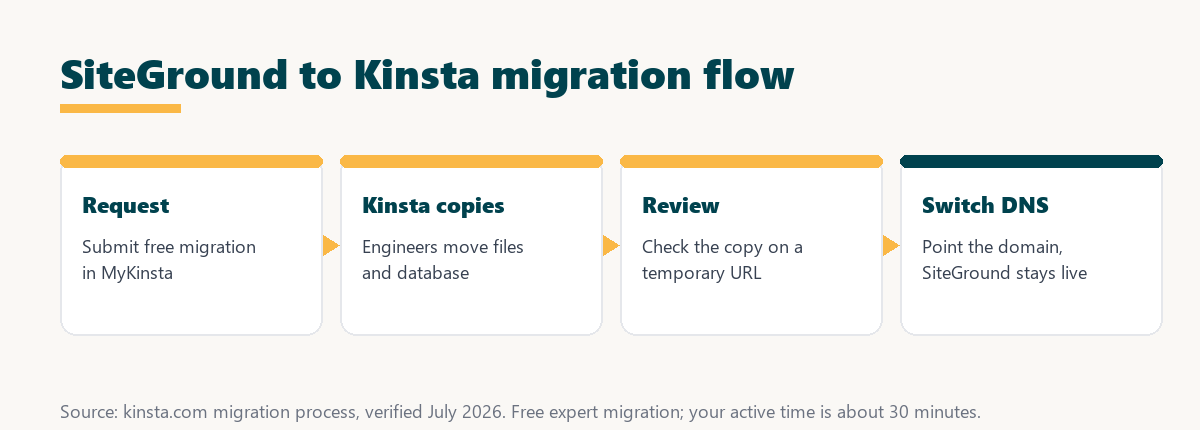
Because Kinsta stages the copy first, nothing on the live SiteGround site changes until you approve the switch, which is what keeps the move low-risk.
Option 1: Free Expert Migration (Recommended)
The easiest route is Kinsta’s free expert migration, where you submit a request and Kinsta’s engineers move the site with minimal downtime. This is recommended for most owners because it removes the risk of breaking the site during a manual transfer.
- Sign up for Kinsta: Choose a plan sized to the site’s visits so the destination is ready.
- Open a migration request: Start the free migration form in MyKinsta and select SiteGround as the source.
- Provide SiteGround access: Share the SiteGround login or a backup so the engineers can retrieve the files and database.
- Review the copy: Check the migrated site on the temporary URL Kinsta provides before any DNS change.
- Approve the DNS switch: Once the copy looks right, let Kinsta point the domain over from SiteGround.
The honest summary is that the expert route leaves the technical work to Kinsta, so the owner mainly signs up, hands over access, and reviews the result.
Option 2: Manual Migration With a Plugin
To move manually, use a migration plugin such as Duplicator on SiteGround to export a full package, create the site in MyKinsta, and import the package there. Testing on Kinsta’s temporary URL before switching DNS keeps the live SiteGround site serving visitors until the new one is verified.
- Install a migration plugin: Add a plugin like Duplicator on the SiteGround site to build a full export package.
- Export the package: Generate the archive and installer that contain the WordPress files and database.
- Create the Kinsta site: Add a new site in MyKinsta as the destination for the package.
- Import on Kinsta: Upload and run the package on the temporary URL so the site rebuilds on Kinsta.
- Test, then switch DNS: Verify the copy works, then update DNS so the domain resolves to Kinsta.
The honest caveat is that the manual route works but carries more risk of a misstep, which is why the free expert migration is the recommended default.
Migration Steps at a Glance
The whole migration breaks into a few steps, most of which Kinsta handles. The table shows who does each step and roughly how long it takes.
Source: kinsta.com migration process, verified August 2026. Times are typical estimates; a large or complex site may take longer to copy and test.
In plain terms, your only active tasks are signing up, submitting the request, reviewing the copy, and updating DNS, while Kinsta’s team copies and configures everything in between.
How Do You Avoid Downtime During the Migration?
You avoid downtime by keeping SiteGround active until the Kinsta copy is fully tested, then lowering the DNS TTL a day ahead so the switch propagates fast. Because visitors reach whichever server DNS points to, a verified copy plus a low TTL means most users never notice the move.
The practical sequence is to test on the temporary URL, drop the TTL the day before, switch DNS, and only cancel SiteGround once propagation is complete, so there is never a gap where the site is unreachable.
How Do You Verify the Migration Worked?
After switching, verify the migration by checking that pages, images, forms and logins work on Kinsta, testing a few key URLs and running a speed test. Confirm SSL is active and that no content is missing, then the old SiteGround plan can safely be cancelled.
- Check key pages: Load the homepage, top posts and important landing pages to confirm they render correctly on Kinsta.
- Test forms and logins: Submit a contact form and log in to the admin so interactive features are confirmed working.
- Confirm images and media: Verify that images and downloads load, since media paths are a common thing to miss.
- Verify SSL and HTTPS: Check that the SSL certificate is active so the site serves securely over HTTPS.
- Run a speed test: Measure load time to confirm the performance gain the move is meant to deliver.
The honest takeaway is that a short checklist across pages, forms, media and SSL is enough to confirm the migration before letting the SiteGround plan lapse.
How Long Does Migrating From SiteGround Take?
Migrating from SiteGround to Kinsta typically takes a few hours for the copy plus 1 to 24 hours for DNS to propagate, with only about 30 minutes of active work from the owner. The migration itself is free, so the only cost is the Kinsta plan starting at 35 dollars a month.
“The first five seconds of page-load time have the highest impact on conversion rates.”
— HubSpot, page load time and conversion rates
Because those first seconds drive conversions, the short migration effort pays off quickly when the destination is a faster host, which is the point of moving off a slower SiteGround plan.
Free expert migration off SiteGround
See Kinsta Plans →Kinsta’s team handles the move, with a 30-day money-back guarantee.
What Does It Cost to Move From SiteGround?
The move itself costs nothing, because Kinsta’s expert migration is free, so the only real cost is the Kinsta plan and a separate email provider. Any remaining SiteGround time is a sunk cost you let expire rather than pay to move.
Source: kinsta.com pricing and kinsta.com/plans, verified August 2026. Migration is free; the plan and email are the ongoing costs.
Put simply, the move itself is free, so the only real cost is the Kinsta plan, and any remaining SiteGround time is a sunk cost you let expire.
The move is free; you only pay for the plan
View Kinsta Pricing →Free expert migration from SiteGround, plans from 35 dollars a month.
What Changes After Moving From SiteGround?
After moving, you manage the site in MyKinsta instead of SiteGround’s Site Tools, get server-level caching without a plugin, and rely on Kinsta for support. The domain, content and WordPress admin stay the same, so daily publishing feels familiar while performance improves.
- MyKinsta dashboard: Site management moves to MyKinsta, replacing SiteGround’s Site Tools for backups, staging and analytics.
- Caching without a plugin: Server-level and edge caching replace SiteGround’s SG Optimizer, so caching is handled at the platform level.
- Engineer support: Support comes from Kinsta’s WordPress and Linux engineers rather than SiteGround’s team.
- Email stays separate: Because Kinsta hosts no email, any SiteGround mailboxes are kept or moved to a separate provider.
- Same admin experience: The WordPress admin, content and domain are unchanged, so editing and publishing work exactly as before.
The honest point is that the biggest day-to-day change is the dashboard and the move of email off the host, while the WordPress side stays the same.
Is Switching From SiteGround to Kinsta Worth It?
Switching from SiteGround to Kinsta is worth it when a site needs faster, more reliable performance and values expert support, since the free migration makes the move low-risk. For a tiny hobby site with no revenue, staying on a cheaper host may still make sense until it grows.
“A tool is only worth its premium when the hours or revenue it protects exceed the invoice.”
— Growth Hack Suite, on tool ROI
For this move the premium is worth it once the revenue the added speed and reliability protect exceeds the plan cost, and the free migration and 30-day guarantee remove the risk of finding out. Teams weighing platform dependence can read our note on SaaS vendor lock-in before committing.
How Do You Start Your SiteGround to Kinsta Migration?
To start, sign up for Kinsta, open the migration request form in MyKinsta, and paste your SiteGround credentials. Kinsta’s team takes it from there, and you can benchmark speed within a day, using the 30-day money-back guarantee to confirm the gains before fully committing.
The honest summary is that the whole thing is a short setup on your side plus a review, so the migration is far less daunting than moving a site by hand.
Start your free migration from SiteGround
Try Kinsta Risk-Free →Free expert migration and a 30-day money-back guarantee.
Migrating SiteGround to Kinsta: Frequently Asked Questions
The 12 most-asked questions about migrating from SiteGround to Kinsta.
How do I migrate from SiteGround to Kinsta?
You request Kinsta’s free migration, share your SiteGround login or site files, and Kinsta’s team exports the WordPress files and database from SiteGround and rebuilds them on Kinsta’s Google Cloud platform.
Is migrating from SiteGround to Kinsta free?
Yes, Kinsta’s free expert migration covers moving a site off SiteGround, so their engineers handle the transfer rather than leaving you to export and import it manually.
Will my SiteGround site stay online during the move?
Yes, Kinsta stages the migrated copy and only switches DNS after verification, so the live SiteGround site keeps serving visitors until the Kinsta version is confirmed working.
How do I access my files on SiteGround for migration?
You provide Kinsta your SiteGround Site Tools or hosting login, or a backup archive, and the migration team retrieves the files and database directly so you avoid manual exports.
Do I lose the SiteGround caching setup after migrating?
You no longer use SiteGround’s SG Optimizer, but Kinsta replaces it with server-level caching, edge caching and a CDN, so performance features are handled at the platform level instead of a plugin.
Will my SiteGround email transfer to Kinsta?
Kinsta hosts websites, not email, so any SiteGround email is kept or moved separately, and Kinsta guides the DNS so mail keeps working during the switch.
How long does a SiteGround to Kinsta migration take?
A typical SiteGround site migrates within a day or two of the request, while larger sites are scheduled with Kinsta’s team and may take longer to move and test.
Why do people move from SiteGround to Kinsta?
Owners often move for isolated Google Cloud resources, higher visit ceilings and engineer-level support, especially as a growing site outpaces SiteGround’s shared performance.
What DNS changes are needed after leaving SiteGround?
After Kinsta verifies the staged site, you update the domain’s DNS to point to Kinsta, and the team provides the exact records so the cutover from SiteGround is clean.
Should I cancel SiteGround immediately after migrating?
Keep SiteGround active until DNS has fully propagated and the Kinsta site is confirmed working, then cancel SiteGround so there is no gap in service.
Can Kinsta migrate a SiteGround WooCommerce store?
Yes, Kinsta migrates WooCommerce stores from SiteGround including products, orders and customers, and offers premium migration handling for busy or complex stores.
What if my SiteGround site uses custom configurations?
Kinsta’s migration engineers adapt to SiteGround’s setup and rebuild custom configurations on their platform, testing the staged copy so anything specific to the site carries over correctly.
About this guide
Written by the Growth Hack Suite editorial team. The migration process and Kinsta details were read from kinsta.com. This page carries affiliate links to Kinsta, so the honesty owed to a reader is stated plainly: Kinsta’s expert migration from SiteGround is free and copies the site to a temporary URL for review before any DNS change, so the live SiteGround site stays online throughout. Your active time is about 30 minutes, but the full copy takes a few hours and DNS propagation adds 1 to 24 hours. The only ongoing cost is the Kinsta plan from 35 dollars a month, and because Kinsta does not host email, mailboxes must be arranged with a separate provider.