Table of Contents
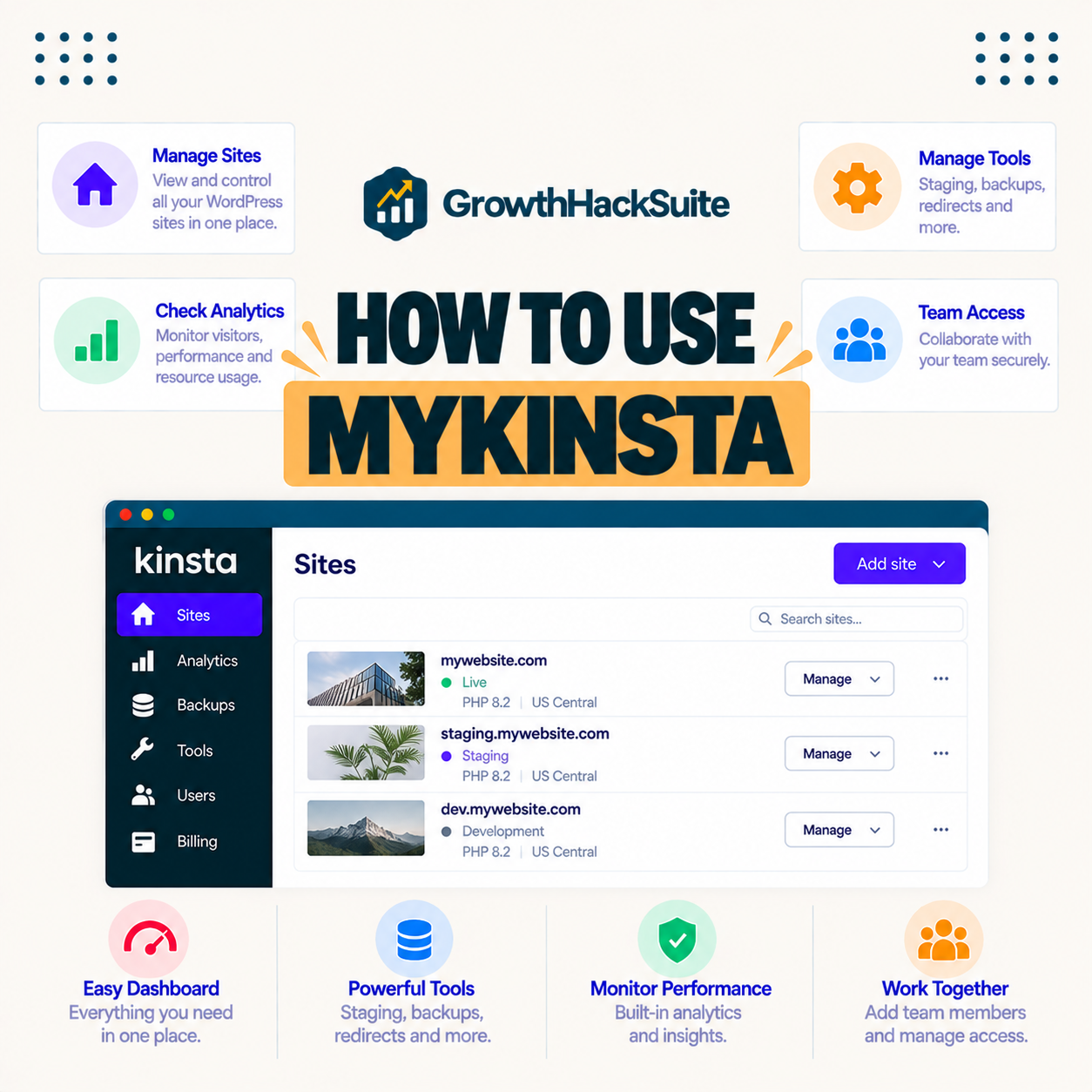
MyKinsta is Kinsta’s control panel where you manage sites, staging, backups, caching, analytics, users and billing in one clean interface. It is included free on every plan and replaces cPanel and command lines with one-click actions. This beginner guide shows how to use MyKinsta step by step to run a WordPress site without technical setup.
Last updated: August 2026. Dashboard features were read from kinsta.com. This page carries affiliate links to Kinsta, so the fact worth stating plainly is that the dashboard costs nothing extra: it is simply the dashboard that comes with the hosting plan.
How Do You Manage Your Site?
You use MyKinsta by logging in and selecting a site, where every tool for staging, backups, caching, analytics and access is organized in a clean menu. Actions like creating staging, restoring a backup or clearing cache are one click, so the whole site is managed without cPanel or code.
Verdict: MyKinsta is a modern hosting dashboard that trades cPanel clutter for one-click controls. It is included free on every plan from 35 dollars a month, groups every tool by function, and covers sites, staging, daily backups, caching, the CDN, analytics with APM, user management and billing. For a beginner, the few tools that matter are staging, backup restore and cache clearing, all one click each.
In short, the panel puts every control one click away and grouped logically, so the sections below walk through the dashboard and the tools most people use daily.
What Is the Dashboard Used For?
MyKinsta is used to manage every aspect of Kinsta hosting: adding sites, running staging, taking and restoring backups, controlling caching and the CDN, viewing analytics, managing users and handling billing. It replaces traditional panels with a modern, simpler interface built around one-click actions.
“WordPress is a web content management system.”
— Wikipedia, WordPress
Because the site itself is standard WordPress, the dashboard focuses on the hosting layer around it, which is why the panel centres on environments, performance and access rather than content editing.
How to Navigate the Dashboard
To navigate the dashboard, use the left menu to move between Sites, Analytics and account settings, then click a site to see its tools grouped by function. Each site has tabs for domains, backups, tools, staging and logs, so any control is found quickly without hunting.
- Open the Sites menu: The left navigation lists every site on the account for quick selection.
- Select a site: Clicking a site opens its own set of tabs for domains, backups and tools.
- Use the environment dropdown: The dropdown switches between the live and staging environments for that site.
- Open a function tab: Tabs such as Backups, Tools and Logs group related controls in one place.
- Check Analytics: The Analytics section reports traffic and performance across the account.
The honest point is that the layout is shallow by design, so most controls are reached in two clicks from the site view.
How to Manage Backups and Staging
In MyKinsta, manage backups from a site’s Backups tab, where daily backups are listed and restored with one click, and manage staging from the environment dropdown to create a copy and push changes live. Both are one-click actions, making safe testing and recovery simple for any user.
The practical takeaway is that automatic daily backups plus one-click staging remove the two biggest risks of site changes, so experimentation is low-stakes.
How to Control Caching and the CDN
Control caching and the CDN from a site’s Tools and CDN sections in MyKinsta, where the cache can be cleared, edge caching toggled and CDN usage viewed. Clearing the cache after big changes ensures visitors see updates immediately, while caching keeps pages fast the rest of the time.
The honest summary is that caching runs automatically, so the only routine action is a one-click cache clear after a major content or design change.
Key Features at a Glance
The key MyKinsta features are its Sites manager, one-click staging, one-click backups, caching and CDN controls, and analytics with APM. Grouping them by where they live in the dashboard makes it clear how little navigation any task actually needs.
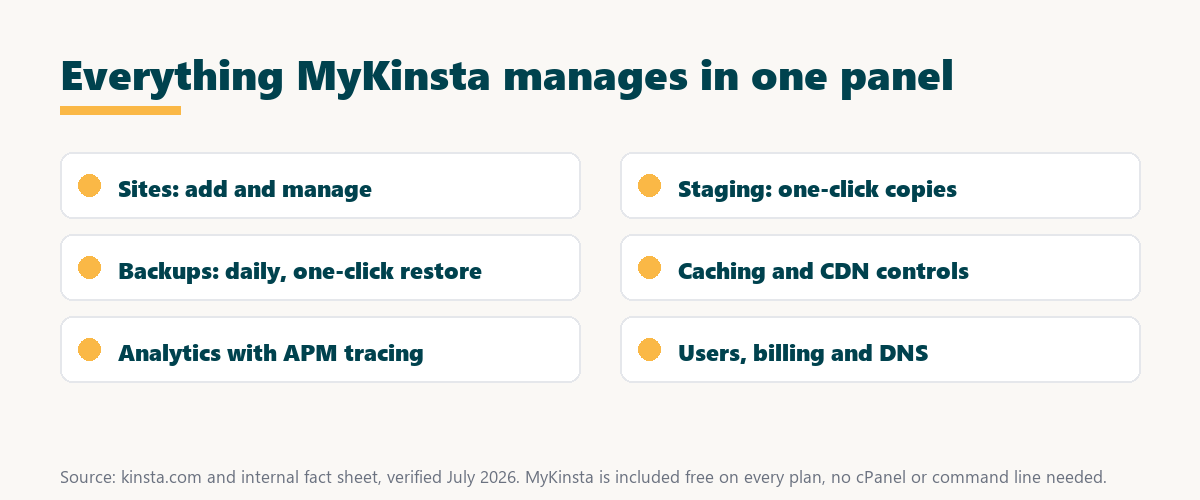
Source: kinsta.com and kinsta.com/plans, verified August 2026. Every feature is included on all plans at no extra cost.
In plain terms, MyKinsta groups every tool by function with one-click actions, so sites, staging, backups, caching and analytics are managed without technical setup.
See the MyKinsta dashboard for yourself
See Kinsta Plans →MyKinsta included on every plan, with a 30-day money-back guarantee.
How to View Analytics and Performance
View analytics in MyKinsta’s Analytics section, which shows traffic, top requests, response times and errors, plus APM to trace slow code. These insights help spot performance issues and understand traffic without installing separate monitoring tools on the site.
“The first five seconds of page-load time have the highest impact on conversion rates.”
— HubSpot, page load time and conversion rates
Because slow pages cost conversions, the built-in analytics and APM turn MyKinsta into an early-warning system for the performance issues that matter most to revenue.
How to Manage Users and Access
Manage users and access in MyKinsta’s company settings, where team members or clients are invited and given permissions per site or company-wide. This lets agencies and teams collaborate safely, giving each person only the access they genuinely need.
- Company members: Company settings invite team members and set roles that apply across the whole account.
- Per-site access: Permissions can be scoped to a single site, so a client sees only their own project.
- Role levels: Different role levels separate billing access from technical site management for cleaner control.
- Unlimited users: Every plan allows unlimited users, so adding a whole team costs nothing extra.
- SSO options: SAML single sign-on is available for organizations that centralise their login security.
The honest takeaway is that granular, unlimited user management makes MyKinsta as suitable for agencies as it is for a single site owner.
Does the Dashboard Cost Extra?
No, MyKinsta is included with every Kinsta plan at no extra cost, since it is simply the dashboard for managing the hosting. The only cost is the Kinsta plan itself, starting at 35 dollars a month, and all of MyKinsta’s tools come with it.
Source: kinsta.com pricing and kinsta.com/plans, verified August 2026. MyKinsta and all its tools are included with every plan.
Put simply, MyKinsta is included free with the plan, easy to learn and backed by 24/7 expert support, so managing a site takes clicks rather than commands. Teams weighing platform commitment can read our note on SaaS vendor lock-in before going all in.
How to Manage DNS, PHP and SSL
MyKinsta handles DNS, PHP and SSL directly, so no separate provider or server access is needed. DNS records are edited in the dashboard on Amazon Route 53 infrastructure, the PHP version is changed with one click, and free SSL is issued and managed automatically for every site.
- Built-in DNS: Domain records live in MyKinsta on Amazon Route 53, so DNS is edited in the same panel as the site.
- One-click PHP: The tools section changes a site’s PHP version instantly, making it easy to move to a newer release.
- Managed SSL: Free wildcard SSL is provisioned and renewed automatically, keeping every domain served over HTTPS.
- Redirect rules: The redirects tool adds and manages URL redirects without editing server files by hand.
- Tools and logs: Restart PHP, clear cache and read error logs from one place to resolve common issues fast.
The honest takeaway is that folding DNS, PHP and SSL into the dashboard removes the three places beginners usually get stuck, all without touching a server.
Manage DNS, PHP and SSL without a server
Explore Kinsta →Every tool built into MyKinsta, with a 30-day money-back guarantee.
How to Use MyKinsta to Get Started
To get started, sign up for Kinsta, log in to MyKinsta, and add or migrate a site. Explore the Sites menu to find staging, backups and caching, and use Analytics to monitor performance. The 30-day money-back guarantee lets first-time customers try the dashboard risk-free.
- Sign up and log in: Create a Kinsta account and open MyKinsta from any browser.
- Add or migrate a site: Start a fresh WordPress install or request a free migration.
- Explore the Sites menu: Open the site to find staging, backups, tools and logs.
- Test with staging: Create a staging copy to try changes before pushing live.
- Watch Analytics: Review traffic and performance to catch issues early.
Start managing a site in MyKinsta today
Get Started With Kinsta →Free migration and a 30-day money-back guarantee.
What Are the Most Useful Features?
The most useful MyKinsta features for most users are one-click staging, one-click backup restore, cache clearing, analytics with APM and user management. Learning these few tools covers the vast majority of day-to-day site management on Kinsta.
The honest qualifier is that the panel has far more depth, but a beginner rarely needs more than those five tools to run a site confidently.
Is It Easy for Beginners?
Yes, MyKinsta is easy for beginners because it presents tools in a clean, logical layout with one-click actions, avoiding cPanel clutter and command lines. Combined with 24/7 support, it makes premium hosting approachable for non-technical users running their first site.
“A tool is only worth its premium when the hours or revenue it protects exceed the invoice.”
— Growth Hack Suite, on tool ROI
Since the dashboard’s simplicity saves hours that would otherwise go to server administration, MyKinsta earns its place by making that saved time available to non-technical owners as well as developers.
Using MyKinsta: Frequently Asked Questions
The 12 most-asked questions about using MyKinsta.
What can I do in the MyKinsta dashboard?
In MyKinsta you manage every site, run backups, create staging, clear cache, view analytics, edit DNS, add team members and handle billing, all from one control panel instead of cPanel.
How do I add a new site in MyKinsta?
You click to add a site in MyKinsta, choose a fresh WordPress install or migrate an existing site, pick a data center, and Kinsta provisions the environment in minutes.
How do I clear my cache in MyKinsta?
It has a one-click option to clear the site cache, and it also purges affected pages automatically when you update content, so refreshing the cache takes seconds.
How do I view analytics in MyKinsta?
The analytics section in MyKinsta shows visits, bandwidth, top requests, cache performance and errors, helping you spot slow pages or traffic spikes without installing extra tools.
How do I create a backup in MyKinsta?
It creates daily backups automatically, and you can trigger a manual backup or restore any available point with one click from the backups tab of your site.
How do I switch PHP versions in MyKinsta?
In your site’s tools section MyKinsta lets you change the PHP version with one click, so you can move to a newer release to improve performance.
How do I add team members in MyKinsta?
The panel’s user management lets you invite team members or clients and assign roles, so each person gets only the access they need to specific sites or billing.
How do I restart PHP or fix a stuck site in MyKinsta?
MyKinsta provides one-click controls to restart PHP and clear cache, which resolve many common issues quickly without opening a support ticket.
How do I manage DNS in MyKinsta?
Kinsta DNS is built into MyKinsta on Amazon Route 53 infrastructure, so you add and edit your domain’s records directly in the dashboard rather than a separate provider.
How do I open a support ticket in MyKinsta?
MyKinsta includes integrated 24/7 live chat with Kinsta engineers, so you request help directly in the dashboard where you manage your sites.
How do I check my plan usage in MyKinsta?
MyKinsta shows your visits, bandwidth and storage against plan limits, so you can see when you are nearing a threshold and upgrade before overages occur.
Is MyKinsta beginner-friendly?
Yes, MyKinsta uses plain labels and one-click actions for caching, staging and backups, so non-technical users can manage a site confidently without server expertise.
About this guide
Written by the Growth Hack Suite editorial team, drawing on hands-on experience running sites in MyKinsta. Dashboard features were read from kinsta.com.
This page carries affiliate links to Kinsta, so the point worth stating plainly is that MyKinsta costs nothing extra: it is included on every plan from 35 dollars a month, replaces cPanel and command lines with one-click actions for sites, staging, daily backups, caching, the CDN, analytics with APM, unlimited users and built-in DNS, and is backed by 24/7 support that makes premium hosting approachable for beginners.