Table of Contents
You can cancel Kinsta or downgrade your plan any time in MyKinsta, and the 30-day money-back guarantee lets new customers get a full refund. There is no long-term contract and no cancellation fee, so you control the subscription. This guide shows how to cancel Kinsta, downgrade to spend less, request a refund, and move your site elsewhere without losing data.
Last updated: August 2026. Cancellation and refund details were read from kinsta.com. This page carries affiliate links to Kinsta, so the terms are stated plainly: no lock-in, and the refund applies within 30 days.
Can You Cancel Kinsta Any Time?
Yes, you can cancel Kinsta or downgrade your plan any time from MyKinsta, and first-time customers can request a full refund within 30 days under the money-back guarantee. There is no long lock-in and no cancellation fee, so you keep control of the subscription and can leave whenever you choose.
Verdict: Cancelling Kinsta is straightforward and penalty-free. There is no long-term contract, so you can cancel or downgrade in MyKinsta at any time, and first-time customers get a full hosting refund within 30 days. The one rule that matters: back up and move your site before you cancel, because a removed environment is deleted along with its files and database.
In short, the process is simple, but the order matters: back up, verify the new host, then cancel, and the sections below walk through each step.
What to Do Before You Cancel
Before cancelling, back up the site by downloading a full backup from MyKinsta, and set up the new host so the site is never left offline. Plan the DNS change and email separately, since Kinsta does not host email, to ensure a smooth transition with no lost data.
“WordPress is a web content management system.”
— Wikipedia, WordPress
Because the site is a portable WordPress install, moving it to another host is routine, which is why a clean backup is the only real prerequisite before cancelling.
How to Cancel Kinsta Step by Step
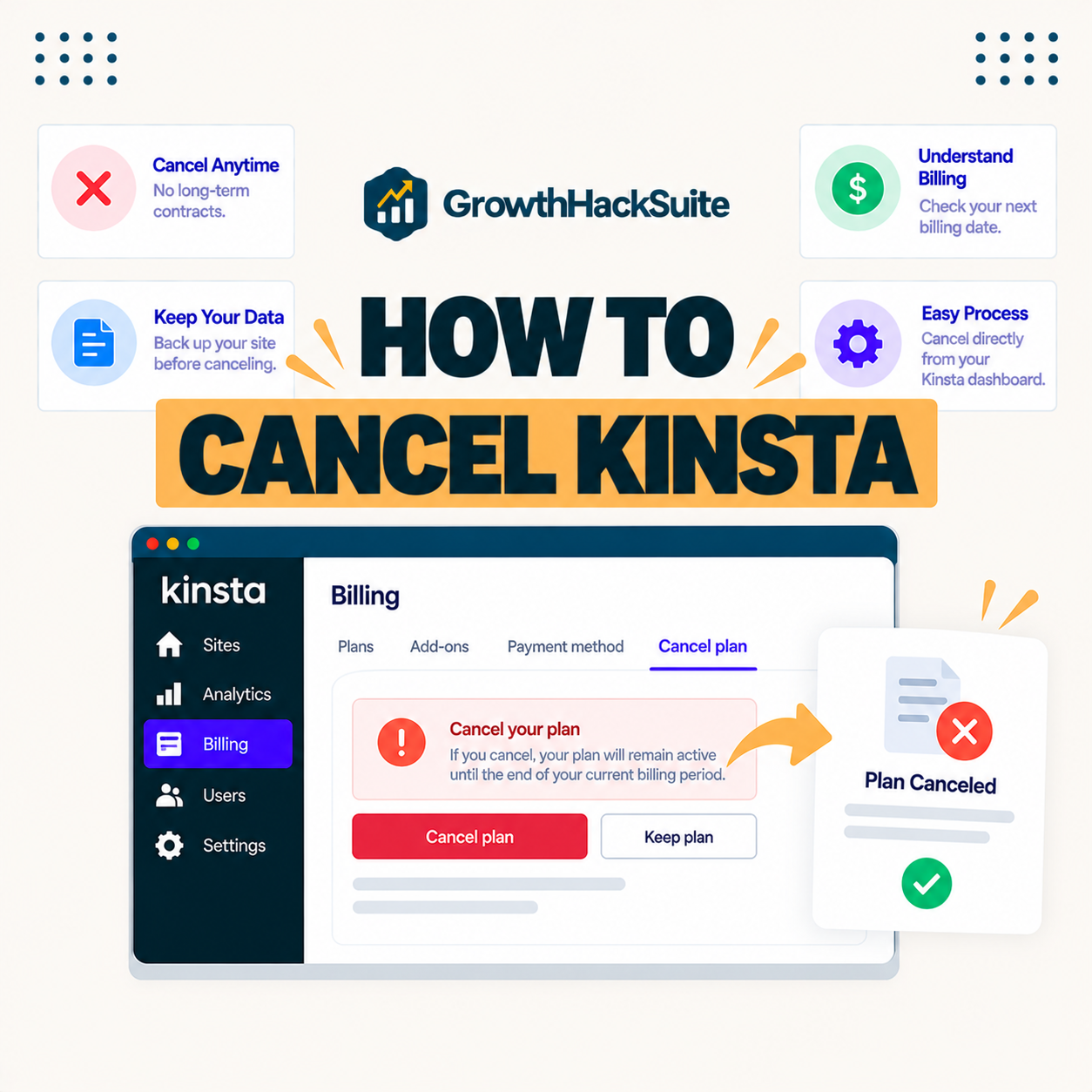
To cancel Kinsta, log in to MyKinsta, open the company or billing settings, and choose to cancel the subscription, following the prompts. Download the site backup first, and if you are within 30 days of signing up, request the money-back refund at the same time.
- Download a full backup: Export the site’s files and database from MyKinsta before touching the subscription.
- Verify the new host: Confirm the site runs correctly on its new destination so nothing is lost.
- Open billing settings: In MyKinsta, go to the company or billing area that controls the subscription.
- Cancel the subscription: Choose to cancel and follow the prompts, or contact support for account closure.
- Request a refund if eligible: Within 30 days of signup, ask support for the money-back refund as part of cancelling.
The honest point is that cancelling itself takes minutes; the care goes into backing up and moving the site first so nothing is lost.
How to Downgrade Instead of Cancelling
If you only need to spend less, downgrade instead of cancelling by changing the plan in MyKinsta to a lower tier that still fits the traffic. This keeps the site on Kinsta while reducing cost, which is often better than leaving if performance still matters.
The practical takeaway is that a downgrade solves a budget problem without a migration, so it is the first option to weigh before cancelling outright.
How to Request a Refund Within 30 Days
To request a refund, contact Kinsta support within 30 days of signing up and ask to cancel under the money-back guarantee. Kinsta refunds the hosting fees, and because you keep the old host during migration testing, the site stays online throughout the process.
The honest caveat is that the guarantee excludes one-time fees, overage charges and dedicated server costs, and it applies to first-time customers, so review the terms before assuming a full refund.
Cancel vs Downgrade Kinsta Compared
The choice between cancelling and downgrading Kinsta comes down to whether you are leaving the platform or just cutting cost. Downgrading keeps the site and lowers the bill, while cancelling ends the service, with a refund only inside the 30-day window.
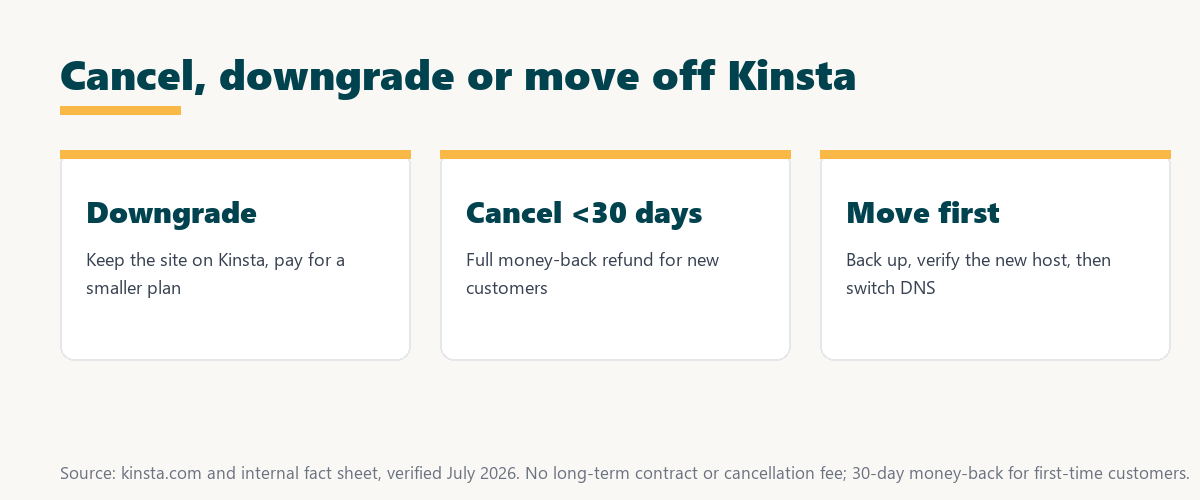
Source: kinsta.com and kinsta.com/plans, verified August 2026. Downgrading keeps the site on Kinsta; cancelling ends it, with a refund only within 30 days.
In plain terms, downgrade if you want to stay for less, and cancel only if leaving, always backing up and moving the site first.
Not sure yet? Try Kinsta risk-free first
See Kinsta Plans →No long-term contract, free migration, and a 30-day money-back guarantee.
How to Move Your Site Off Kinsta
To move a site off Kinsta, download a full backup from MyKinsta or use a migration plugin to export it, then import it to the new host and switch DNS. Keep the Kinsta site live until the new one is verified so visitors are never interrupted during the move.
- Full backup export: A complete files-and-database backup from MyKinsta is the portable copy the new host imports.
- Migration plugin option: A migration plugin can push the site to the destination host without a manual file transfer.
- New host import: The destination host imports the backup and rebuilds the site in its own environment.
- DNS switch: Repointing the domain’s DNS sends visitors to the new host once the copy is verified working.
- Overlap window: Keeping the Kinsta site live during the switch prevents any downtime while DNS propagates.
The honest takeaway is that a verified copy on the new host, before any DNS change, is what makes the move safe and downtime-free.
How to Avoid Losing Data When Cancelling
Avoid data loss by downloading a complete backup before cancelling and confirming the new host has the site working before deleting anything on Kinsta. Never cancel and remove the site until the destination is verified live, so a working copy always exists somewhere.
“The first five seconds of page-load time have the highest impact on conversion rates.”
— HubSpot, page load time and conversion rates
Because downtime and lost data both hurt performance and trust, verifying the new host before deleting the old one protects the very speed and reliability that motivated the move.
Will You Get a Refund When Cancelling Kinsta?
You get a full refund of hosting fees if you cancel within 30 days of signing up under the money-back guarantee. After 30 days, cancelling stops future billing but does not refund the current term, so the timing of a cancellation decides whether a refund applies.
Source: kinsta.com and kinsta.com/plans, verified August 2026. The 30-day refund applies to first-time customers and excludes overage and one-time fees.
Put simply, a full refund applies only within the first 30 days, so back up, move the site, and time the cancellation to reclaim fees if eligible. Teams weighing platform commitment can read our note on SaaS vendor lock-in before deciding.
How to Start the Cancellation Process
To start, download the backup, prepare the new host, then log in to MyKinsta and cancel or downgrade in the billing settings. New customers within 30 days can contact support to request the refund as part of the cancellation.
- Back up the site: Download a full files-and-database backup from MyKinsta first.
- Set up the new host: Import and verify the site on its destination before changing anything.
- Switch DNS: Repoint the domain to the new host once the copy is confirmed working.
- Cancel or downgrade: In MyKinsta billing, cancel the subscription or move to a smaller plan.
- Claim the refund: If within 30 days, contact support to request the money-back refund.
Want to stay? Downgrade and keep the speed
Compare Kinsta Plans →Switch to a smaller plan any time, with no cancellation fee.
What Happens to Your Site After Cancelling?
After cancelling, the Kinsta site is scheduled for removal, so it must be moved beforehand to stay online. The domain remains with its registrar, so DNS is simply repointed to a new host, and the content lives on wherever it was migrated.
The honest summary is that cancelling deletes the Kinsta environment, not the domain, so the only thing at risk is a site that was not backed up and moved first.
Should You Cancel or Just Downgrade Kinsta?
You should downgrade rather than cancel if you still value Kinsta’s speed and support but want a lower cost, since a smaller plan may fit. Cancel only when leaving the platform entirely, and if you are within 30 days, use the guarantee for a refund.
“A tool is only worth its premium when the hours or revenue it protects exceed the invoice.”
— Growth Hack Suite, on tool ROI
Since the decision is really about value, a downgrade keeps the benefit at lower cost, while cancelling makes sense only when the platform no longer earns its price for the site.
How Do You Get Started With Cancelling or Downgrading?
To get started, decide whether the goal is leaving or saving: back up and move the site if cancelling, or change to a smaller plan in MyKinsta if downgrading. Either way, act inside the 30-day window if a refund matters, and confirm the site is safe before removing anything.
The honest summary is that both paths start the same way, with a backup and a clear plan, so the first step is simply protecting the site before changing the subscription.
Start on Kinsta risk-free with a 30-day guarantee
Try Kinsta Risk-Free →Free migration and a 30-day money-back guarantee.
Cancelling Kinsta: Frequently Asked Questions
The 12 most-asked questions about cancelling Kinsta.
How do I cancel my Kinsta account?
You cancel from MyKinsta by removing your sites and closing the account in the billing settings, or by contacting Kinsta support, which stops future billing on your plan.
Can I get a refund when I cancel Kinsta?
If you cancel within 30 days of your initial purchase as a first-time customer, Kinsta’s money-back guarantee refunds your hosting payment in full; after that window, cancellation stops future charges but is not refunded.
Will canceling Kinsta delete my site immediately?
Canceling and removing a site takes it off Kinsta, so export a full backup first, because once the environment is removed your files and database on Kinsta are gone.
How do I back up my site before canceling Kinsta?
Before canceling, generate a downloadable backup of your files and database in MyKinsta, or migrate the site to your new host, so you keep a complete copy.
Does canceling Kinsta stop annual billing?
Canceling stops future renewals, and if you are within the 30-day money-back window on an initial annual purchase you can request a refund; otherwise the plan runs until its paid term.
Can I pause instead of cancel Kinsta?
Kinsta bills per plan rather than offering a formal pause, so if you only need to reduce cost you can downgrade to a smaller plan instead of fully canceling.
What happens to my domain when I cancel Kinsta?
Your domain registration is separate from Kinsta hosting, so canceling Kinsta does not affect the domain; you repoint its DNS to your new host to keep the site online elsewhere.
How do I move my site off Kinsta before canceling?
Download your Kinsta backup or have your new host import the site, verify it works there, switch DNS, and only then cancel Kinsta so there is no downtime.
Will I be charged after canceling Kinsta?
Once you cancel, Kinsta stops future billing, though usage already incurred in the current period may still apply, so review your final invoice in MyKinsta.
Can I reactivate a canceled Kinsta account?
You can sign up again, but a removed environment’s data is deleted, so reactivation means setting up or re-migrating the site rather than restoring the old one.
Is there a cancellation fee on Kinsta?
Kinsta plans are not long-term contracts, so there is no penalty fee for canceling; you simply stop future billing when you close the account or remove the sites.
What should I confirm before canceling Kinsta?
Before canceling, confirm you have a full backup, your site is running on its new host, DNS has propagated, and you are inside or outside the refund window as expected.
About this guide
Written by the Growth Hack Suite editorial team, drawing on hands-on experience migrating and testing managed WordPress hosting. Cancellation and refund details were read from kinsta.com. This page carries affiliate links to Kinsta, so the terms are stated plainly: there is no long-term contract and no cancellation fee, you can cancel or downgrade in MyKinsta at any time, and first-time customers can claim a full hosting refund within 30 days, excluding overage and one-time fees. The safe order is always to back up, verify the site on its new host, switch DNS, and only then cancel, because a removed Kinsta environment is deleted with its data.