

Table of Contents
Kinsta Cloudflare is built in: Kinsta includes a free enterprise Cloudflare integration for its CDN, edge caching, firewall and DDoS protection, enabled automatically, so most sites do not set up Cloudflare manually. You can still add your own Cloudflare account for advanced control. This guide explains what Kinsta’s Cloudflare covers, how to confirm and configure it, and when adding your own account makes sense.
Last updated: August 2026. Cloudflare integration details were read from kinsta.com. This page carries affiliate links to Kinsta, and it is clear that the built-in Cloudflare is free while a separate Cloudflare account has its own possible costs.
Do You Need to Set Up Cloudflare on Kinsta?
In most cases you do not need to set up Cloudflare manually on Kinsta, because Kinsta includes a free Cloudflare integration that powers its CDN, edge caching, firewall and DDoS protection automatically. You only add your own Cloudflare account for advanced features the built-in integration does not cover.
Verdict: Kinsta Cloudflare is included and enabled by default, giving every plan a Cloudflare CDN, edge caching, an enterprise firewall, DDoS protection and free SSL with no separate account to configure. Two honest points: most sites never need their own Cloudflare account, and adding one requires care to avoid double-proxying conflicts with Kinsta’s integration.
The clearest way to approach it is to see what is already included, confirm it is active, and only add your own account if a specific advanced need calls for it, which the sections below cover.
“WordPress is a web content management system.”
— Wikipedia, WordPress
Kinsta wraps that content management system in Cloudflare’s network by default, so the performance and security most sites want are on from the start without configuration.
What Cloudflare Features Does Kinsta Include?
Kinsta’s built-in Cloudflare integration includes the CDN across hundreds of edge locations, edge caching, free SSL, DDoS protection and an enterprise firewall, all enabled by default. This gives Cloudflare’s core performance and security benefits without configuring a separate account.
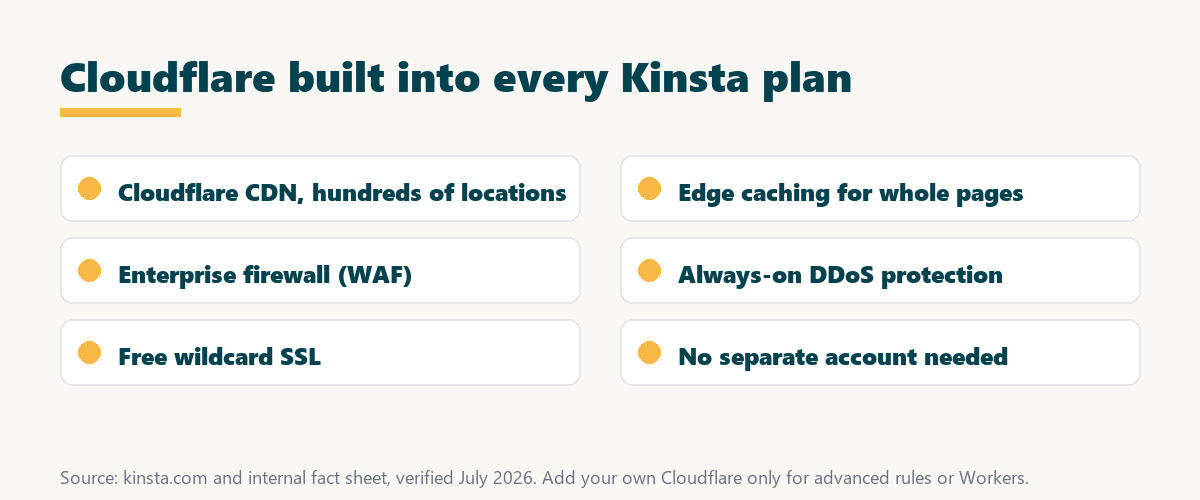
- Cloudflare CDN: Static assets and cached pages serve from Cloudflare’s network across hundreds of edge locations worldwide.
- Edge caching: Whole cacheable pages are stored at the edge, so most visitors get a ready-made page from a nearby location.
- Enterprise firewall: A Cloudflare web application firewall filters malicious traffic before it reaches the origin server.
- DDoS protection: Always-on DDoS mitigation absorbs attack traffic on Cloudflare’s network rather than the origin.
- Free SSL: A wildcard SSL certificate is included, so every site and subdomain is served securely over HTTPS.
The honest point is that this covers the CDN, caching, firewall, DDoS and SSL most sites need, which is why a separate Cloudflare account is rarely required.
How to Confirm Cloudflare Is Active on Kinsta
To confirm Kinsta Cloudflare is active, open the site in MyKinsta and check that the CDN and edge caching are enabled, which they are by default. CDN usage and cache status are visible there, verifying that assets and pages are served through Cloudflare’s network.
- Open the site in MyKinsta: Select the site whose Cloudflare status needs confirming from the sites list.
- Check the CDN setting: Confirm the CDN is enabled, which it is by default on every plan.
- Check edge caching: Confirm edge caching is on so whole pages serve from the Cloudflare network.
- View CDN usage: Review the CDN usage and cache status to see traffic served through Cloudflare.
- Clear cache if needed: Use the cache controls to clear the CDN cache after major changes so visitors get fresh content.
The honest summary is that confirming Cloudflare is active is a quick check in MyKinsta, since the integration is on by default and needs no setup.
How to Enable Edge Caching and the CDN
Edge caching and the CDN are on by default, but they can be toggled and cleared in MyKinsta under the site’s settings. Enabling full edge caching serves cached pages from Cloudflare’s network, which delivers the biggest speed benefit of the integration.
The practical point is that leaving the CDN and edge caching enabled is the right default for almost every site, and the cache controls are mainly for clearing stale content after an update.
How to Add Your Own Cloudflare Account
If you need features like custom page rules, advanced firewall rules or Cloudflare Workers, add your own Cloudflare account by pointing the domain’s nameservers to Cloudflare and configuring it alongside Kinsta. Following Kinsta’s guidance avoids conflicts with the built-in integration.
- Create a Cloudflare account: Sign up with Cloudflare and add the domain to that account.
- Point nameservers to Cloudflare: Update the registrar’s nameservers to the ones Cloudflare provides.
- Set DNS records to Kinsta: In Cloudflare, point the site’s DNS records to Kinsta so traffic still reaches the origin.
- Follow Kinsta’s guidance: Apply Kinsta’s recommended configuration to avoid conflicting caching or proxy settings.
- Test thoroughly: Confirm the site loads correctly, SSL works, and no double-proxy errors appear after the change.
The honest caveat is that this adds complexity, so it is worth doing only when a specific advanced feature is genuinely needed.
Kinsta Cloudflare: Built-in vs Your Own
The difference between Kinsta’s built-in Cloudflare and your own account is control versus simplicity. The built-in integration covers the essentials free and managed, while your own account adds advanced rules at the cost of extra configuration.
Source: kinsta.com and kinsta.com/plans, verified August 2026. The built-in integration uses Cloudflare’s network; your own account adds control at the cost of setup.
In plain terms, Kinsta’s built-in Cloudflare covers CDN, caching, SSL and DDoS for free, and you only add your own account for advanced rules or Workers.
How to Avoid Conflicts Between the Two
To avoid conflicts, do not duplicate caching or SSL settings between Kinsta’s integration and your own Cloudflare account, and follow Kinsta’s recommended configuration. Misconfigured double-proxying can cause errors, so keep one clear setup and test after any change.
- Avoid double caching: Do not enable the same page caching in both Kinsta and a personal Cloudflare account, which can serve stale or conflicting content.
- Do not double-proxy: Layering a personal Cloudflare proxy over Kinsta’s own Cloudflare can cause loops or errors, so follow the recommended DNS setup.
- Keep SSL consistent: Manage SSL in one place to avoid certificate mismatches between the two setups.
- Follow Kinsta’s guidance: Kinsta documents the supported configuration, which is the safe path when adding an own account.
- Test after changes: Confirm pages, SSL and caching work after any change, since conflicts often show only under real traffic.
The honest takeaway is that the built-in integration is conflict-free by design, and the risks appear only when a second Cloudflare setup is layered on without care.
How to Verify Cloudflare Is Speeding Up Your Site
Verify the speed benefit by running a test from a distant location and checking that assets and cached pages load quickly with low time to first byte. MyKinsta’s analytics and CDN usage confirm traffic is served through Cloudflare, indicating the integration is working.
“The first five seconds of page-load time have the highest impact on conversion rates.”
— HubSpot, page load time and conversion rates
Because a distant visitor’s first seconds depend on edge delivery, a test from far away is the clearest confirmation that Cloudflare is serving cached content close to visitors as intended.
Cloudflare CDN and security, included
See Kinsta Plans →Enterprise Cloudflare enabled by default, with a 30-day money-back guarantee.
Does Cloudflare on Kinsta Cost Extra?
No, Kinsta’s Cloudflare integration is included free on all plans starting at 35 dollars a month, covering the CDN, edge caching, SSL and DDoS protection. Adding your own Cloudflare account may involve Cloudflare’s own plan costs for advanced features, separate from Kinsta.
Source: kinsta.com pricing and kinsta.com/plans, verified August 2026. Kinsta’s Cloudflare integration is free; a separate Cloudflare account has its own free and paid tiers.
Put simply, Kinsta’s Cloudflare is free and included, and only advanced needs justify adding a paid Cloudflare plan of your own.
What Advanced Cloudflare Features Might You Add?
Advanced features you might add via your own Cloudflare account include custom page rules, bot management, Workers for edge logic and granular firewall rules. Most sites do not need these, but developers and high-security sites may layer them on top of Kinsta’s integration.
- Custom page rules: Fine-grained rules for caching, redirects or behaviour on specific URLs beyond the defaults.
- Bot management: Advanced bot detection and control for sites facing heavy automated traffic.
- Cloudflare Workers: Edge code that runs logic at Cloudflare’s network for custom routing or transformations.
- Granular firewall rules: Detailed WAF rules tailored to a site’s specific threat profile.
- Analytics and insights: Deeper Cloudflare analytics than the built-in integration surfaces.
The honest qualifier is that these suit developers and specialised sites, and adding them means taking on the configuration and cost that the built-in integration otherwise handles.
Is Kinsta’s Cloudflare Integration Enough?
For most sites, Kinsta’s built-in Cloudflare integration is enough, delivering the CDN, edge caching, SSL and DDoS protection that cover performance and security needs. Only sites with specialised requirements benefit from adding a separate Cloudflare account on top.
“A tool is only worth its premium when the hours or revenue it protects exceed the invoice.”
— Growth Hack Suite, on tool ROI
Since the built-in Cloudflare is free, its value is the performance and protection it adds at no extra cost, so a personal account is worth it only when its advanced features protect enough to justify the added work. Teams weighing platform dependence can read our note on SaaS vendor lock-in before adding layers.
What Cloudflare Controls Does MyKinsta Expose?
MyKinsta exposes the core Cloudflare controls a site actually needs: the CDN toggle, edge caching, cache clearing, and usage analytics. These cover day-to-day management, while deeper Cloudflare rules stay reserved for a separate account layered on top.
- CDN toggle: The CDN switch turns Cloudflare asset delivery on or off per site, enabled by default for every plan.
- Edge caching toggle: The edge caching control stores full pages at the Cloudflare network, delivering the integration’s biggest speed gain.
- Cache clearing: The cache tools clear the CDN and page cache after an update, so a stale version never reaches visitors.
- Usage analytics: The analytics view reports CDN traffic and cache hit rates, confirming that Cloudflare is serving content as expected.
- SSL management: The SSL section manages the free wildcard certificate, keeping every subdomain served securely over HTTPS.
The honest point is that MyKinsta keeps the useful controls one click away and hides the complexity, which is exactly why most sites never touch a raw Cloudflare dashboard.
Managed Cloudflare, no dashboard to learn
Get Started With Kinsta →CDN, caching and SSL controls built into MyKinsta, with a 30-day money-back guarantee.
How Do You Get Started With Cloudflare on Kinsta?
To get started, simply sign up for Kinsta, since the Cloudflare integration is already active, then confirm the CDN and edge caching are enabled in MyKinsta. Add your own Cloudflare account only if advanced control is needed, and test thoroughly afterward.
The honest summary is that there is nothing to install for most sites: the Cloudflare integration is on by default, so getting started is really just confirming it is active.
Cloudflare on by default, try it risk-free
Try Kinsta Risk-Free →Free migration and a 30-day money-back guarantee.
Kinsta Cloudflare: Frequently Asked Questions
The 12 most-asked questions about Cloudflare on Kinsta.
Does Kinsta already include Cloudflare?
Yes, Kinsta bundles an enterprise Cloudflare integration providing the CDN, firewall, DDoS protection and edge caching, so those features are active without you setting up Cloudflare yourself.
Do I need my own Cloudflare account with Kinsta?
No, Kinsta manages the Cloudflare relationship for its built-in CDN and security, so a separate Cloudflare account is not needed for those platform features to work.
Is Kinsta’s Cloudflare integration free?
Yes, the Cloudflare integration is included free on all Kinsta plans, covering the CDN, edge caching, SSL and DDoS protection without any separate Cloudflare charge.
When should I add my own Cloudflare account?
Add your own account only when you need advanced features like custom page rules, Cloudflare Workers or granular firewall rules that the built-in integration does not expose.
Can I use Cloudflare Workers with Kinsta?
Yes, but Workers require your own Cloudflare account layered in front of Kinsta, configured to avoid conflicts, since the built-in integration does not expose Workers directly.
Will adding my own Cloudflare cause conflicts?
It can if caching or proxy settings are duplicated, so follow Kinsta’s recommended configuration, avoid double-proxying, and test thoroughly to prevent errors.
Does Kinsta’s Cloudflare include a firewall?
Yes, the integration includes an enterprise Cloudflare web application firewall that filters malicious traffic at the edge before it reaches the origin server.
How many locations does the Kinsta CDN cover?
The Cloudflare-powered CDN serves content from hundreds of edge locations worldwide, so assets and cached pages load from near each visitor.
Does Kinsta’s Cloudflare handle DDoS attacks?
Yes, always-on DDoS protection on the Cloudflare network absorbs attack traffic before it reaches a site’s origin, included on every Kinsta plan.
How do I clear the Cloudflare cache on Kinsta?
From MyKinsta you can clear the CDN and site cache after a change, so visitors receive the updated content rather than a stale cached version.
Is SSL part of Kinsta’s Cloudflare integration?
Yes, free wildcard SSL is included, so every site and subdomain is served securely over HTTPS without a separate certificate purchase or Cloudflare account.
Is Kinsta’s built-in Cloudflare enough for most sites?
Yes, for most sites the built-in CDN, edge caching, SSL, firewall and DDoS protection cover performance and security, so a separate Cloudflare account is rarely needed.
About this guide
Written by the Growth Hack Suite editorial team. Cloudflare integration details were read from kinsta.com. This page carries affiliate links to Kinsta, so the honesty owed to a reader is stated plainly: Kinsta includes a free enterprise Cloudflare integration on every plan, enabled by default, providing the CDN across hundreds of edge locations, edge caching, an enterprise firewall, always-on DDoS protection and free wildcard SSL. Most sites never need a separate Cloudflare account, and adding one for advanced features such as page rules or Workers requires following Kinsta’s configuration to avoid double-proxying conflicts.