Table of Contents
A WordPress plugin is a piece of software you add to your site to extend its features without writing code, from contact forms to SEO tools and stores. Plugins make WordPress highly flexible, but each one adds code that can affect speed and security, so choosing well-coded plugins and limiting their number matters. This guide explains how plugins work, how to install them safely and how they affect performance.
Last updated: August 2026. Written by the Growth Hack Suite editorial team, with details cross-checked against provider documentation. This page carries affiliate links to Kinsta.
What Is a WordPress Plugin?
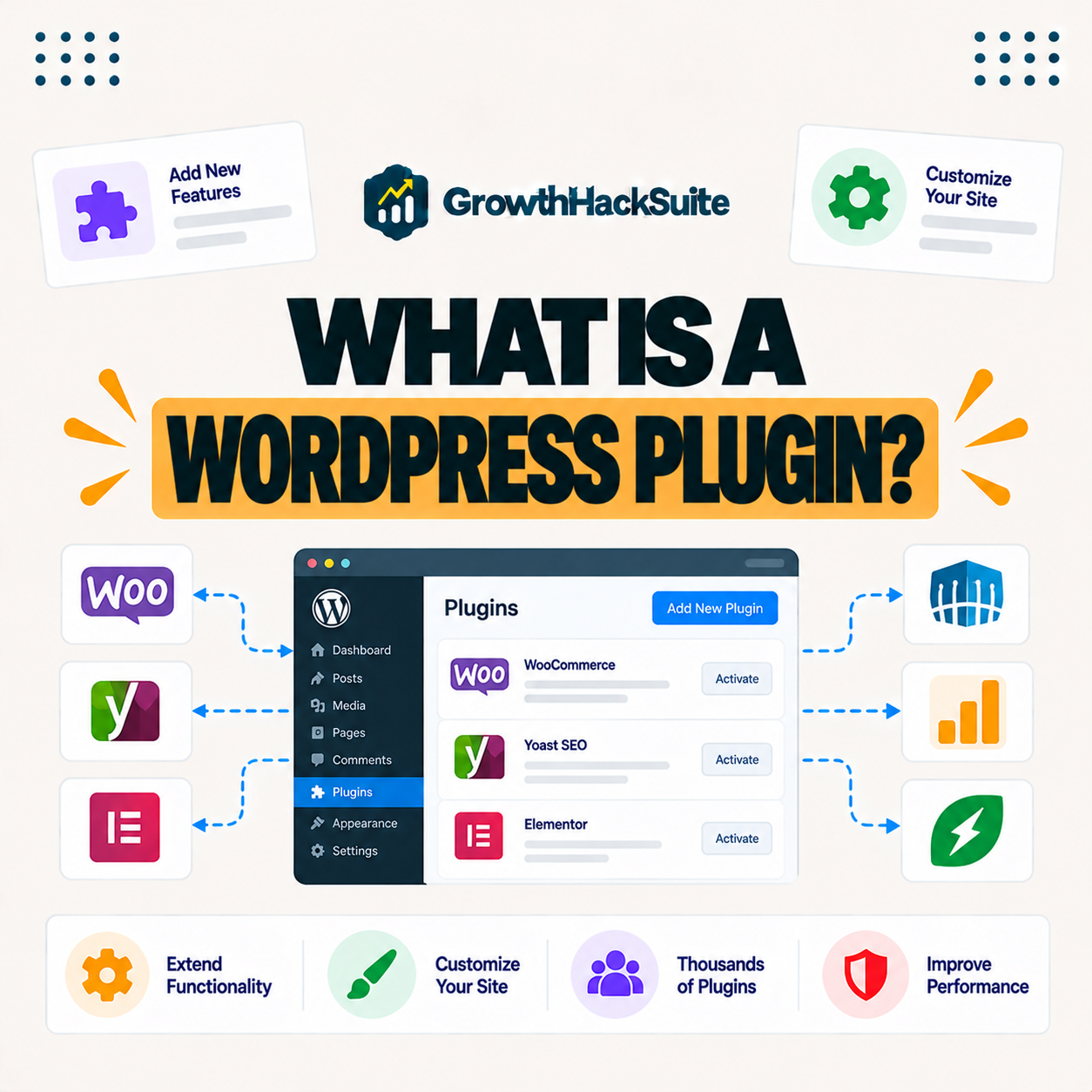
A WordPress plugin is a piece of software you install on your site to add or extend features without writing code. It lets you add contact forms, SEO tools, security, e-commerce and much more to a standard WordPress installation, so the same site can do very different jobs.
“A plug-in is a software component that adds a feature to a program.”
— Wikipedia, Plug-in (computing)
In WordPress, that program is your site, so a plugin is simply a bundle of features you switch on without touching code.
How Do WordPress Plugins Work?
WordPress plugins work by hooking into WordPress’s code to add or change functionality. When you activate a plugin it runs alongside WordPress, adding its features to your site’s front end, admin or both, without you editing core files, so updates to WordPress do not erase your changes.
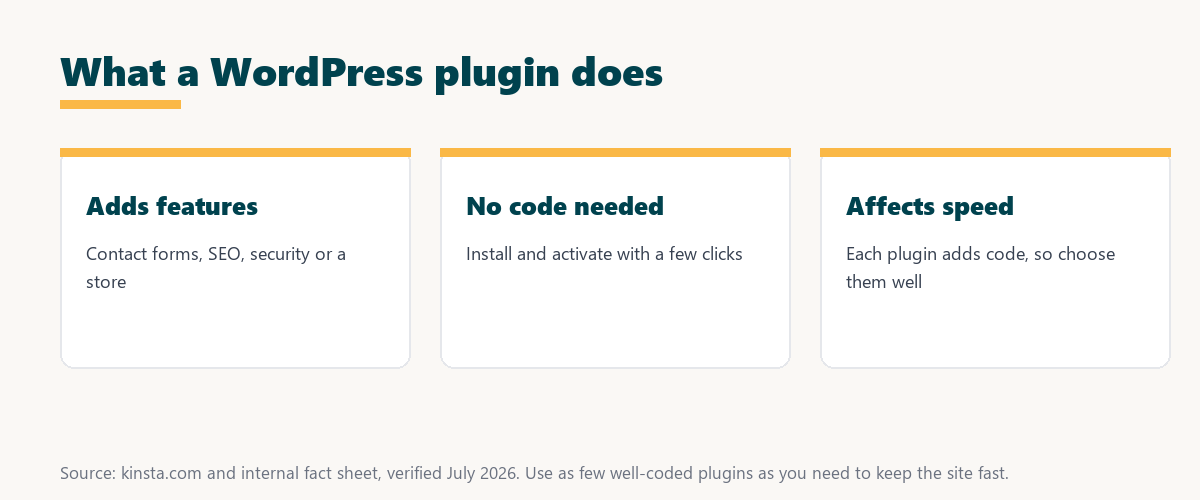
The key idea is that plugins extend WordPress from the outside, which keeps core untouched and your features safe through updates.
How Do You Install a WordPress Plugin?
You install a WordPress plugin from the plugins section of your dashboard by searching the official directory and clicking install and activate, or by uploading a plugin file. Adding features usually takes only a few clicks, which is why plugins make WordPress so approachable for beginners.
The practical takeaway is that installing is easy, so the real skill is deciding which plugins are worth adding at all.
Free vs Premium WordPress Plugins
Free plugins from the WordPress directory cover many needs, while premium plugins add advanced features and support for a fee. Many sites use a mix, choosing paid versions when the extra functionality or support justifies the cost, so the decision is about value, not price alone.
Source: provider documentation, verified August 2026. Many sites mix free and premium plugins by need.
Comparing cost, features and support shows free plugins handle common jobs, while premium ones add advanced functionality and help. Because premium plugins often bill as subscriptions, it is worth reading our note on SaaS vendor lock-in before committing.
See how Kinsta helps you run plugins safely
Try Kinsta →Staging and backups, with a 30-day money-back guarantee.
How Many Plugins Should You Use?
There is no fixed limit on plugins, but each adds code that can affect speed and security. The goal is to use as few well-coded plugins as needed rather than a specific number, since quality matters more than quantity, and one efficient plugin beats three sloppy ones.
The honest point is that the right count is “as few as do the job”, judged by each plugin’s quality, not a magic number.
How Plugins Affect Site Performance
Plugins affect performance because each adds code that runs on your site. Poorly coded or excessive plugins can slow pages and consume resources, which is why choosing efficient plugins and removing unused ones keeps a site fast, especially as traffic grows.
“The first five seconds of page-load time have the highest impact on conversion rates.”
— HubSpot, page load time and conversion rates
Because a heavy plugin stack is a common cause of slow pages, trimming plugins is one of the most direct ways to protect those early seconds for visitors.
Are WordPress Plugins Safe?
WordPress plugins are generally safe when installed from reputable sources and kept updated. Outdated or poorly coded plugins are a common security risk, so using trusted plugins and applying updates promptly protects your site, since attackers often target known plugin vulnerabilities.
The honest point is that plugins are as safe as their source and their updates, so trust and maintenance decide the real risk.
How to Choose Good WordPress Plugins
Choose good WordPress plugins by checking reviews, active installs, update frequency and compatibility, and favoring well-supported options. This way you add reliable features without introducing slow code or security vulnerabilities, so the plugin helps rather than quietly harms the site.
Source: provider documentation, verified August 2026. Check these before installing any plugin.
Reviewing rating, active installs, update frequency and source before installing shows whether a plugin is well maintained and trusted, which is the best guard against slow or unsafe code.
How Hosting Helps You Run Plugins Safely
Good hosting helps you run plugins safely by providing staging to test plugin updates, backups to recover if one breaks your site and a firewall to block exploits. A managed host reduces the risk plugins can introduce, so you can experiment without gambling with your live site.
Test plugin updates safely on Kinsta staging
Start With Kinsta →Free migration and a 30-day money-back guarantee.
Managing Plugins on a Managed Host
You manage plugins well on a managed host by testing updates on staging, keeping backups and using performance tools to spot slow plugins. This way you gain WordPress’s flexibility while keeping the site fast and secure, so plugins add features without quietly degrading the experience.
“A tool is only worth its premium when the hours or revenue it protects exceed the invoice.”
— Growth Hack Suite, on tool ROI
Applied to plugins, a premium plugin or managed host earns its cost when the time it saves and the problems it prevents exceed the fee.
Common Plugin Mistakes to Avoid
Common plugin mistakes include installing too many, leaving inactive plugins installed, using abandoned plugins and skipping updates. Keeping your plugin list lean, current and from trusted sources avoids the performance and security problems that these habits invite over time.
The honest summary is that most plugin trouble comes from neglect, so a short, updated, trusted list prevents the majority of it.
Getting Started With Plugins as a Beginner
You get started with plugins as a beginner by adding only what your site clearly needs, installing from the official directory, and keeping everything updated. Starting small and choosing trusted, well-reviewed plugins gives you WordPress’s flexibility while avoiding the speed and security pitfalls of overloading a new site.
The honest summary is that beginners do best with a lean, trusted set of plugins plus a host that makes testing and recovery easy.
Try Kinsta risk-free while you learn WordPress
Try Kinsta Risk-Free →Staging, backups and free migration, with a 30-day money-back guarantee.
WordPress Plugin: Frequently Asked Questions
The 12 most-asked questions about WordPress plugins.
What is a WordPress plugin in simple terms?
A WordPress plugin is software you add to your site to extend its features without coding, letting you add things like contact forms, SEO tools, security or an online store.
How do WordPress plugins work?
WordPress plugins work by hooking into WordPress’s code to add or change functionality, so activating a plugin runs its features alongside WordPress without you editing core files.
How do I install a WordPress plugin?
You install a plugin from the plugins section of your dashboard by searching the official directory and clicking install and activate, or by uploading a plugin file.
Are WordPress plugins free?
Many WordPress plugins are free from the official directory, while premium plugins add advanced features and support for a fee, so sites often use a mix of both.
How many plugins should I use?
There is no fixed limit, but each plugin adds code affecting speed and security, so use as few well-coded plugins as you need, since quality matters more than quantity.
Do plugins slow down my site?
Plugins can slow your site if they are poorly coded or too numerous, since each adds code that runs on your pages, so choosing efficient plugins and removing unused ones keeps it fast.
Are WordPress plugins safe?
Plugins are generally safe from reputable sources when kept updated, but outdated or poorly coded plugins are a common security risk, so use trusted plugins and update promptly.
How do I choose a good plugin?
Choose a good plugin by checking reviews, active installs, update frequency and compatibility, favoring well-supported options that add features without slow code or vulnerabilities.
What happens if a plugin breaks my site?
If a plugin breaks your site, you can deactivate it, restore a backup, or test on staging first, which is why backups and a staging environment are important safeguards.
Should I remove unused plugins?
Yes, you should remove unused plugins, because even inactive ones add clutter and potential security risk, so keeping only the plugins you actually use keeps the site lean and safer.
Can plugins be a security risk?
Yes, outdated or poorly coded plugins are a leading WordPress security risk, so installing from trusted sources, updating promptly, and using a firewall reduce the danger.
How does hosting help with plugins?
Good hosting helps by offering staging to test plugin updates, backups to recover if one breaks the site, and a firewall to block exploits, reducing the risk plugins introduce.
About this guide
Written by the Growth Hack Suite editorial team, drawing on hands-on experience running WordPress sites. Details were cross-checked against provider documentation. This page carries affiliate links to Kinsta, so the position is stated plainly: a WordPress plugin adds features without code, each plugin adds code that can affect speed and security, and a lean, trusted, updated set is best. Kinsta helps with staging to test updates, backups to recover, and a firewall to block exploits.