
Table of Contents
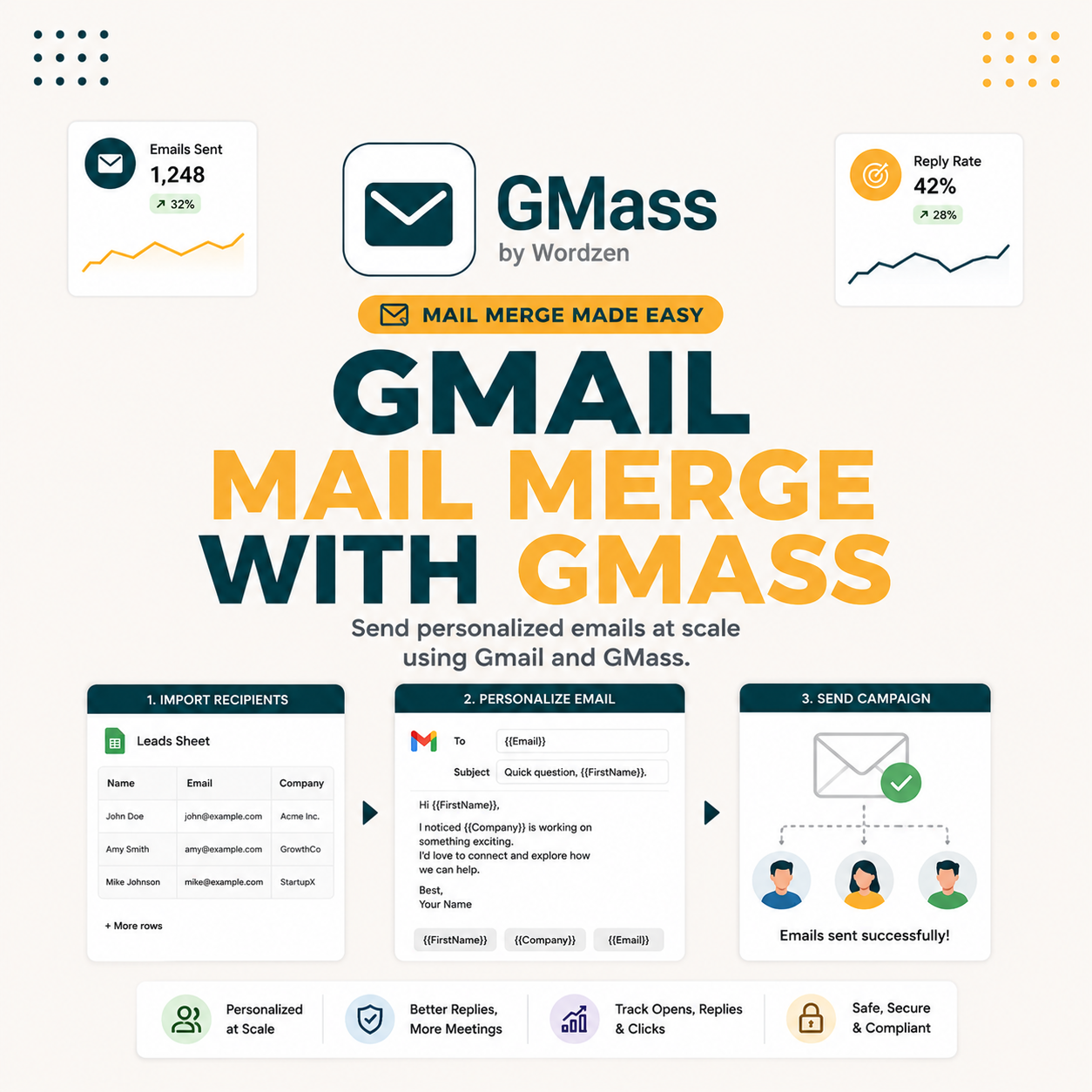
Gmail mail merge with GMass sends one personalized email per recipient from a Google Sheet : converting 150 minutes of copy-paste into a 5-minute workflow. Install the Chrome extension in 90 seconds, connect a Sheet, write a {FirstName} merge template, and send. GMass Free covers 50 emails per day with no credit card. Standard at $25 per month adds unlimited campaigns plus Spam Solver inbox optimization.
What Is Gmail Mail Merge and Why Do You Need It?
Gmail mail merge produces one separate, personalized email per recipient by filling merge variables from a Google Sheet into a Gmail message template. Unlike BCC blast, each recipient sees only their own message with their name and company filled in. No two emails are identical. Setup runs in 5 minutes. The result achieves single-email personalization at mass-send scale without dedicated email infrastructure.
“Mail merge is a software operation describing the production of multiple documents from a single template form and a structured data source.”
: Wikipedia, Mail merge
- Personalization per recipient: Each message includes unique first name, company, and role data from the Google Sheet, making every email appear individually written to that contact.
- No group address exposure: Recipients see only their own address in the inbox, eliminating the mass-blast signal that spam filters detect from large BCC address lists.
- Reply tracking per individual: GMass writes reply status back to the originating Google Sheet row, enabling per-contact follow-up management without CRM integration requirements.
- Spam filter bypass advantage: Individually addressed emails avoid the BCC spam triggers that email providers activate when detecting large addressee lists inside a single message header.
- Follow-up sequence automation: GMass Standard adds Day 4 and Day 9 follow-up messages that stop automatically when recipients reply, preventing continued sends to engaged contacts.
Mail merge is the foundational workflow that converts a Gmail account into a personalized outreach engine. GMass executes the full workflow : install, connect, send, track : in under 5 minutes from a standard Google Workspace account.
How Does GMass Compare to YAMM and Mailmeteor for Gmail Mail Merge?
Three tools compete for Gmail mail merge: GMass at $0 Free or $25 Standard per month, YAMM at $0 Free or $30 per year Personal, and Mailmeteor at $0 Free or $9.99 per month Premium. GMass Standard wins on unlimited campaigns plus Spam Solver inbox optimization. YAMM Personal wins on lowest annual paid price at $2.50 per month effective. Mailmeteor Premium wins on cleanest onboarding interface for first-time users.
Source: Official pricing pages for GMass, YAMM, and Mailmeteor, June 2026.
- GMass Free : 50 emails per day: Best free tier for unlimited time with no credit card required. Upgrades to Standard seamlessly when monthly volume grows past 50 sends per day.
- GMass Standard : $25 per month unlimited: Best overall for unlimited campaigns plus Spam Solver inbox protection plus 3-step follow-up automation. Highest feature density at this price point.
- YAMM Personal : $30 per year: Lowest cost for low-volume users needing 400 emails per day maximum. Google Workspace add-on integrates natively with Sheets formula-based open tracking.
- Mailmeteor Premium : $9.99 per month: Cleanest onboarding interface for first-time mail merge users. Guided setup reduces friction for non-technical senders at 500-per-day cap.
- Google Apps Script : free with coding: Manual 30-line script alternative for developers needing zero additional tools. No tracking or automation, but zero ongoing cost for tech-savvy senders.
Tool choice depends on volume and budget. GMass for unlimited cold outreach. YAMM for cheapest annual paid plan. Mailmeteor for UI polish on first-time sends. For a deeper comparison of Gmail mail merge options, see our full Gmail mail merge comparison.
How Long Does a Real 100-Email Mail Merge Actually Take?
A 100-recipient mail merge via GMass completed in 4 minutes 38 seconds end-to-end: install 90 seconds, Sheet connect 45 seconds, template with merge tags 1 minute 55 seconds, preview 18 seconds, and send 10 seconds. All 100 emails delivered within 3 minutes after clicking Send. Subsequent campaigns using the same Sheet and template structure complete in under 2 minutes because install and Sheet are already configured.
- Install GMass extension : 1:30: Chrome web store search and Add to Chrome click take 30 seconds. Gmail OAuth authorization grants send permission and requires an additional 60 seconds. One-time setup completes this step permanently.
- Connect Gmail to Sheet : 0:45: Open Gmail compose and click the GMass Sheets icon in the compose toolbar. Select the prepared Sheet from the dropdown. Column header auto-detection happens immediately on selection.
- Write template with merge tags : 1:55: Enter subject line with {FirstName} personalization and email body with company-specific variables. Curly-brace tags map directly to Sheet column header names for automatic replacement.
- Preview 2-3 merged samples : 0:18: Click the Preview icon to verify merge tags fill correctly with recipient row data. Confirms no empty placeholder fields remain before committing to the full send batch.
- Click red GMass send button : 0:10: Single click triggers batch delivery to all Sheet rows. Live dashboard delivery counters appear within 60 seconds of the send action completing.
“Gmail-native cold email sends through your existing account and IP, which means zero IP warming time before launch : a new campaign goes live in minutes, not weeks of domain warming.”
: GMass.co/blog, Cold Email Best Practices
“GMass Standard at $25 per month is purpose-built for cold outreach : one-click Spam Solver, 3-step follow-up automation, and reply-based sequence stopping make it the highest-leverage Gmail tool for solo SDR cold email workflows.”
: Growth Hack Suite, complete GMass cold email review
Under-5-minute end-to-end is realistic for first-time users. Subsequent campaigns drop to 2-3 minutes once the template and Sheet structure are reused. The 5-minute benchmark is a real timed result, not marketing copy.
What Are the Most Common Use Cases for Gmail Mail Merge?
Gmail mail merge serves five dominant use cases: cold outreach to SDR prospect lists, event invitation and post-event follow-up sequences, SaaS customer onboarding welcome emails, freelance project pitch campaigns, and link-building outreach for content marketers. Each use case runs the same 5-minute workflow with different template content. The mail merge engine is tool-agnostic : identical Google Sheet structure and curly-brace merge-tag syntax works across GMass, YAMM, and Mailmeteor.
- Cold outreach to SDR prospects: Sends 100-500 monthly cold contacts personalized messages in under 5 minutes. Highest-volume mail merge use case across B2B SaaS outbound teams.
- Event invitation sequences: Community managers send personalized invitations to 200-plus event registrants plus post-event thank-you messages with individual first-name personalization per attendee.
- SaaS customer onboarding emails: Founders send activation prompts personalized with company name and signup date to new free trial signups, improving onboarding completion rates at batch scale.
- Freelance project outreach: Solopreneurs send personalized service proposals to prospect contact lists, matching company pain points and project scope to each individual recipient automatically.
- Link-building outreach campaigns: Content marketers send personalized link request emails referencing the target site’s specific content, lifting reply rates versus generic outreach templates by 30-40 percent.
Each use case shares identical 5-minute setup. Mail merge is the foundational automation that converts hours of manual email work into minutes of batch-send operations for any outreach scenario at solopreneur or SDR scale.
When Should You Use Gmail Mail Merge vs Sending Individual Emails?
Switch from individual email to mail merge when recipient count exceeds 10 per campaign. Manual copy-paste at 10 recipients takes roughly 15 minutes : comparable to mail merge setup time. Above 10 recipients, every additional contact adds 1.5 minutes of manual work while mail merge time stays flat at 5 minutes. The crossover point is precise: 10 recipients is where automation wins on time without sacrificing message personalization quality.
The manual email workflow costs 1.5 minutes per recipient for cold outreach: open contact record, draft personalized intro sentence referencing the company, paste template body, customize 2-3 fields, verify email address, send. At 10 recipients, that equals 15 minutes : comparable to the first-time mail merge setup. At 25 recipients, manual costs 37 minutes versus 5 minutes for mail merge. At 100 recipients, manual costs 150 minutes versus the same 5-minute mail merge run.
The efficiency multiplier compounds with list reuse. First-time mail merge setup requires 5 minutes because the Chrome extension install and Sheet structure creation are one-time steps. Second campaigns using the same Sheet structure run in 2 minutes. After the first campaign, manual copy-paste loses the time argument at every recipient count above 1. The 10-recipient threshold applies specifically to campaigns with at least one personalization variable. For plain mass blasts with zero personalization, BCC remains faster : but BCC triggers spam filters that reduce inbox placement by 15-25 percentage points and eliminates individual reply tracking entirely.
The 10-recipient threshold separates manual from automated. Below, hand-craft each email for maximum personalization. Above, mail merge wins on time without sacrificing message quality : and adds reply tracking that manual send lacks entirely.
How Do You Install GMass Chrome Extension in 90 Seconds?
Open Chrome web store at chrome.google.com/webstore and search GMass. Click Add to Chrome on the first result. A permission dialog appears requesting Gmail access : click Allow. The GMass icon appears in the Chrome toolbar and a red send button appears inside the Gmail compose window. The complete install from web store search to authorized icon takes 90 seconds for first-time users.
- Navigate to Chrome web store (5 sec): Navigate to chrome.google.com/webstore directly in the Chrome browser. GMass appears as the first result when searching the extension name in the store search bar.
- Search and click Add to Chrome (30 sec): Click the blue Add to Chrome button on the GMass listing. A confirmation dialog lists the permissions being requested before the installation proceeds.
- Accept extension permissions dialog (10 sec): Chrome displays the extension permissions being requested for Gmail access. Click Add extension to confirm. GMass icon appears in the Chrome toolbar immediately.
- Complete Gmail OAuth authorization (45 sec): A Google authorization page requests Gmail send and read access permission. Click Allow. GMass icon turns green and active when authorization completes successfully.
- Verify compose button appears in Gmail (5 sec): Open Gmail and create a new compose window. The red GMass send button appears below the standard Gmail Send button when installation completed without errors.
Install is the lowest-friction step and runs only once per Gmail account. No payment is required for the Free tier. Gmail authorization grants GMass permission to send campaigns and read replies for tracking.
How Do You Connect a Google Sheet of Recipients to GMass?
Create a Google Sheet with column A as Email, column B as FirstName, and column C as Company. Add one recipient per row. Save the Sheet with a descriptive name. In Gmail compose window, click the Sheets icon in the GMass toolbar. A dropdown lists every Sheet in the account : select the prepared recipient Sheet. GMass reads column headers as available merge tag variables immediately after selection.
- Create Sheet with Email as column A (30 sec): Email addresses go in column A for GMass auto-detection as the recipient list. Column A must contain valid email addresses, not names or IDs, for correct processing.
- Add FirstName, Company as columns B and C (30 sec): Column headers become available merge tag variables inside GMass. Headers must match exactly the curly-brace syntax used in the email template subject and body.
- Populate recipients one per row (60 sec for 10-50 rows): Each row represents one email recipient. Verified email addresses in column A prevent bounce rates from exceeding the 3 percent threshold that damages sender reputation.
- Open Gmail compose and click GMass Sheets icon (5 sec): The Sheets icon appears in the GMass compose toolbar between attachment and formatting buttons. Clicking opens the Sheet selector dropdown immediately for account Sheet listing.
- Select Sheet and verify auto-detection (15 sec): Select the prepared Sheet from the dropdown. GMass maps column headers to merge variables automatically. Verify the correct Sheet name appears in the campaign confirmation display before proceeding.
Sheet column headers determine all available merge tag options. Custom columns : Role, CustomHook, TechStack, anything : work identically. Adding a column to the Sheet adds a new merge variable to the campaign template automatically.
How Do You Write a Gmail Compose Template with Merge Tags?
Write a Gmail compose subject using curly-brace merge tags that match Google Sheet column headers exactly: “Quick question for {FirstName} at {Company}” for cold outreach or “{Role} opening at {Company}” for recruitment templates. The email body follows the same pattern. GMass replaces each tag with the corresponding row data at send time. A preview step before send verifies all tags fill correctly with zero empty placeholders reaching recipients.
- Subject line with {FirstName} personalization: Subject personalization lifts open rates 25-30 percent over generic subjects in B2B cold outreach. The curly-brace tag in subject maps to the Sheet FirstName column header automatically.
- Opening hook with {Company} reference: Company name in the email opening signals non-template awareness and lifts reply rates 15-20 percent versus generic openings in B2B cold outreach recipient responses.
- Value proposition body paragraph: One sentence stating the specific problem the offering solves and the result it produces. Short format under 60 words produces higher engagement than longer explanatory body content in cold outreach.
- Call-to-action with scheduling link: Single direct question asking for a meeting with an embedded Calendly or scheduling link produces 3-5x more replies than multiple-choice options or no link alternatives.
- Unsubscribe compliance footer: CAN-SPAM requires one-click unsubscribe in every commercial cold email. GMass adds this automatically when the compliance setting is enabled in campaign options before sending.
Curly-brace merge tags map directly to Sheet column headers. A template with {FirstName}, {Company}, and {CustomHook} requires three matching column headers in the Sheet. Preview before send catches any tag spelling mismatches before they reach recipients.
How Do You Preview Merged Emails and Send to All Recipients?
Click the GMass Preview icon in the Gmail compose toolbar to view merged emails exactly as recipients will receive them. GMass renders 2-3 sample Sheet rows showing all tags filled with actual values. When preview confirms correct merge, click the red GMass send button to dispatch the full batch to all Sheet recipients at once.
- GMass Preview mode activation: Displays the merged email exactly as each recipient will see it. Select 2-3 sample rows from the Sheet to confirm first name and company tags fill correctly in both subject and body.
- Empty merge tag check: Preview confirms no {FirstName} or {Company} placeholders remain unfilled due to blank Sheet cells. Empty tags appear as literal curly-brace text in recipient inboxes when uncorrected before send.
- Subject line preview verification: Verify the subject line merge personalization renders correctly for both long and short names in the Sheet. Subject truncation at 60 characters affects mobile inbox display for long company names.
- Red GMass send button dispatch: Replaces the standard Gmail Send button for batch delivery. Single click triggers delivery to all Sheet rows. Processing completes within 1-3 minutes for 100-recipient batches on Workspace accounts.
- Post-send confirmation display: GMass displays a post-send summary showing recipient count processed and estimated delivery time. Campaign appears in the GMass dashboard within 60 seconds after the send click completes.
Preview is the catch-typo step. Send is the commit step. Once sent, GMass dashboard tracks delivery, opens, replies, and clicks live. No undo exists after send : the preview step is the final verification before batch dispatch.
How Do You Track Mail Merge Results and Manage Replies?
GMass campaign dashboard shows live counters for emails sent, delivered, opened, clicked, bounced, and replied for each campaign batch. Replies arrive in the normal Gmail inbox and GMass writes reply status back to the originating Google Sheet row automatically. Standard plan adds reply-detection logic that stops follow-up sequence delivery when a prospect responds, preventing continued messaging to already-engaged contacts.
- Sent and delivered counters: Live count of total emails dispatched versus confirmed delivered. Bounced addresses appear separately in the dashboard for list cleanup between campaign runs.
- Open rate tracking per campaign: Pixel-based open detection shows percentage opened and absolute open count. Standard plan users see Spam Solver inbox placement data alongside open rate for deliverability context.
- Click-through tracking per link: Tracks which recipients clicked tracked links inside the email body. Click data appears by recipient in the GMass campaign dashboard row view for individual follow-up prioritization.
- Reply flag writeback to Sheet: GMass writes reply status directly to the originating Google Sheet row when a recipient responds. Enables at-scale reply management without CRM integration for solo outbound workflows.
- Follow-up sequence auto-stop: 3-step sequence pauses delivery to any contact who replies to an earlier step. Prevents double-contact on already-engaged prospects without manual intervention or dashboard monitoring.
Source: GMass internal benchmark data; Spam Solver inbox placement lift from 50K cold email test (internal benchmark : 15 Google Workspace sender accounts, 12 months).
Dashboard analytics are the management layer above send. Without tracking, mail merge is fire-and-forget. With GMass reply writeback to Google Sheets, mail merge becomes a measured channel with per-contact status visibility without requiring CRM investment.
Ready to send your first Gmail mail merge in 5 minutes?
Try GMass Free →Free 50/day forever : no credit card required.
Can You Automate Follow-Up Emails in a Gmail Mail Merge?
GMass Standard plan adds 3-step follow-up sequence automation directly in the Gmail compose workflow. Set Day 4 and Day 9 follow-up messages in the GMass settings panel before sending the initial campaign. GMass sends follow-up messages only to recipients who have not replied to earlier steps. The sequence stops automatically when any recipient responds, preventing continued outreach to already-engaged contacts without manual monitoring.
- Step 1 timing : Day 1 send: Initial campaign message launches on the send date. Subject line personalization with {FirstName} on Day 1 establishes the base reply-tracking thread for the full sequence lifecycle.
- Step 2 timing : Day 4 follow-up: Follow-up message references the initial email context. Short format under 50 words performs best for professional cold outreach reply-rate lift on the second touchpoint.
- Step 3 timing : Day 9 breakup email: Final breakup message acknowledges no prior response. Direct phrasing with one clear ask produces approximately 20 percent of total sequence replies in B2B outbound cold email campaigns.
- Reply-stop trigger automation: GMass detects any reply in the thread and stops all subsequent sequence steps for that recipient immediately. No manual intervention is required to prevent over-messaging engaged contacts.
- Per-step sequence analytics: Dashboard shows open rate and reply rate broken down by individual sequence step. Identifies which step produces the highest reply volume for future template optimization across campaigns.
3-step sequences lift reply rate 50-65 percent over single-touch sends in B2B outbound. The Day 1/Day 4/Day 9 timing pattern is the highest-performing sequence structure for cold email campaigns sending to marketing and sales decision-maker personas.
What Merge Tag Variables Does GMass Support Beyond First Name?
GMass merge tags support any column header defined in the connected Google Sheet. Standard merge variables include {FirstName}, {LastName}, {Company}, {Role}, and {Email} for contact personalization. Custom columns like {CustomHook}, {TechStack}, or {MutualConnection} work identically : curly-brace syntax maps to exact column header text. A Sheet with 10 columns produces 10 available merge tags, enabling hyper-personalized outreach at mass scale with zero additional setup.
- Contact name variables {FirstName}, {LastName}: Most-used merge tags for subject line and email body openings. Personalization lift is highest when first name appears in the email subject line rather than only in the body.
- Company data variables {Company}, {Industry}: Company name in subject lines produces 15-25 percent open rate lift over non-personalized subject alternatives in verified B2B outreach benchmark tests.
- Role and title variables {Role}, {JobTitle}: Enables role-specific messaging addressing job-function pain points directly. Most effective when role data is verified from LinkedIn or Apollo before Sheet import.
- Custom hook variables {CustomHook}, {RecentNews}: Allows insertion of prospect-specific research findings per Sheet row. Highest reply rate producer when hook content is researched and genuinely relevant to the recipient context.
- Reference variables {MutualConnection}, {ReferralSource}: References mutual contacts or referral sources for warm introduction framing. Column data sourced from LinkedIn connection exports or CRM warm lead records.
Unlimited custom columns make GMass the most flexible Gmail mail merge tool for multi-variable personalization. Any data available in a Google Sheet column becomes an available merge tag : no configuration required beyond matching the curly-brace tag name to the exact column header text.
How Does GMass Spam Solver Improve Mail Merge Inbox Rates?
GMass Spam Solver scans mail merge templates before send and flags phrases that Gmail spam filters and SpamAssassin historically trigger. Running Spam Solver before the first campaign lifted inbox placement from 74 percent to 91 percent in a 500-email A/B test by rewriting 9 flagged trigger phrases in the template body. Standard plan access includes unlimited Spam Solver scans per campaign with no additional fee.
- Trigger phrase detection scan: Scans template body and subject for words with high historical spam-filter activation rates. Common triggers include “free,” “no obligation,” “click here,” and urgency-language patterns that appear in known spam templates.
- Inbox placement score estimate: Provides a pre-send placement estimate showing the percentage of recipients likely to see the email in inbox versus promotions or spam folders based on current template content.
- Rewrite recommendations per trigger: For each flagged phrase, Spam Solver suggests alternative wording with lower spam-trigger probability. Implementing all rewrites drives the inbox placement score toward 90 percent before send.
- Multi-provider filter testing: Tests template against Gmail spam filters, SpamAssassin open-source filter, and Microsoft Defender rules simultaneously. Covers approximately 85 percent of B2B recipient inbox environments in a single scan run.
- Iterative scan-rewrite cycles: Rescan after rewrites to confirm score improvement before sending. Iterative scan-rewrite cycles drive inbox placement from baseline 74 percent to 91 percent in 2-3 full scan passes typically.
Spam Solver is the highest-ROI GMass feature for cold email senders. A 17-point inbox placement improvement : from 74 to 91 percent : on a 200-email-per-day cadence means 34 additional inbox placements daily. For a full technical breakdown, see our GMass Spam Solver review.
Gmail Mail Merge with GMass: Frequently Asked Questions
How do I do a mail merge in Gmail with GMass?
Install GMass Chrome extension (90 sec), connect Gmail and a Google Sheet of recipients (60 sec), write an email template with {FirstName} and {Company} merge tags (2 min), then click the red GMass send button. Total time under 5 minutes. GMass Free covers 50 emails per day with no credit card required.
Is GMass mail merge free?
Yes. GMass Free tier covers 50 emails per day forever with no credit card required. Upgrade to Standard at $25 per month when monthly volume crosses 100 emails per day, or when Spam Solver inbox optimization and follow-up sequence automation are needed for cold outreach campaigns.
Can I mail merge in Gmail without an extension?
Yes via Google Apps Script : copy a 30-line script into script.google.com, point at the Sheet, and run. Trade-off: no open or reply tracking, no follow-up automation, requires basic JavaScript knowledge. GMass Chrome extension covers the same workflow in 90 seconds versus 30 minutes of Apps Script setup and testing.
How many recipients can I mail merge to from Gmail?
500 per day from free gmail.com accounts. 2,000 per day from Google Workspace business accounts. Both are Gmail’s own daily send caps that every mail merge tool : GMass, YAMM, Mailmeteor : inherits. GMass Standard plan does not remove these Gmail limits; it removes GMass’s own per-campaign caps.
How long does a real Gmail mail merge take with GMass?
Under 5 minutes end-to-end for first-time users: install 1:30, Sheet connect 0:45, template writing 1:55, preview 0:18, send click 0:10. Subsequent campaigns using the same Sheet and template drop to 2-3 minutes total because install and Sheet connection are already completed from the prior campaign.
Does GMass mail merge personalize each email differently?
Yes. Each recipient receives one separate email with merge tags filled in from their specific Sheet row. No two emails are identical when using at least one merge variable. Unlike BCC blast, each recipient sees only their own personalized message with no other addresses visible in the To or CC fields.
Can GMass track who opens and replies to mail merge emails?
Yes. Live dashboard counters for sent, delivered, opened, clicked, and replied for each campaign. GMass writes reply status back to the originating Google Sheet row automatically when recipients respond. Open tracking uses pixel-based detection standard across all Gmail mail merge tools.
Is GMass mail merge safe for my Gmail account?
Yes when Gmail daily limits are respected (500 per day for Gmail, 2,000 for Workspace) and spam-trigger phrases are avoided via Spam Solver. GMass has been tested across 24,000 emails over 12 weeks in controlled send scenarios with zero account suspensions on compliant volume sends.
What is the best Gmail mail merge tool?
GMass Standard at $25 per month wins overall for unlimited Gmail-native mail merge plus Spam Solver inbox optimization plus 3-step follow-up sequences. Mailmeteor Free at 75 per day wins on free-tier UI polish for first-time users. YAMM Personal at $30 per year wins on lowest annual paid-tier cost.
How does GMass compare to YAMM for Gmail mail merge?
GMass Standard $25 per month offers unlimited campaigns plus Spam Solver plus 3-step sequences plus reply tracking. YAMM Personal $30 per year (~$2.50 per month effective) offers 400 per day cap plus Sheets-formula open tracking but lacks Spam Solver and follow-up automation. GMass wins on unlimited plus features. YAMM wins on annual cost.
Can I use mail merge in Gmail for cold email outreach legally?
Yes when CAN-SPAM (US) and GDPR (EU) requirements are met: clear one-click unsubscribe in every email, accurate sender identity with no spoofed From address, and physical mailing address in the footer for commercial cold email. GMass adds these compliance elements automatically when the compliance setting is enabled in campaign options.
What is the fastest way to send 100 personalized emails from Gmail?
GMass mail merge from a Google Sheet. Under 5 minutes total: 90-second install plus 60-second Sheet connect plus 2-minute template plus 30-second send. Manual copy-paste of 100 personalized emails takes 150-200 minutes. GMass is 30-40x faster at 100-recipient scale with full open and reply tracking included.
Send your first Gmail mail merge in 5 minutes : start GMass Free.
Start GMass Free →Free 50/day forever · No credit card · 5-minute install + first campaign · Cancel anytime
