Table of Contents
A website backup is a saved copy of your site’s files and database that you can restore if something goes wrong, such as a hack, a bad update, or accidental deletion. How often you should back up depends on how often your content changes, and reliable, automatic backups are essential insurance for any website. This guide explains what backups include, how often to run them, and why they matter.
Last updated: August 2026. Written by the Growth Hack Suite editorial team, with details cross-checked against provider documentation. This page carries affiliate links to Kinsta.
See how Kinsta handles website backups on Google Cloud
Try Kinsta →Automatic daily backups and one-click restore, with a 30-day money-back guarantee.
What Is a Website Backup?
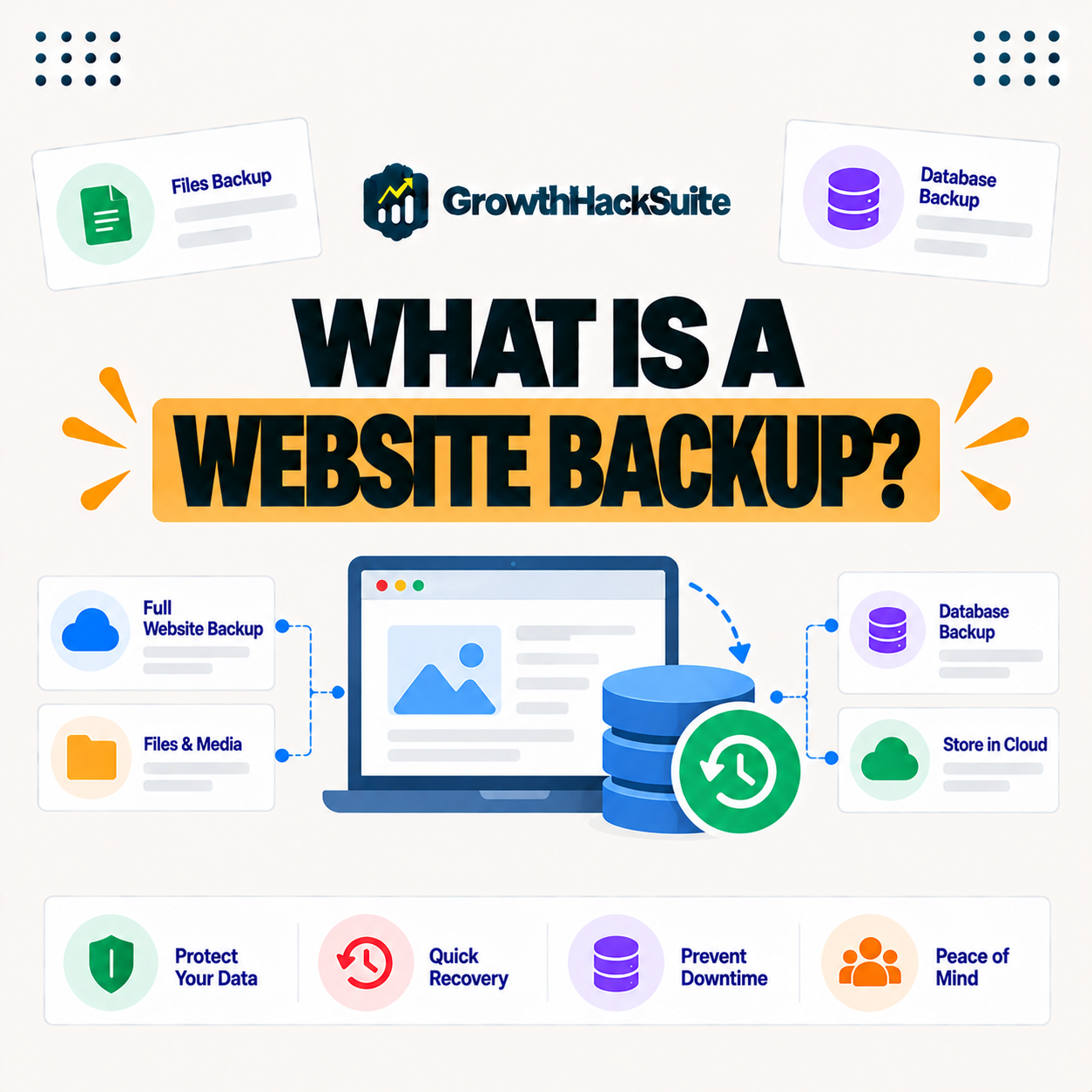
A website backup is a saved copy of your site’s files and database that you can restore if something goes wrong, so it captures the content, settings, and code needed to bring your website back to a previous working state. It is your safety net when trouble hits.
“A backup is a copy of computer data stored elsewhere to restore.”
— Wikipedia, Backup
For a website, that stored copy is everything: the files and database together let you rebuild the whole site exactly as it was.
What Does a Backup Include?
A complete website backup includes your files, such as themes, plugins, and media, along with the database that holds your content and settings, so restoring it recreates the entire site rather than just part of it. Both halves are needed for a full recovery.
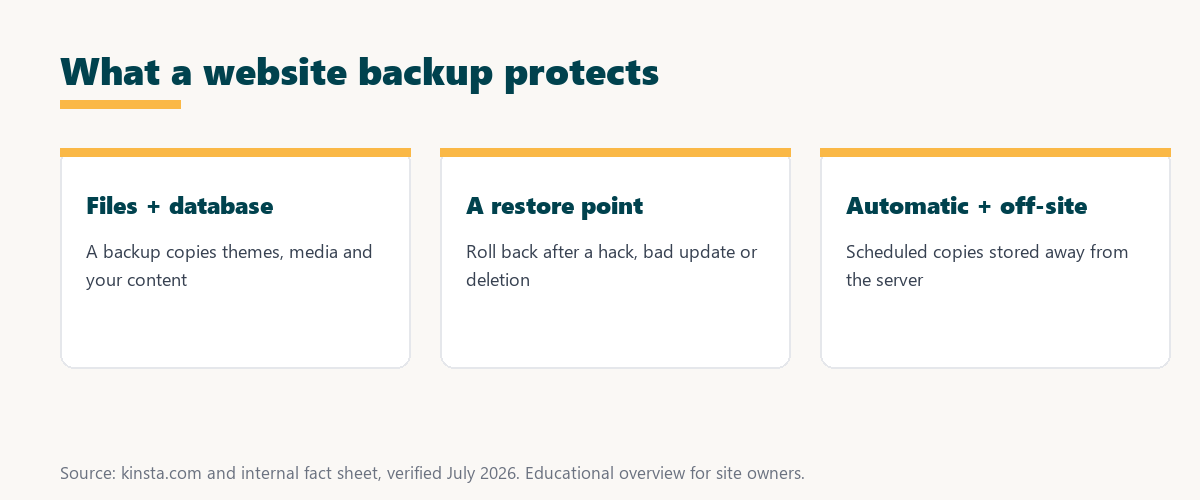
The key point is completeness: a backup of only files or only the database cannot fully restore a site, so a good backup captures both.
Why Do You Need Website Backups?
You need website backups because sites can be broken by hacks, failed updates, server issues, or accidental deletion, so a recent backup lets you recover quickly instead of losing content, sales, or the site entirely. Backups turn a disaster into a quick restore.
The honest point is that trouble is a matter of when, not if, and a recent backup is the difference between a minor setback and a lost site.
Types of Website Backups
Types of website backups include full backups that copy everything, incremental backups that save only changes, automatic scheduled backups, and manual on-demand backups, so different types balance completeness, frequency, and storage. Most sites use a mix of these.
Four backup types cover how most sites protect their data:
- Full backups: A complete copy of all files and the database is saved, so a single restore rebuilds the entire site from one point in time.
- Incremental backups: Only what changed since the last backup is saved, so storage stays small and frequent backups become practical.
- Automatic backups: A schedule runs backups without anyone remembering, so a recent restore point always exists by default.
- Manual backups: An on-demand copy is taken before a risky change, so a fresh restore point exists exactly when it is needed most.
Together these types let a site stay protected efficiently: automatic and incremental backups handle routine safety, while manual backups guard risky moments.
Source: general overview cross-checked with public backup documentation, verified August 2026.
Reading down the table, full and automatic backups give reliable restore points, while incremental and manual backups add frequency and control around them.
How Often Should You Back Up?
How often you should back up depends on how frequently your content changes, so a busy store or blog benefits from daily or even hourly backups, while a rarely updated site can back up less often, with automatic daily backups a sensible default. Match frequency to how much you would lose.
The practical rule is to ask how much work a lost day would cost: the more your site changes, the more often it should be backed up.
Why Automatic Backups Matter
Automatic backups matter because relying on manual backups means they are often forgotten, so scheduled automatic backups ensure a recent restore point always exists without depending on you remembering to create one. A backup you forget to make cannot save you.
“The first five seconds of page-load time have the highest impact on conversion rates.”
— HubSpot, page load time and conversion rates
Protecting the site protects those visitors too: an outage or lost data ruins the experience instantly, and automatic backups get a broken site back online fast, before too many visitors are turned away.
Where Should Backups Be Stored?
Backups should be stored separately from your live site, ideally off-site or in the cloud, so that if your server fails or is compromised, your backups remain safe and available to restore from. A backup on the same server can be lost with it.
The takeaway is separation: a backup only protects you if it survives whatever happens to the live site, which means storing it somewhere else.
How to Choose Backup Protection
Choose backup protection by favoring automatic daily backups, easy one-click restore, off-site storage, and options for more frequent backups on busy sites, so recovery is fast and your restore points are safe and recent. The best backup is one you can actually restore quickly.
Source: general guidance based on how often content changes, verified August 2026. Adjust to your own risk.
Reading the table together, the busier and more transactional a site, the more often it should be backed up, with a store needing far more frequent copies than a static brochure page.
How Kinsta Handles Website Backups
Kinsta handles backups with automatic daily backups and one-click restore, plus options for hourly backups and external backups to your own cloud storage, so every Kinsta site has recent, separately stored restore points. The routine protection is built in, with more frequent options available.
Get automatic backups handled on Kinsta’s Google Cloud platform
Start Free Migration →Daily backups and one-click restore, with free migration.
Protecting Your Site With Reliable Backups
You protect your site with reliable backups by using automatic daily backups plus more frequent ones for busy sites, so with a host like Kinsta that backs up and stores copies for you, recovery from any problem is quick. Reliable backups turn incidents into brief interruptions.
The takeaway is that reliable backups are less about the backup itself and more about the fast, confident restore they make possible. For anyone weighing a long hosting commitment, our note on SaaS vendor lock-in is worth a read.
Common Backup Mistakes to Avoid
Common backup mistakes include relying on manual backups, storing them on the same server as the site, never testing a restore, and backing up too infrequently, so automatic, off-site, tested backups avoid these pitfalls. Most backup failures come from a few avoidable habits.
“A tool is only worth its premium when the hours or revenue it protects exceed the invoice.”
— Growth Hack Suite, on tool ROI
Applied to backups, the value is obvious: reliable backups cost little, yet the content, sales and trust they protect can be worth far more than any hosting fee.
The 3-2-1 Backup Rule
The 3-2-1 backup rule advises keeping three copies of your data, on two different types of storage, with one copy off-site, so a single failure never wipes out every copy. It is a simple, widely used standard for dependable backups.
The honest summary is that the 3-2-1 rule captures the whole point of backups: redundancy and separation, so no one problem can take out all your restore points.
Try Kinsta risk-free with daily backups and one-click restore
Try Kinsta Risk-Free →Automatic backups, external storage options and free migration, with a 30-day money-back guarantee.
Website Backups: Frequently Asked Questions
The 12 most-asked questions about website backups.
What is a website backup in simple terms?
A website backup is a saved copy of your site’s files and database that you can restore if something goes wrong, capturing the content and settings to bring the site back.
What does a website backup include?
A complete backup includes your files, such as themes, plugins, and media, and the database with your content and settings, so restoring it recreates the entire site.
Why do I need website backups?
You need backups because sites can break from hacks, failed updates, or accidental deletion, so a recent backup lets you recover quickly instead of losing content or the site.
How often should I back up my website?
How often depends on how frequently your content changes, so a busy store or blog benefits from daily or hourly backups, with automatic daily backups a sensible default.
What are the types of website backups?
Types include full backups that copy everything, incremental backups that save only changes, automatic scheduled backups, and manual on-demand backups, balancing completeness and frequency.
Why do automatic backups matter?
Automatic backups matter because manual ones are often forgotten, so scheduled backups ensure a recent restore point always exists without depending on you to create one.
Where should I store my backups?
Backups should be stored separately from your live site, ideally off-site or in the cloud, so if your server fails or is hacked, your backups stay safe and restorable.
Can I restore my site from a backup?
Yes, a backup lets you restore your site to a previous state, and good hosts offer one-click restore, so recovering from a problem is fast and straightforward.
How many backups should I keep?
You should keep several recent restore points, so a rolling set of daily backups over a couple of weeks lets you go back before a problem occurred if you notice it late.
Do I need backups if my host has them?
Host backups are valuable, but keeping an independent off-site copy adds safety, so combining automatic host backups with an occasional external backup gives the strongest protection.
Should I test my backups?
Yes, you should occasionally test that a backup restores correctly, because an untested backup may be incomplete, so verifying restores ensures your safety net actually works.
How does Kinsta handle backups?
Kinsta provides automatic daily backups and one-click restore, plus options for hourly and external backups to your own cloud storage, so every site has recent, separately stored restore points.
About this guide
Written by the Growth Hack Suite editorial team, drawing on hands-on experience running WordPress sites. Details were cross-checked against public backup documentation. This page carries affiliate links to Kinsta. The position is stated plainly: a website backup is a restorable copy of your files and database, and automatic, off-site backups are essential insurance for any site. Kinsta provides automatic daily backups and one-click restore, with hourly and external backups available as options.