Table of Contents
WP-CLI is the official command-line interface for WordPress that lets you manage a site from the terminal instead of the dashboard. It can install and update plugins, manage users and content, run database operations, and automate tasks, so developers use it to work faster, script repetitive jobs, and manage sites at scale. This guide explains what it does, common commands, and why developers rely on it.
Last updated: August 2026. Written by the Growth Hack Suite editorial team, with details cross-checked against provider documentation. This page carries affiliate links to Kinsta.
See how Kinsta supports the command-line tool on Google Cloud
Try Kinsta →SSH access with the command-line tool ready to use, and a 30-day money-back guarantee.
What Is WP-CLI?
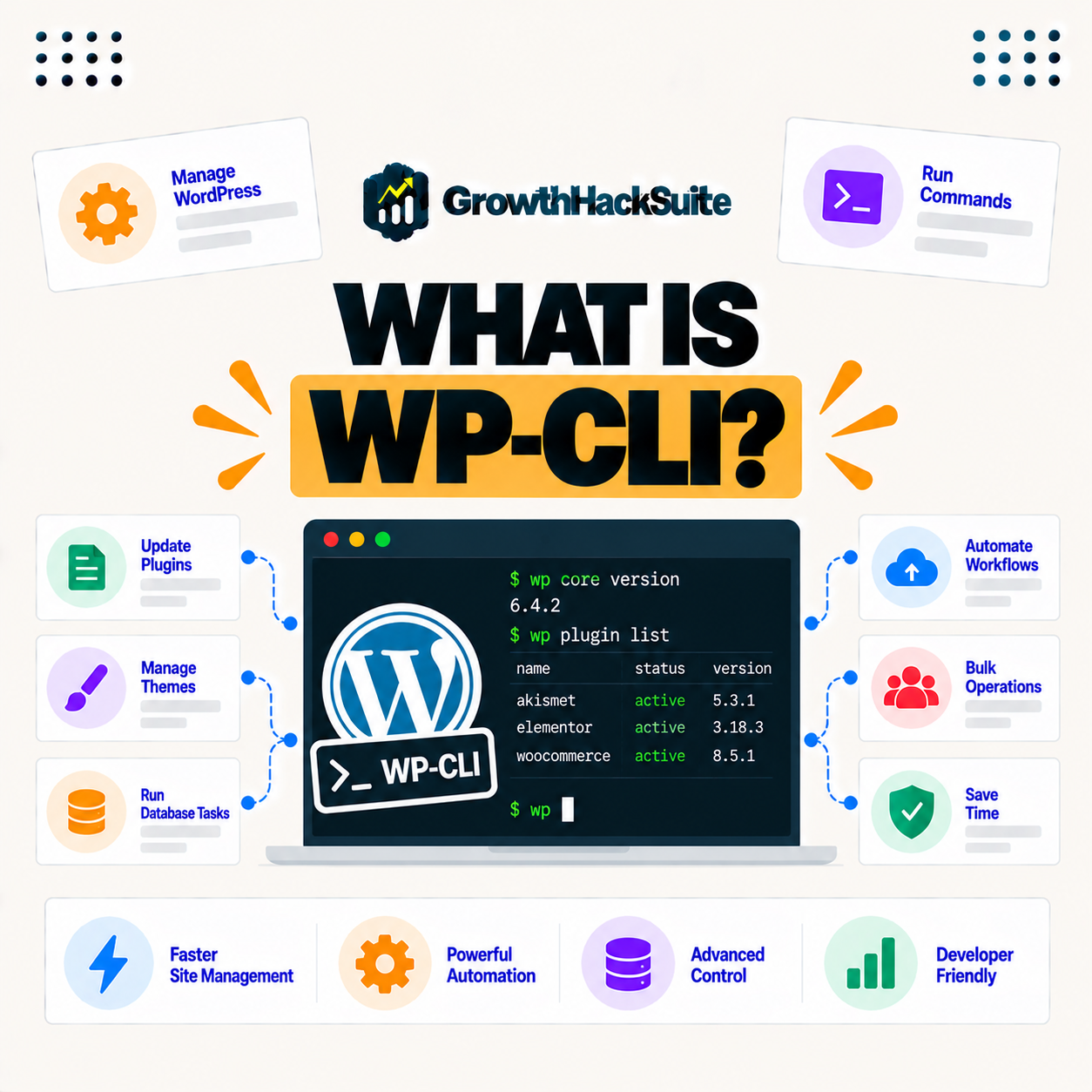
WP-CLI is the official command-line interface for WordPress that lets you manage a site from the terminal instead of the browser dashboard, so you can perform tasks like updates, content management, and configuration with typed commands. It is built for developers who want speed and control over point-and-click screens.
“WordPress is a web content management system.”
— Wikipedia, WordPress
It is the developer’s way into that content management system: the same site, driven by commands rather than clicks.
How Does the Command-Line Interface Work?
WP-CLI works by running commands against your WordPress installation over the command line, usually through SSH on a server, so each command performs a task like updating a plugin or querying the database without opening the admin interface. It talks to WordPress directly, the same core the dashboard uses.
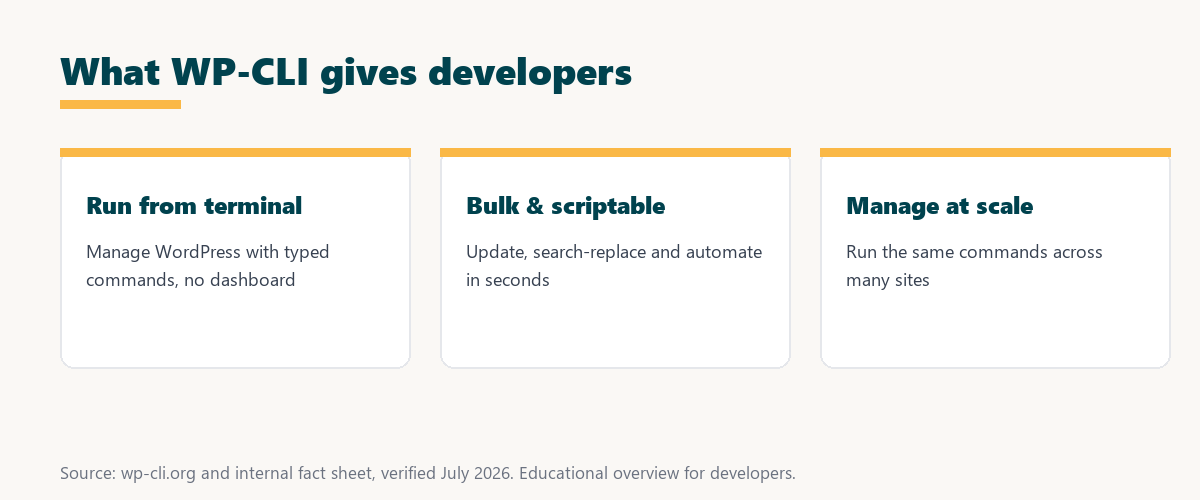
The key point is that it is not a separate system: it drives the very same WordPress the dashboard does, just through typed commands.
What Can the Command-Line Tool Do?
WP-CLI can install, update, and manage plugins and themes, create and edit users and content, run database operations, search and replace, clear caches, and more, so it covers most site-management tasks from the command line. Few routine jobs fall outside its reach.
Five capabilities cover most of what developers reach for it to do:
- Plugin and theme management: Installing, activating and updating extensions runs in one command, so maintenance that clicks through many screens becomes a single line.
- User and content control: Users, posts and pages can be created, edited or removed in bulk, so large content changes happen quickly and consistently.
- Database operations: Queries, exports and search-and-replace run straight against the database, so data cleanups and URL changes finish in seconds.
- Cache and core updates: Clearing caches and updating WordPress core happen on demand, so a site stays current without waiting on the admin screens.
- Automation hooks: Any command can go into a script, so repeatable jobs run unattended as part of a maintenance or deployment routine.
Taken together, these capabilities explain why it handles nearly every routine site task a developer faces.
Command Line vs the WordPress Dashboard
WP-CLI performs the same management tasks as the dashboard but through typed commands, so it is faster for bulk actions and scriptable for automation, while the dashboard is more visual and suited to occasional, manual changes. The two are complementary rather than competing.
Source: general overview cross-checked with public documentation, verified August 2026.
Reading down the table, the command line wins on speed and automation, while the dashboard stays friendlier for occasional, visual edits, so most developers use both.
Why the Command Line Is Faster for Developers
It is faster for developers because commands run instantly and can be scripted, so bulk updates, repetitive tasks, and operations across many sites take a fraction of the time they would through the browser interface. What takes many clicks in the admin becomes one typed line.
The practical result is real time saved: a job that means dozens of dashboard clicks collapses into a single command or a short script.
Why Developers Use This Tool
Developers use WP-CLI to save time on updates and maintenance, automate repetitive jobs, manage multiple sites efficiently, and troubleshoot, so it is a core tool for anyone working with WordPress beyond casual editing. It becomes indispensable once a workflow involves more than one site.
“The first five seconds of page-load time have the highest impact on conversion rates.”
— HubSpot, page load time and conversion rates
Efficiency compounds here: it lets developers keep sites updated and fast with less effort, protecting the speed that those early seconds, and conversions, depend on.
Common WP-CLI Commands
Common WP-CLI commands handle plugin and theme updates, user creation, database search and replace, cache clearing, and core updates, so learning a handful of commands covers most routine site management. A small vocabulary goes a long way.
The honest point is that a developer rarely needs many commands day to day: the few above cover most maintenance work.
How Do You Use This Tool?
You use WP-CLI by connecting to your server over SSH and running wp commands, so hosting that provides SSH access lets you use it directly, while local tools also support it for development. Once connected, each task is a short command typed at the prompt.
Source: general overview cross-checked with public WP-CLI documentation, verified August 2026.
Reading the table together, these four tasks, plugin updates, user management, search-and-replace, and cache clearing, cover the bulk of everyday use.
How Kinsta Supports Command-Line Access
Kinsta supports WP-CLI through SSH access on its plans, so developers can run commands to manage plugins, content, and the database directly, and DevKinsta enables similar command-line work locally. The tool is ready to use on the server without extra setup.
Get command-line tools handled on Kinsta’s Google Cloud platform
Start Free Migration →SSH with the tool ready, and free migration.
Speeding Up WordPress Management With Commands
You speed up WordPress management with WP-CLI by scripting updates and maintenance and running bulk operations, so on a host like Kinsta with SSH access, you handle routine tasks far faster than through the dashboard. Time spent clicking becomes time saved for real work.
“A tool is only worth its premium when the hours or revenue it protects exceed the invoice.”
— Growth Hack Suite, on tool ROI
Applied here, the math is easy: the tool is free, and the hours it saves on maintenance and bulk work far outweigh the small effort of learning it. For anyone weighing a long hosting commitment, our note on SaaS vendor lock-in is worth a read.
Automation and Deployment With Commands
WP-CLI fits automation and deployment because its commands can run in scripts and pipelines, so you can automate updates, migrations, and setup steps as part of a repeatable deployment workflow. It turns manual routines into code that runs the same way every time.
The takeaway is that it is the automation glue for WordPress: whatever a developer can type once, a script can repeat reliably.
Getting Started With the Command Line
Getting started with WP-CLI means ensuring it is available on your host, connecting over SSH, and trying a simple command like listing plugins, so the first steps are small and low-risk. Taking a backup before bulk operations is a sensible habit as you learn.
The honest summary is that it is approachable: start with one safe command, build confidence, and add scripts once the basics feel routine.
Try Kinsta risk-free with SSH and the tool ready
Try Kinsta Risk-Free →SSH, the tool and free migration, with a 30-day money-back guarantee.
WP-CLI: Frequently Asked Questions
The 12 most-asked questions about WP-CLI.
What is WP-CLI in simple terms?
WP-CLI is the official command-line tool for WordPress that lets you manage a site from the terminal instead of the dashboard, using typed commands for tasks like updates and content.
How does WP-CLI work?
WP-CLI works by running commands against your WordPress installation over the command line, usually through SSH, so each command performs a task without opening the admin interface.
What can WP-CLI do?
WP-CLI can install and update plugins and themes, manage users and content, run database operations, search and replace, and clear caches, covering most site management from the command line.
How is WP-CLI different from the dashboard?
WP-CLI performs the same tasks as the dashboard but through typed commands, so it is faster for bulk actions and scriptable, while the dashboard is more visual for occasional changes.
Why do developers use WP-CLI?
Developers use WP-CLI to save time on updates and maintenance, automate repetitive jobs, and manage multiple sites efficiently, making it a core tool for serious WordPress work.
What are common WP-CLI commands?
Common commands handle plugin and theme updates, user creation, database search and replace, cache clearing, and core updates, covering most routine site management.
Do I need SSH to use WP-CLI?
You typically use WP-CLI over SSH on a server, so hosting with SSH access lets you run it directly, while local development tools also support WP-CLI.
Is WP-CLI hard to learn?
WP-CLI has a small learning curve around the command line, but learning a handful of common commands covers most tasks, and its documentation makes it approachable.
Is WP-CLI safe to use?
WP-CLI is safe when used carefully, though because commands run instantly, taking a backup before bulk operations like search and replace is wise to avoid mistakes.
Can WP-CLI manage multiple sites?
Yes, WP-CLI is efficient for managing multiple sites, because you can run the same commands or scripts across installations, saving significant time versus the dashboard.
Can I automate tasks with WP-CLI?
Yes, WP-CLI commands can run in scripts and pipelines, so you can automate updates, migrations, and setup as part of a repeatable deployment workflow.
Does Kinsta support WP-CLI?
Yes, Kinsta supports WP-CLI through SSH access, so developers can run commands to manage plugins, content, and the database, with DevKinsta enabling similar work locally.
About this guide
Written by the Growth Hack Suite editorial team, drawing on hands-on experience running WordPress sites. Details were cross-checked against public WP-CLI documentation. This page carries affiliate links to Kinsta. The position is stated plainly: WP-CLI is the official command-line interface for WordPress that manages plugins, content, the database and more through typed commands, saving developers time and enabling automation. Kinsta supports WP-CLI through SSH access, with DevKinsta for local command-line work.