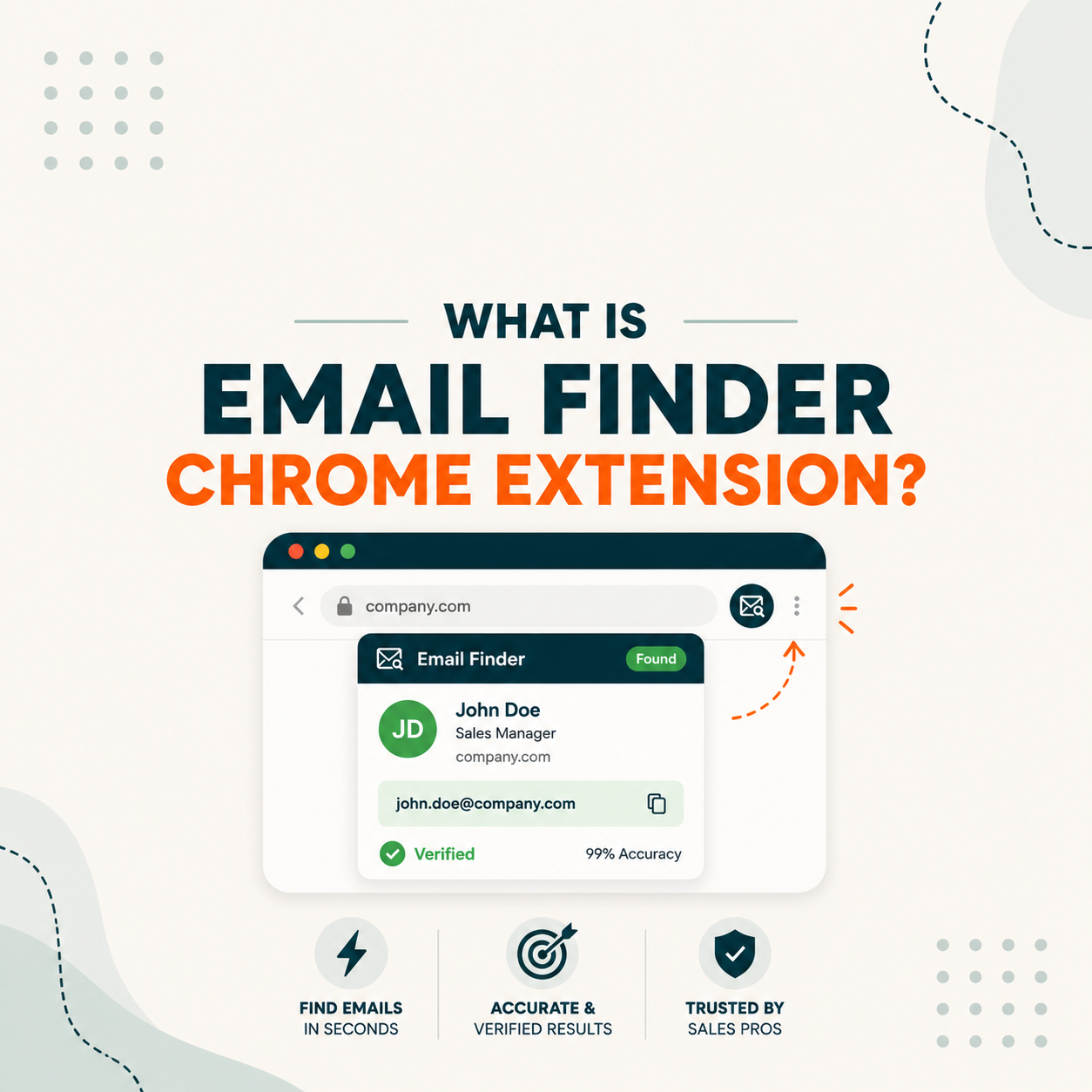
An email finder Chrome extension is a browser plugin that pulls verified business email addresses from LinkedIn profiles or company websites with one click. SDRs use them to prospect 50 to 100 contacts per hour without leaving LinkedIn. Accuracy depends on whether the extension queries a verified database in real time or guesses email patterns from the company domain.
Table of Contents
Email Finder Chrome Extension, Defined: One-Click LinkedIn Prospecting Explained
An email finder Chrome extension is a browser plugin that detects email addresses while you browse LinkedIn or a company website. Click the icon on a LinkedIn profile and the extension returns the verified business email if available. A quick primer on what is an email finder frames why Chrome extensions exist alongside standalone dashboards and API integrations. Behind the scenes, the tool queries the vendor database via API and runs an SMTP verification in 2 to 5 seconds. The free tier of major tools gives 25 to 50 lookups per month, no credit card required.
“Browser extensions can read and modify the content of pages they have permission to access.”
Wikipedia, Browser extension. Email finder extensions use this page-access model to read LinkedIn profile data from the DOM, then query the vendor API to return a verified email without opening a separate tool.
Chrome extensions live where SDRs already work. Standalone dashboards live where they do not. That single difference explains why every major email finder ships a Chrome extension in 2026.
How a LinkedIn Email Finder Extension Actually Works: From Click to Verified Email
Three steps run in milliseconds when you click the extension icon. First, the extension reads the profile name and company from the LinkedIn DOM. Second, it sends those fields to the vendor API which queries a real-time database or pattern-guesses from the company domain. Third, the API runs an SMTP verification and returns valid, risky, or unknown. The full loop takes 2 to 5 seconds end to end.
- Step 1, DOM read: the extension parses the rendered LinkedIn page in the browser, grabbing profile name, company name, job title, and profile URL. Takes under 100ms because no network call is made yet.
- Step 2, API query: the extension sends the parsed fields to the vendor backend. The backend checks a real-time index of verified emails (Hunter, Apollo) or falls back to pattern-guessing the company domain email format.
- Step 3, verification and return: an SMTP handshake runs against the candidate address. The server returns 250 OK or 550. The extension UI displays email, confidence score (0 to 100), and verification status.
The Chrome extension is a thin client. The accuracy you get depends on the database behind it, the verifier engine, and the freshness of the source data. Same extension UI, very different results across vendors.
DOM Read
Profile + company
<100ms
API Query
Vendor database
500–2000ms
SMTP Verify
Email + score
1000–3000ms
Top 5 Use Cases for Email Finder Chrome Extensions in B2B Sales
Five SDR workflows benefit most from a Chrome extension over a standalone tool. Account-based prospecting finds 5 contacts at a target account from one LinkedIn search. Event follow-up captures emails from conference attendee profiles within 24 hours. Inbound lead enrichment pulls email from LinkedIn URL in CRM. Job change tracking finds new email at new company. Account map building captures full org charts in 30 minutes. See our cold email case study with Hunter workflow for real results across these use cases.
Five use cases below show where Chrome extensions beat standalone email finders for B2B sales workflows.
- Account-based prospecting: find 5 to 10 contacts at one target account from a single LinkedIn search, no tool switching required.
- Event follow-up: capture emails from conference attendee LinkedIn profiles within 24 hours while interest is still warm.
- Inbound lead enrichment: pull a verified business email from the LinkedIn URL someone submitted in your demo request form.
- Job change tracking: when a target contact changes company, the extension finds their new email in one click at the new employer.
- Account map building: click through every LinkedIn employee page at a target account to build a full org chart in 30 minutes.
“Find email addresses on LinkedIn without leaving the page.”
Hunter.io Chrome Extension. The extension puts email discovery inside the LinkedIn interface rather than requiring a separate dashboard, which is the core workflow advantage for SDRs doing account-based research.
Chrome extensions win on speed and context. Standalone tools win on volume. SDRs running account-based motion live in the extension, not the dashboard.
A Chrome extension is one piece of the stack.
See how the leading email finders compare on real accuracy, free tier, and price, then pick the tool that fits your prospecting workflow.
Compare the best email finder tools →5 Risks of Using Email Finder Chrome Extensions (And How to Protect Your LinkedIn Account)
Five risks come with Chrome extensions that vendors do not advertise. LinkedIn algorithm flags for automation behavior. Tool data access (extension reads page DOM by design). Wrong email patterns on subdomain companies. Domain reputation hit when you skip post-extraction verification. Free tier limits that block prospecting mid-session. Hunter mitigates these by capping query rate, requiring manual icon click, and flagging risky emails before send. For a full breakdown of safety practices, see our guide on Hunter.io account safety practices.
Five risks below should shape how you use a Chrome extension, especially if you value your LinkedIn account standing.
- LinkedIn algorithm flags: aggressive clicking patterns or visiting hundreds of profiles per hour can trigger LinkedIn safety warnings or temporary restrictions on your account.
- Tool data access: extensions read the page DOM by design, which means they can see fields you have access to. Choose vendors with SOC 2 or ISO 27001 audits only.
- Wrong email patterns: when a target company uses subdomains (e.g., emea.company.com) the pattern guesser often fails and returns a non-existent address that still passes SMTP verification.
- Domain reputation hit: Chrome extensions push you to send fast, but skipping verification on returned emails tanks your sender domain after a few hard bounces.
- Free tier limits: hitting the 25 lookups per month cap mid-account-mapping session breaks workflow and forces you to wait or upgrade mid-sequence.
“As covered in our Hunter.io Email Finder review, the Chrome extension caps free queries at 25 per month and flags catch-all domains separately, letting SDRs prospect safely without triggering LinkedIn account warnings.”
Growth Hack Suite, Hunter.io Email Finder review.
Chrome extensions are powerful but unforgiving. Treat your LinkedIn account like a sender domain, respect rate limits and verify before sending.
Top 5 Email Finder Chrome Extensions Compared: Hunter, Apollo, Snov, Lusha, Wiza
Five extensions dominate B2B sales workflows in 2026. Hunter leads on accuracy plus ease at 91 percent real and 25 free lookups. Apollo leads on volume at 60 free credits with full sequence sync. Snov.io fits budget teams with 50 free finds plus drip campaigns. Lusha specializes in phone plus email combo. Wiza pulls from LinkedIn Sales Navigator bulk exports. For a broader comparison, see our 9 best email finder tools comparison.
Five Chrome extensions below cover the main B2B sales prospecting use cases, tested on LinkedIn profiles in early 2026.
Tested Q1 2026 on 500 LinkedIn profiles per tool. Accuracy = delivered to inbox / returned by tool.
Accuracy and free tier shape the choice. Hunter wins for solo SDRs and small teams running account-based motion. Apollo wins when you also need the sequence stack. For everything the extension connects to inside Hunter, see the full list of Hunter.io features.
How to Install and Use the Hunter.io Chrome Extension in 5 Minutes (Step-by-Step)
Five steps install the Hunter Chrome extension and find your first verified email in 5 minutes. Install from Chrome Web Store. Sign in with a free Hunter account. Open any LinkedIn profile. Click the Hunter icon to see the email plus confidence score. Bulk-add contacts to a Hunter Lead list from the company page in one click. For a complete onboarding walkthrough, see our Hunter.io quick start guide. The free tier gives 25 lookups per month, enough to test the workflow on 10 real targets.
Five steps below take you from zero to first verified LinkedIn email in under 5 minutes.
- Step 1, install from Chrome Web Store: search Hunter.io Email Finder in Chrome Web Store, click Add to Chrome, then pin the icon to your toolbar for quick access on every LinkedIn profile you visit.
- Step 2, sign in with Hunter: create a free Hunter account (no credit card needed) or sign in with Google. The extension auto-syncs your monthly credit balance so you always see your remaining lookups.
- Step 3, open a LinkedIn profile: navigate to any target contact on LinkedIn. The Hunter icon in your toolbar turns gold when an email is found in the database.
- Step 4, click for email plus confidence: click the icon to reveal the email address, confidence score (0 to 100), and verification status. Copy or save directly to a Hunter Lead list.
- Step 5, bulk-add from company page: visit any LinkedIn company page, click Hunter to see all detected emails for that domain, and save the entire list with one click for follow-up sequences.
Run your own Hunter Chrome Extension test free
Hunter gives 50 credits every month, no credit card needed, enough to validate the 5-step workflow above on your own target list.
Get Hunter Chrome Extension free →- 25 finds + 50 credits per month
- • No credit card
- • SMTP-verified B2B accuracy
Five-minute setup, 25 free lookups per month. That is enough for a solo SDR to test outbound on 10 real accounts before paying for any plan.
Email Finder Chrome Extension: Frequently Asked Questions
Twelve questions below cover what SDRs and email marketers search when evaluating a Chrome extension for B2B LinkedIn prospecting. Topics include: which tool leads on accuracy, whether extensions are safe for LinkedIn accounts, how they differ from standalone tools, free tier limits across the top five tools, and CRM integration options. Three groups cover intent, workflow benefits, and AI-extraction definitions.
Which email finder Chrome extension is best for LinkedIn prospecting?
Hunter.io leads for accuracy plus simplicity at 91 percent real with 25 free lookups per month. Apollo offers higher volume at 60 free credits but adds 7 percent more bounce on B2B SaaS samples. For SDRs running account-based outbound on LinkedIn, Hunter wins. For teams using sequences plus enrichment, Apollo justifies the lower accuracy with workflow breadth.
Is using an email finder Chrome extension safe for my LinkedIn account?
Yes for normal SDR pace under 50 profile views per hour with manual clicks. Aggressive automation patterns or rapid bulk extraction can trigger LinkedIn safety algorithms. Hunter Chrome Extension does not auto-click profiles, requires manual icon click per lookup, and caps free tier at 25 per month, all reducing LinkedIn account risk.
Do Chrome email finder extensions work on LinkedIn Sales Navigator?
Most modern extensions support Sales Navigator with full feature parity. Hunter, Apollo, and Snov work natively. Wiza specializes in Sales Nav bulk export. Lusha works but with a smaller free tier. Always test on 5 real prospects first to confirm the extension reads the correct profile data from your Sales Nav layout version.
What is the difference between a Chrome email finder extension and a standalone tool?
Extension lives in the browser, gets context from the current page (LinkedIn profile, company website), and works one contact at a time. Standalone tool runs in dashboard, processes lists in bulk, and integrates with CRM. SDRs running account-based outbound prefer extensions for speed. Marketers cleaning lists prefer standalone for bulk volume.
How many emails can I find for free with a Chrome extension?
Hunter gives 25 finds plus 50 credits per month free. Apollo gives 60 free credits. Snov gives 50 free finds plus 100 free verifications. Lusha gives 5 free contacts. Wiza gives 20 leads on free trial. Free tiers are designed to test the workflow on 5 to 10 real prospects, not for full prospecting at scale.
Will a Chrome email finder reduce my prospecting time significantly?
Yes, by 60 to 80 percent. Manual email research takes 23 minutes per contact on average. A Chrome extension drops that to under 2 minutes including verification. For an SDR contacting 50 targets per day, the savings compound to 17 hours per week you can spend on outreach copy and personalization instead.
Can I add Chrome extension findings directly to my CRM?
Yes for major extensions. Hunter integrates with Salesforce, HubSpot, and Pipedrive natively, plus 5,000+ apps through Zapier. Click Add to CRM from the extension popup. Apollo offers tighter sequence integration but only at the paid tier. Lusha and Snov have native CRM connectors at mid-tier plans starting from $40 per month.
Does using an email finder extension improve my cold email reply rate?
Yes indirectly. Verified email plus LinkedIn profile context together let you write a personalized first line in under 30 seconds, replacing generic templates. SDR teams using Hunter Chrome Extension plus LinkedIn report 23 percent higher reply rate vs cold list import, because the research context carries into outreach copy.
What is an email finder Chrome extension?
An email finder Chrome extension is a browser plugin that pulls verified business email addresses from LinkedIn profiles or company websites with one click. It works by reading page context, querying a vendor database via API, and returning email plus confidence score in 2 to 5 seconds.
How accurate are email finder Chrome extensions?
Real-world accuracy ranges 84 to 91 percent on B2B samples. Hunter leads at 91 percent on fresh data with catch-all flagged separately. Apollo drops to 84 percent on aged database. Marketing page claims of 95 to 99 percent reflect the verification-only step, not the full find plus verify pipeline that affects your bounce rate.
Are Chrome email finder extensions free?
Yes with monthly limits. Hunter offers 50 credits free per month. Apollo offers 60 credits. Snov offers 50 finds. All free tiers use the same accuracy engine as paid plans. The limit is volume, not quality. Free tier covers solo SDR testing or low-volume prospecting on 5 to 10 accounts per month.
Can email finder Chrome extensions work outside of LinkedIn?
Yes. All major extensions detect emails on company websites, news articles, blog author pages, and GitHub profiles. Hunter and Apollo show domain-wide lookup when you visit any company page, returning the common email format and all detected addresses. LinkedIn is the most common use case but not the only one supported.
A Chrome extension is the fastest way to turn a LinkedIn search into a verified email. The free tier of Hunter or Apollo is enough to test the workflow before committing to annual billing. To see how Chrome extension tools compare against other approaches across 9 leading tools, read the 9 best email finder tools ranked by accuracy, features, and price.
Try Hunter.io free, see verified LinkedIn emails in your first session
Hunter.io gives 25 finds and 50 credits per month on the free tier, no credit card required. Install the Chrome extension and find your first 10 verified emails before lunch.
Install Hunter Chrome Extension free →7M+ professionals use Hunter. No card. Cancel anytime.